

Create the needed variables with their respective values. On this see Fig. „Cap nut drawing“ and Fig. „Cap nut table“.
![[Note]](https://webapi.partcommunity.com/service/help/latest/pages/cn/installation_ecatalogsolutions/doc/images/note.png) | Note |
|---|---|
The variables can automatically be created in the course of a CSV import as well. See Section 2.5, “Import table data via CSV ”. | |
Description: As the variable name is limited to 10 characters, you can add a descriptive text to the variable in the Description field.
Storage location [Save location]: Select In geometry and table.
With this selection, variables are saved both in the 3db file and in the tab/tac file.
Detailed information on this can be found under Section 7.8.11, “ Storage location: Only in geometry | Only in table | In geometry and table ” in eCATALOG 3Dfindit.
Type identification [Identification type]: Leave the preselection Geometric feature [Geometry attribute].
Status: Leave the preselection variable with fixed values [Variable with fixed values].
Formula [Equation]: Enter a variable value (e.g. the value 4 for the variable DG).
Once all the details for the variable have been entered, confirm with the button.
-> The variable is taken into the list above.
-> The variable is immediately displayed in the table.
Make changes: Select the desired variable, make changes and confirm with .

The following illustration shows the variable manager [Variable Manager] with the required variables and the table [Table] with 1 row.
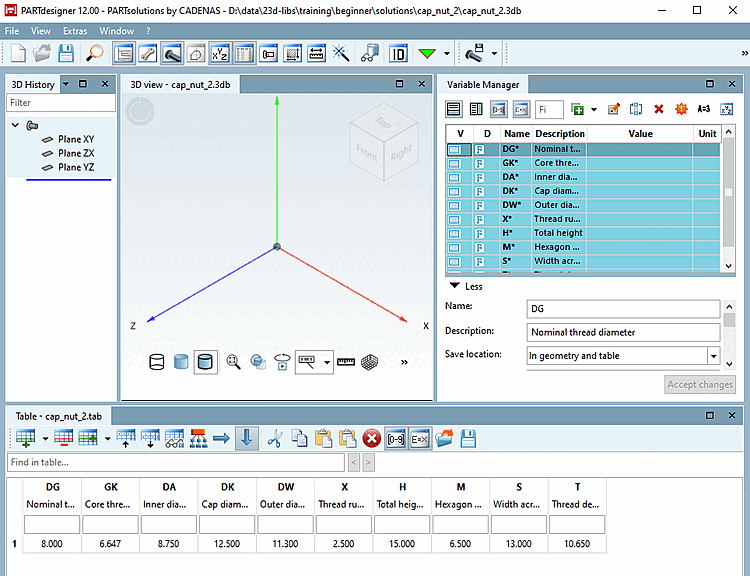
Variables, marked for the use in geometry and table, but still not used in geometry can be identified by an asterisk.
| Note |
|---|---|
You can find the most important information on operation under Section 7.8.1, “ Variable manager - The most important information at a glance” in eCATALOG 3Dfindit. Details on the individual parameters can be found under Section 7.8.10, “ Variable manager - The individual parameters ” in eCATALOG 3Dfindit. | |