
1.14.1.2. PARTsolutions
Admin 1.14.1.2.2. Combined viewer
for Geo, Full-text and LinkDB index |  |
| Prev | Next |
See the individual information at Section 1.14.1.1.2, “ Full-text search ”. (full text search below)
In the Manage index dialog box, you have a complete overview of how many projects are indexed in the respective index type ( geo index [Geo index] (divided into geo, topo [Topo] and partial [Partial] [only with correspondingly prepared catalogs]| full text index [Full-text index] | LinkDB index [after switching to at the top left]).
Here you can generate the index for individual folders, projects and even rows (similar to Manage fingerprints in V11).

With V12, there is a new index that considerably expands the search options and is activated under $CADENAS_SETUP/partsol.cfg is activated in the following key.
[INDEX:LUCENE]
JavaLucene=1
Even if a complete index from V11 is available, the full text index [Full-text index] for V12 must be completely regenerated. The LinkDB index must also be recreated as it also uses the new index type. The geoindex [Geo index] is immediately displayed correctly; however, it should also be regenerated as there are new algorithms that extend the search options.

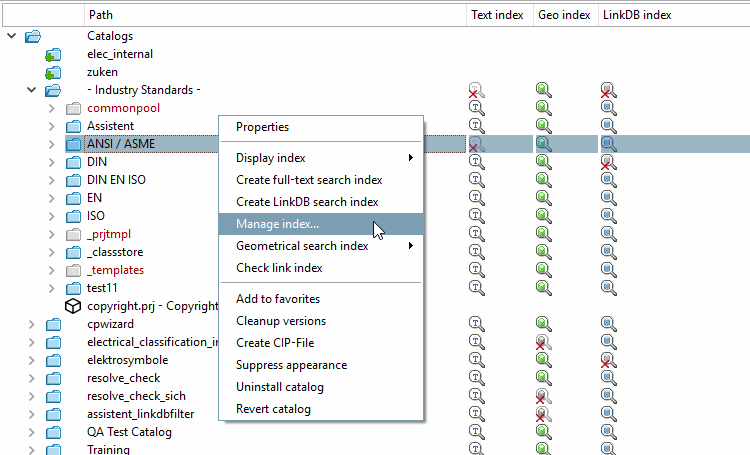
The figure shows the situation with the (missing) new index after freshly installed V12. Only for "ANSI / ASME", "commonpool" and "Assistent" catalog, the new index has already been created.
Select the category Index management [Index administration] in PARTadmin.
Select the catalog to be indexed.
Call up the Manage index [Manage index...]... command in the context menu of the catalog. command in the catalog context menu.
-> The IndexManager settings [IndexManager preferences] dialog box opens.
Determine which statistics are to be loaded and activate the desired checkboxes Full text [Full-text] and/or Geo.
Confirm with .
-> The Manage index dialog box opens.
For example, select the " Statistics [Statistic] " tab page.
![IndexManager settings [IndexManager preferences]](https://webapi.partcommunity.com/service/help/latest/pages/cn/installation_ecatalogsolutions/doc/resources/img/img_5086f877d1af4b4bb75e562acb3eecbf.png)
At catalog level, click the context menu command Add project to full text index generation [Add project to full-text index generation].
-> The Index generation tab page opens. The desired path is already entered under Project selection [Select project] and the Generate full-text index checkbox is already ticked. You could add further projects and directories with (which makes no sense in this case, as the catalog level is already selected).
Adding is also possible by drag&drop.
-> The progress is displayed under Index generation status [Status of index generation].
-> Once generation is complete, the page is automatically updated and the full-text index [Full-text] is displayed at 100%.
If you are working with ERP integration and the catalog to be indexed contains LinkDB projects, click on Add project to LinkDB index generation [Add project to LinkDB index generation.] and repeat the above procedure.

!["Generate full text index [Generate full-text index] " activated](https://webapi.partcommunity.com/service/help/latest/pages/cn/installation_ecatalogsolutions/doc/resources/img/img_a62e0cd644cb4054a6b79fc1a2a7b199.png)

![Full text [Full-text] 100%](https://webapi.partcommunity.com/service/help/latest/pages/cn/installation_ecatalogsolutions/doc/resources/img/img_7b1447fa2a254668be2fdd33c1e87001.png)

Further details can be found under Section 1.4.3.6.6.5, “ Manage index ” in ENTERPRISE 3Dfindit (Professional) - Administration.