

To simplify the process of classifying, both templates and plugins can be used.
Each method has their specific advantages. Templates are already finished, but not quite as versatile. Plugins can be adjusted with complex logic and matching user interface according to specific needs of customers.
Create classes and characteristics in templates. Then specifically apply them to projects or whole directories. This will considerably accelerate the process of classifying a complete catalog.
Templates cannot only contain single class systems, but several in parallel.
To design templates there are different options:
The use is based on two steps: First you create classes and attributes for a certain project as template and then in a second step you allocate them to any other projects.
Select a project and open the template editor by clicking on Manage templates
 to open the template editor [Template Editor]. This is where you select the classes and features, optionally across different classifications.
Select another project and click on
 Execute template.
-> The same-named dialog box is opened.
Select the desired template and confirm with .
The classes and attributes specified before are applied to the selected project.
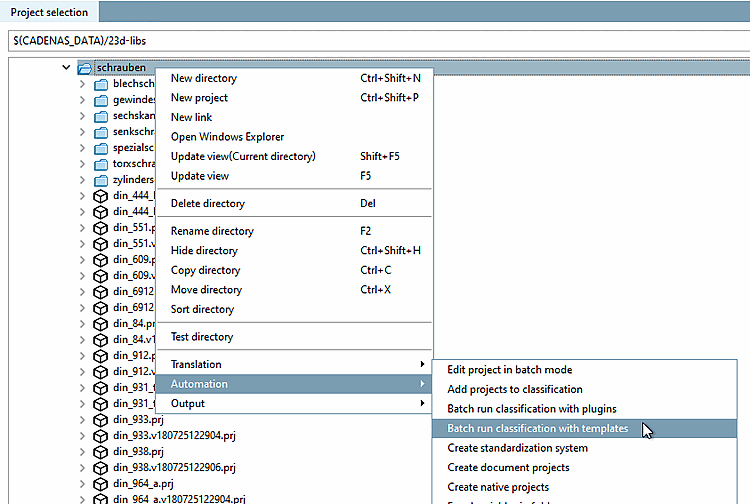
Alternatively, you can use a batch command at directory level with the context menu command Batch run classification with templates.
Details can be found on Section 5.12.9.1, “ Classification tab page: Manage and execute templates” in eCATALOG 3Dfindit.
Plugins can be used to check classifications for different errors. An exemplary use case could be the check for the actual presence of assigned variables, for example. (When subsequently editing projects and renaming variables (e.g. variable for order number) sometimes someone may forget to adjust the variable mapping of the classification.)
Initial situation: The variable "XY" has been assigned to a certain characteristic (attribute). However, the variable "XY" does not exist in the characteristic attribute table of the corresponding project.
Click on the Check classification with plugins button
 .
.-> The Select plugin dialog box opens.
Activate the "Check attribute variables" plugin and confirm with .
-> The QA check [QA-Check] is immediately executed automatically (especially for checking the attribute variables, not an extensive check as with Test project or Test projects in directory ).
-> The respective error is listed.
In addition, customized plugins (similar to templates) can be used to set classes and characteristics (function
 Edit classification with plugin ).
![Manage templates and execute templates [Execute template]](https://webapi.partcommunity.com/service/help/latest/pages/cn/installation_ecatalogsolutions/doc/resources/img/img_6b40b1d810fe4ce799d609fb7426b02f.png)




![QA Check [QA-Check] " dialog box](https://webapi.partcommunity.com/service/help/latest/pages/cn/installation_ecatalogsolutions/doc/resources/img/img_d565632ce5ea4269ae7c194b51cb0a82.png)
For details, see Section 5.12.9, “Classifying: Use of templates and plugins” in eCATALOG 3Dfindit.