

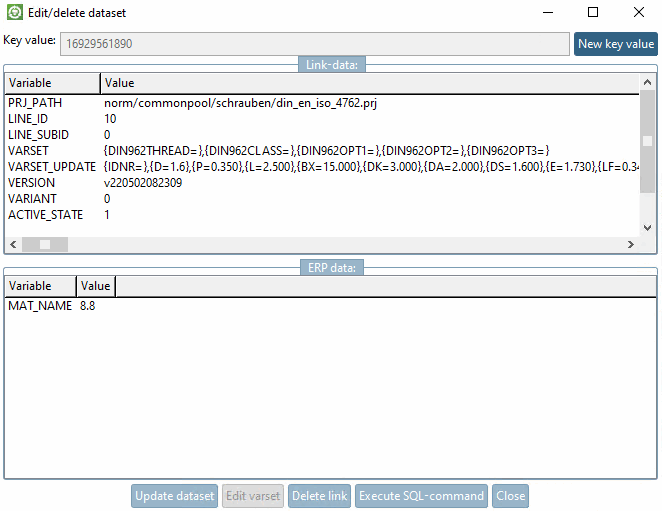
After clicking on the button  button, the Edit/delete data record [Edit/delete dataset] dialog box appears.
The button is only available with extended ERP functionality. It is also role-related and can therefore be deactivated for certain users. See Section 5.8, “ERP toolbar and menu (PARTdataManager) ” in ENTERPRISE 3Dfindit (Professional) - Administration.
![[Note]](https://webapi.partcommunity.com/service/help/latest/pages/cn/installation_ecatalogsolutions/doc/images/note.png)
The data view is divided into link data [Link-data] and ERP data.
If you are dealing with a variant in the marked row, you can change the geometry value, otherwise a message shows up.
Deletes the data in the LINKTABLE.
This is followed by a query whether or not the data should be kept in the ERPTABLE. Reply accordingly.
You can enter any command in the SQL command input field.
Define the maximum number of rows in the result.
