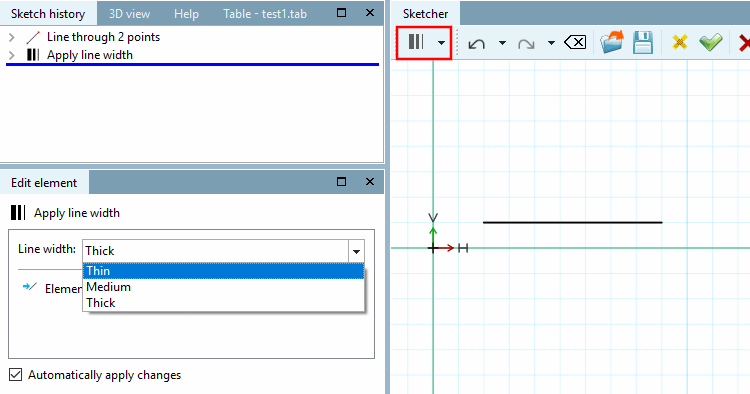
Mark geometry as cosmetic element
Use this command in order to mark geometry as cosmetic elements.
Marked elements are not visible in 3D, however are visible in the 2D derivation.
![[Note]](https://webapi.partcommunity.com/service/help/latest/pages/cn/installation_ecatalogsolutions/doc/images/note.png)
Note To create a thread, please use the Cylindrical thread over length [Cylindrical thread by length] and Conical thread over length [Conical thread by lengths] buttons. See Section 7.9.3.14, “ Modify -> Thread ”
Apply individual attributes which later will be transferred together with the marked element into the CAD system
Individual arcs can be grouped into a spline using Group elements into a spline.
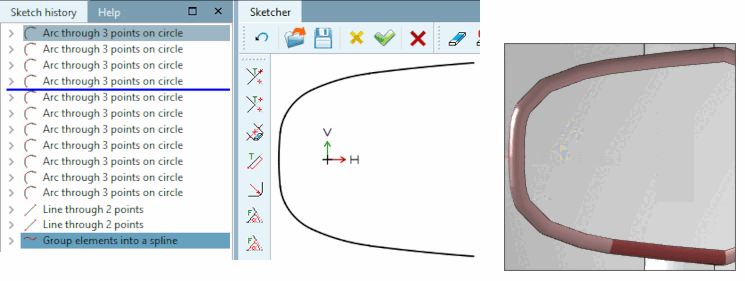
If a component contains a curve with a variable radius, you have to approximate this curve using many individual arcs (arc over 3 points on the circumference [Arc through 3 points on circle], see following figure). The spline feature now makes it possible to export not the individual arcs, but the grouping of these in the spline. This reduces the susceptibility to errors during export, especially when using the blend feature. In addition, the display in the 3D view is more accurate.
First single arcs are drawn and then the spline feature is used.