Text attributes can be used to attach additional information (e.g. special features of the surface) to the model. (See also above.)
HTML text attribute on area [HTML text attribute on face]:
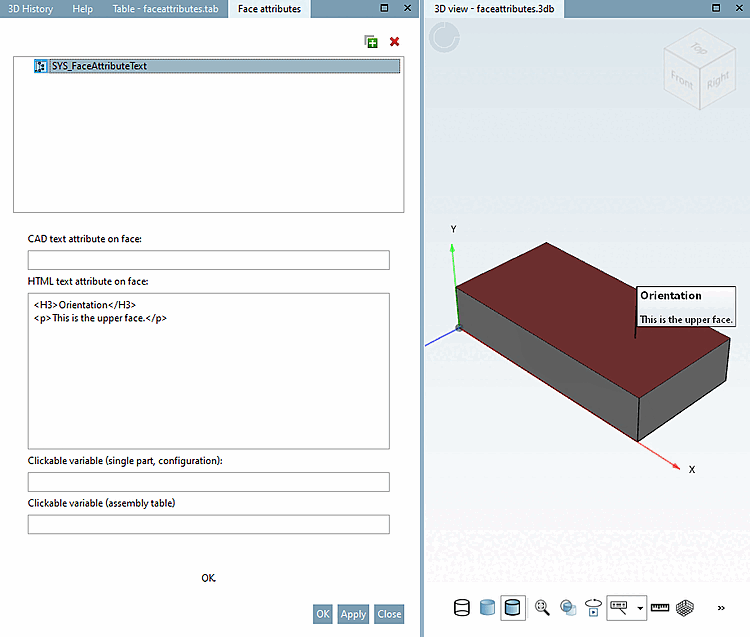
To create a text attribute on a surface, enter the desired text in the field HTML text attribute on surface [HTML text attribute on face]. It is displayed immediately after creation in PARTdesigner, and then also in ENTERPRISE 3Dfindit and PARTcommunity.
CAD text attribute on surface [CAD text attribute on face]: Texts entered here are displayed after export to CAD systems.
Text fields in the 3D view connected to variables
Clickable variable (individual part, configuration) [Clickable variable (single part, configuration)] / Clickable variable (assembly table)
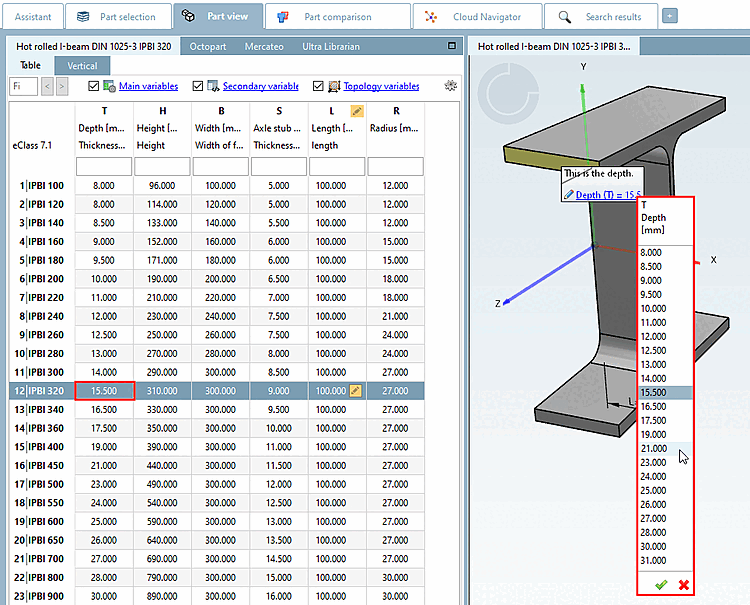
You can define clickable text fields on component surfaces for the 3D view and link these to variables.
Variable description text and the current value of the variable are automatically transferred to the text field displayed in the 3D view.
Enter the desired text in PARTdesigner in the Area attributes [Face attributes] docking window, enter the desired text in the HTML text attribute to area [HTML text attribute on face] field.
Define the connected variable.
This enables you to differentiate what is to be shown in the single part/configuration mode and what is to be shown in the Assembly-Table mode.
On the one hand they may be different variables, but on the other hand they may hide the label: If you only assign one variable for the single part but not for the Assembly-Table, then the entire label will be invisible in the Assembly-Table mode.
![[Note]](https://webapi.partcommunity.com/service/help/latest/pages/cn/installation_ecatalogsolutions/doc/images/note.png)
![CAD text attribute on surface [CAD text attribute on face] exemplary in Pro/Engineer](https://webapi.partcommunity.com/service/help/latest/pages/cn/installation_ecatalogsolutions/doc/resources/img/img_2ac9ca80ebc8475e82750e0f28c7eb60.png)

In PARTdataManager a list box opens when you click on the label field to determine the desired table value.