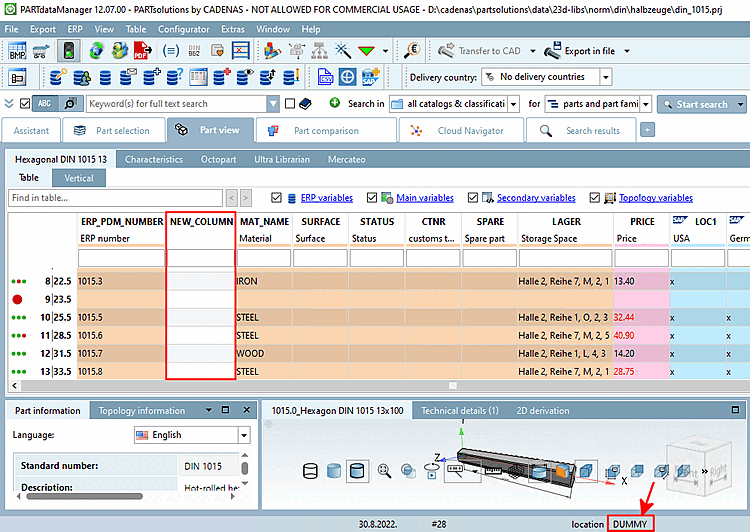
The following description shows how you can add any number of additional columns to the standard configuration. (If you want to import data from a CSV file, the columns in the ERP table must be available analogously.)
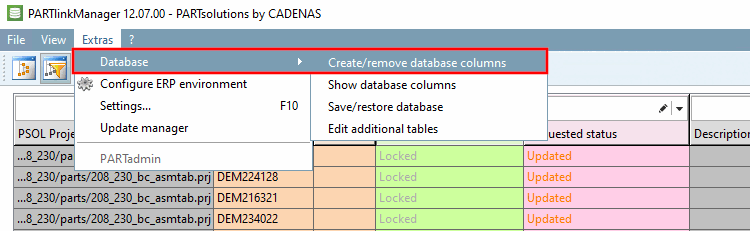
You can access the dialog Change database columns [Change database column] in PARTlinkManager via Extras -> Database -> Change/create database columns [Modify/create database columns].
![[Note]](https://webapi.partcommunity.com/service/help/latest/pages/cn/installation_ecatalogsolutions/doc/images/note.png)
![[Tip]](https://webapi.partcommunity.com/service/help/latest/pages/cn/installation_ecatalogsolutions/doc/images/tip.png)
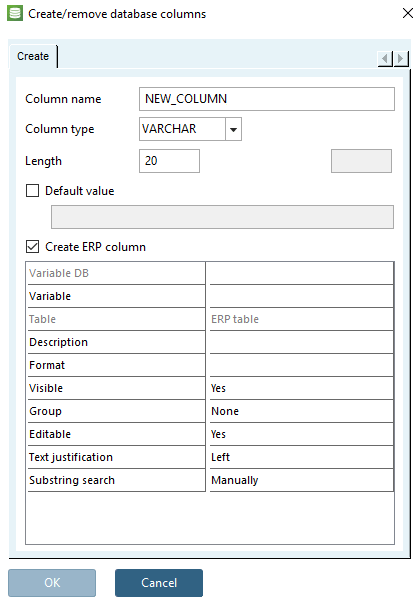
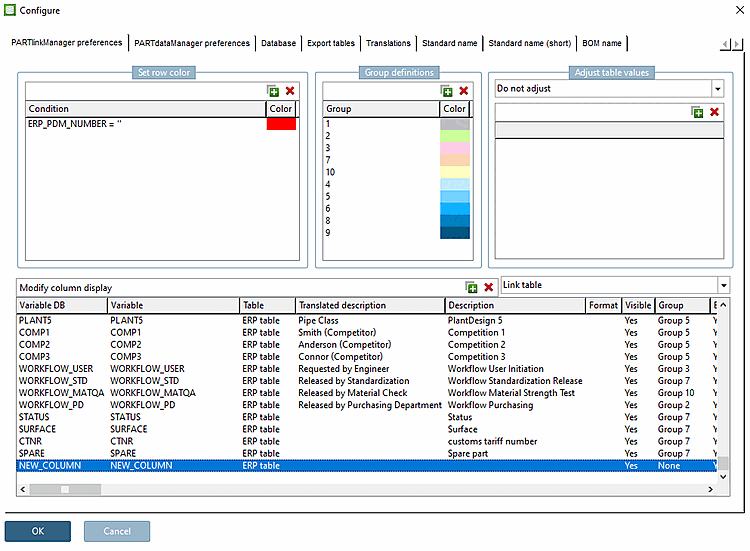
For the column to be displayed in the PARTdataManager column is displayed, the following requirements must be met.
Under Configure column display [Modify column display], the corresponding column must be set to Yes under Visible.
The assigned column name is displayed in the Variable DB and Variable columns.
The entry under Variable DB is fixed.
The entry under Variable can be adjusted if necessary.
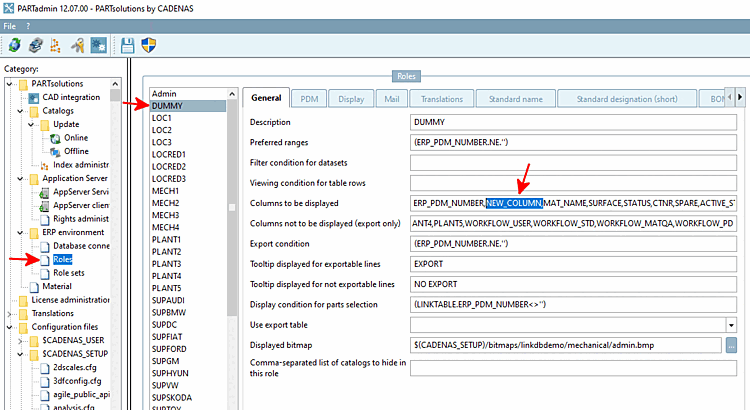
In PARTadmin, the column must be entered in the desired role(s) under Columns to be displayed. The order is also relevant for the display in PARTdataManager relevant.
Restart PARTdataManager again. The added column is now displayed.