


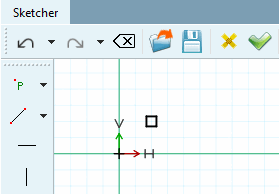
The finished point is marked in the drawing by a square frame.

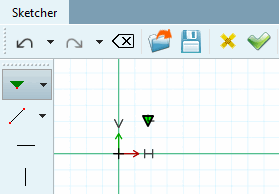
To set a connection point, select the Insert connection point tool in the Sketcher.
-> The connection point is marked with a green triangle in the drawing.
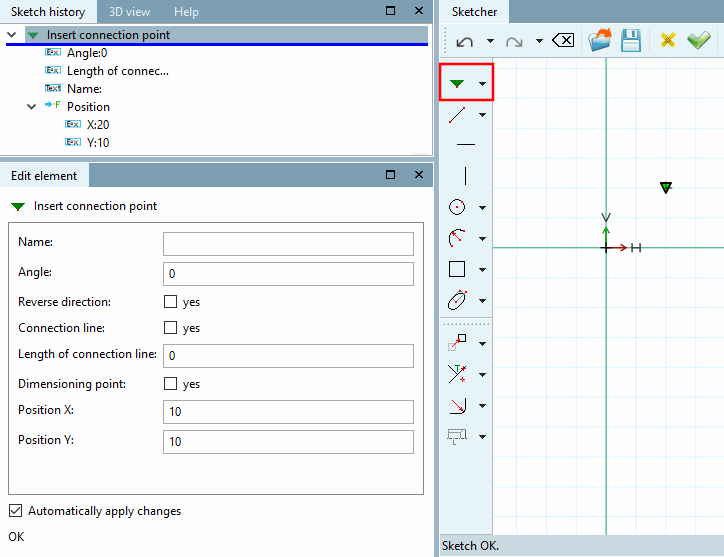
-> The individual parameters are displayed in the Edit element docking window and can be adjusted as required.
Further details can be found at:

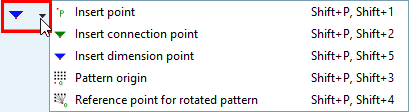
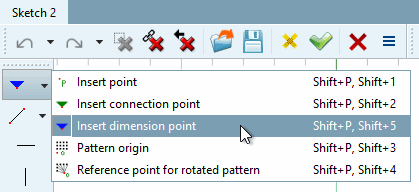
You have two options for setting a dimension point:
Select the Insert dimension point tool in the Sketcher.
-> The dimensioning point is shown as a blue triangle both in the sketch [Sketch] and in the 3D history [3D History].
-> The individual parameters are displayed in the Edit element docking window and can be adjusted as required. The Dimension point [Dimensioning point] option is activated.
If you have previously set a connection point, you can simply convert it into a dimension point by activating the Dimension point [Dimensioning point] option in the Edit element window. This allows you to switch between connection point and dimension point at any time.
Details on dimension points can be found under Section 7.16, “ Docking window "Dimensions " ”.
If the Insert connection point function is activated, you can use the following keyboard shortcuts:
Left-click inserts regular connection point → The default settings are retained in the Edit element docking window.
Alt + left-click inserts connection point in reverse direction → In the Edit element docking window, the Reverse direction checkbox is set to "Yes".
Alt + Shift + left-click inserts dimension point → In the Edit element docking window, the Dimension point [Dimensioning point] checkbox is set to "Yes".

The fully positioned pattern origin is marked in the drawing by a yellow square.
![Sample origin [Pattern origin]](https://webapi.partcommunity.com/service/help/latest/pages/cn/partsolutions_user/doc/resources/img/img_ed66e986528c416987edc6f37a9caec8.png)
The corresponding icon is displayed in the sketch history.
The item can be removed via the context menu command.
See also Section 7.6.2.10.2, “Create pattern manually ”.

The reference point set for rotation patterns is marked by a yellow circle in the drawing.
![Reference point for rotation patterns [Reference point for rotated pattern]](https://webapi.partcommunity.com/service/help/latest/pages/cn/partsolutions_user/doc/resources/img/img_eec1ece4f40d4e22a432f03498584c15.png)
The corresponding icon is displayed in the sketch history [Sketch history].
The point can be removed via the context menu command Remove reference point for rotation pattern [Remove reference point for rotated pattern].
![Remove reference point for rotation pattern [Remove reference point for rotated pattern]](https://webapi.partcommunity.com/service/help/latest/pages/cn/partsolutions_user/doc/resources/img/img_85c539bedec445e69bd19e4fb51fa099.png)