Classified parts have added values in many ways:
Better search and find options
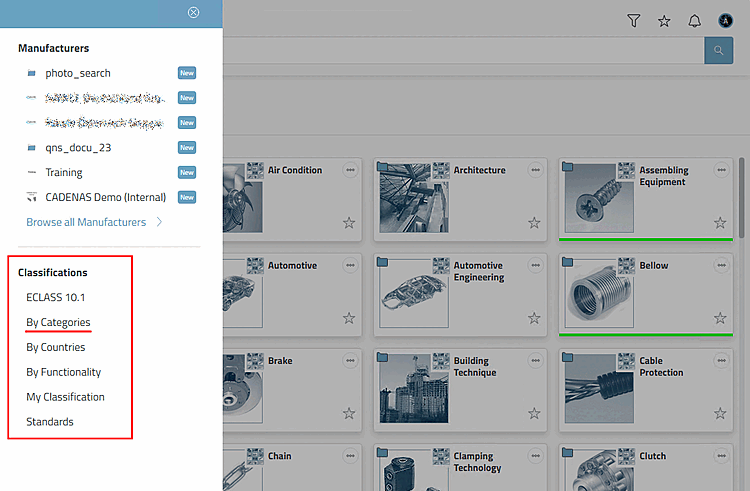
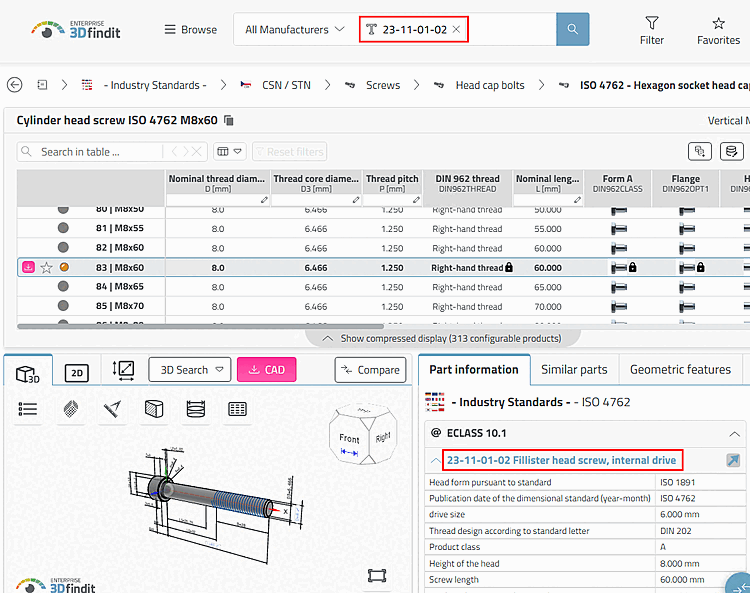
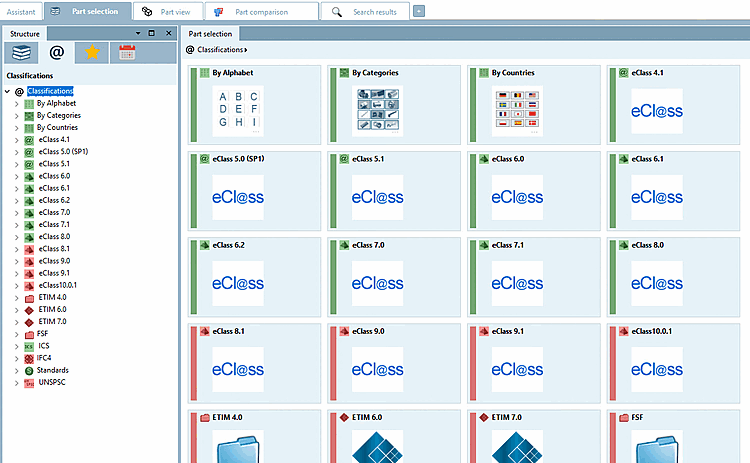
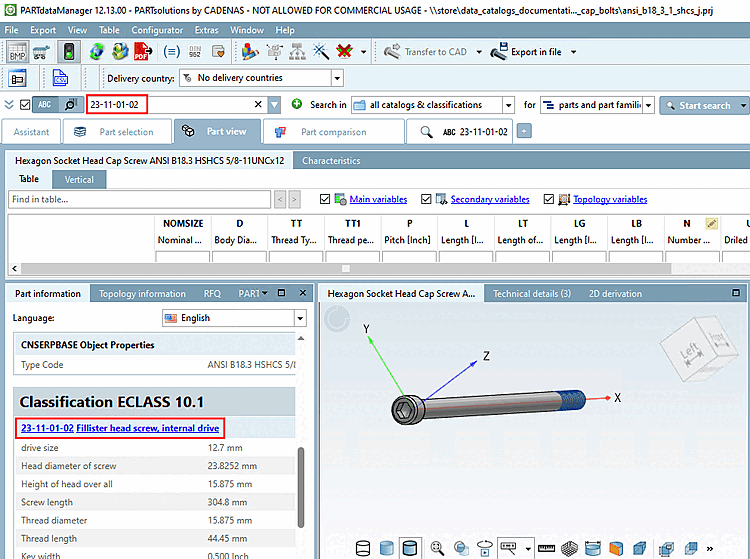
The declared parts can be found in 3Dfindit or PARTdataManager when selecting parts under the various classifications.
By Countries: Classification according to countries in which the respective company sells products or has branches
CNS: CADENAS-Classification used e.g. for CAD integration (placement information, published elements and attributes) or order number, type code, certificate information. For details see Section 5.12.3.6, “Classification (CNS) ”.
ECLASS: Standardized classification system for product groups and product characteristics
ETIM (ElectroTechnical Information Model) 4.0: Classification based on the requirements of the electrical industry
ICS (International Classification Standards): International classification system for recording all economic sectors and activities in which technical standards are applied
IFC: Classification according to an international open standard for the exchange of building models
Standards: Standardization system supplied by CADENAS. It is divided into three levels according to the DIN number.
UNSPSC: Product classification specified by the United Nations. The standard represents a universal classification scheme for a wide variety of product groups for worldwide use.
For 3Dfindit, see Section 5.2.2, “Select classification” in ENTERPRISE 3Dfindit - User
Class and characteristic values can also be used in the search.
For PARTdataManager compare Section 2.1.6.4.12.4, “Selection "Classifications " ” in PARTsolutions - User
Class and characteristic values can also be used in the search.
In the part information [Part information] docking window (see above) you will find all information on the individual classifications according to which the part was classified.
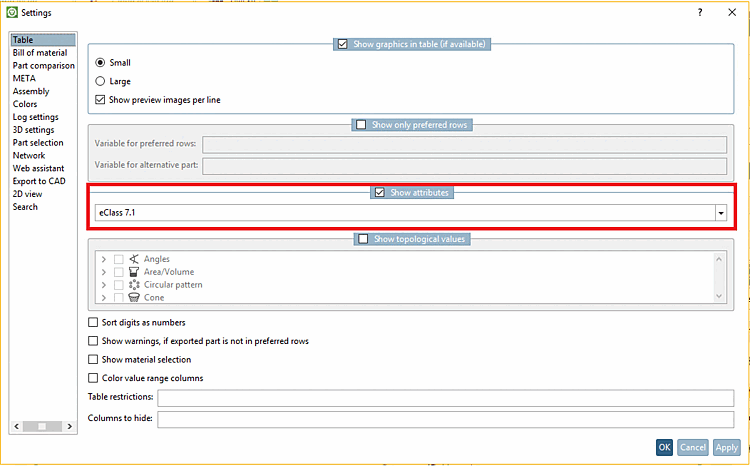
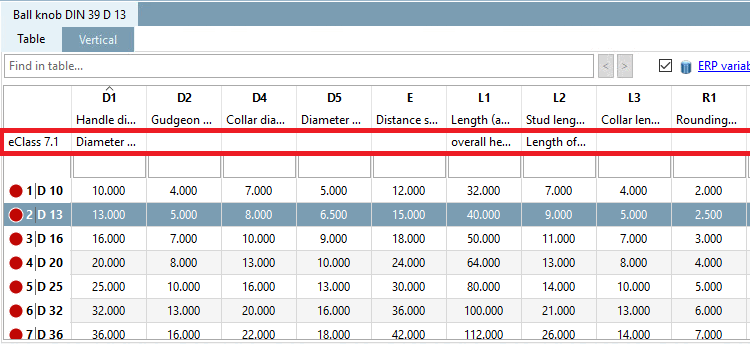
If the option Show class variables has been activated under Extras > Settings > Table (in the following example ECLASS 7.1), the class variables are also displayed in the respective column headers of the table (PARTdataManager).
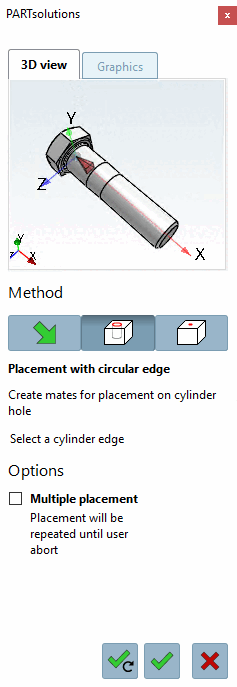
Intelligent placing via placement dialog
On this see Section 5.12.10, “ Classify standard parts for placement dialog ”.
Transfer of classification values to third-party systems such as CAD/PDM/PLM (see for example Section 5.12.11, “Classify Electrical Parts ”, Section 5.12.12, “Classify BIM Parts ” or Section 5.12.13, “Piping classification ”)