

![[Note]](https://webapi.partcommunity.com/service/help/latest/pages/cn/partsolutions_user/doc/images/note.png) | Note |
|---|---|
This feature is only officially available for future versions and is only an internal test version with V12.11 and is therefore hidden in the standard version. | |
In this version, support for MultiSolid exports to various CAD systems from 3Dfindit, PARTdataManager and PARTdesigner has been integrated.
Previously, an individual part consisted of a single body with a single design history. With this feature, a part can contain several solids. Each of these solids has its own history that describes how it is constructed. Instances are also available as a new level. These determine where and how a solid is placed in the room, allowing you to use the same solid multiple times, but in different positions or with different orientations.
The great advantage of this method of working is that the individual part no longer has to have a coherent geometry.
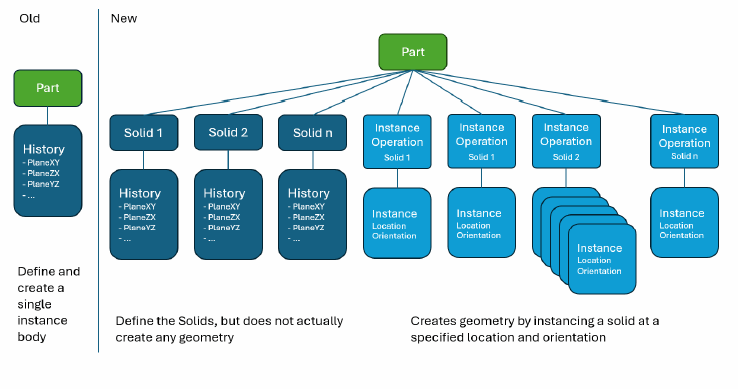
Once the configuration is complete, any (existing or newly created) assembly can be converted to MultiSolid and transferred to the corresponding CAD system. The requirements and configuration can be found in the following chapter: Section 3.2.13.1, “MultiSolid ” in ENTERPRISE 3Dfindit (Professional) - Administration.
To export as MultiSolid, proceed as follows:
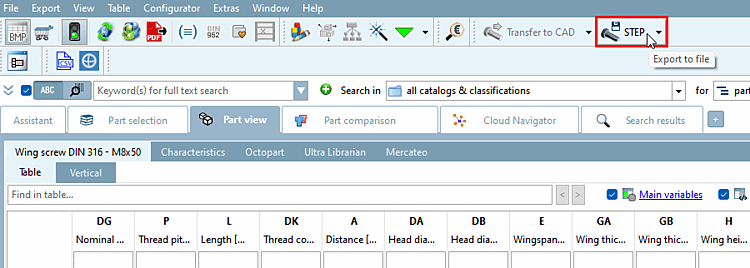
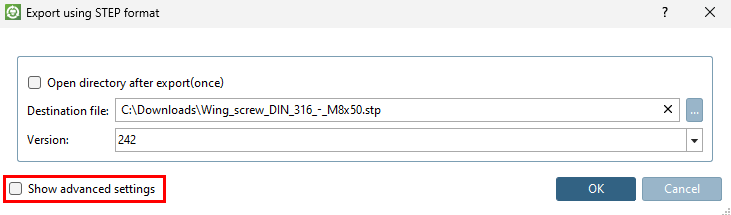
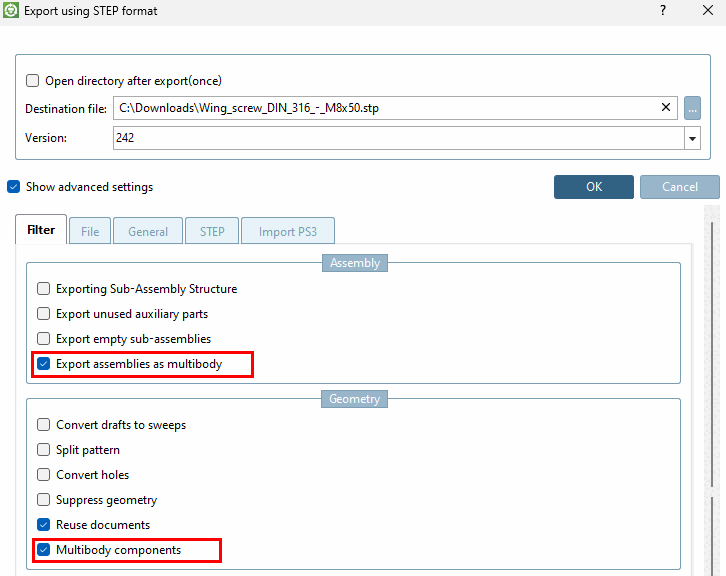
Detailed instructions for exporting files in various formats can be found here: Section 2.1.8, “ Transfer to CAD (with and without interface) ” in PARTsolutions - User and here for 3Dfindit: Section 5.23.5, “Set CAD format download (pappserver.cfg) ” in ENTERPRISE 3Dfindit (Professional) - Administration.
You can also create your own components as MultiSolid in PARTdesigner.
Detailed instructions and further information can be found in the Section 7.6.2.16, “Multi Solid ” in eCATALOG 3Dfindit chapter.