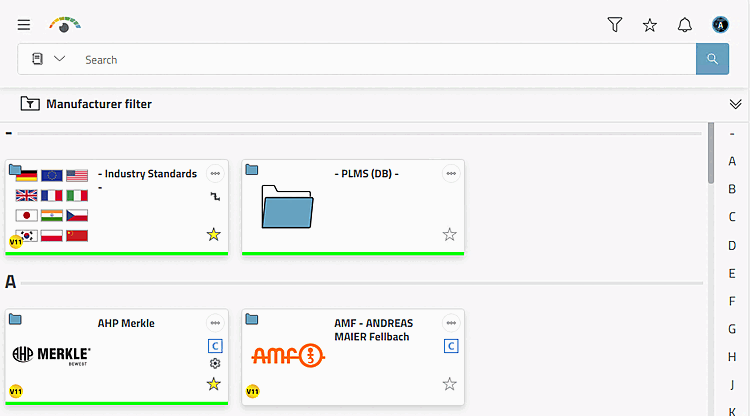
The catalog view is the default view when opening 3Dfindit.
Of each In another place, for example, by clicking on the All Catalogs [All catalogs] icon
 in the line of the navigation path, you can access the
Catalog view.
in the line of the navigation path, you can access the
Catalog view.
A letter bar is displayed on the right. Click on a letter to jump to the corresponding area in the catalog selection.
Specify product groups until a specific part
 or a specific assembly is
  displayed.
When browsing through the directory levels, click on the logo/image or the name.
Getting back [Back] with
 You move to the next higher level.
With
 All Catalogs [All catalogs]
you will be taken to the top level of catalog selection.
All Catalogs [All catalogs]
you will be taken to the top level of catalog selection.
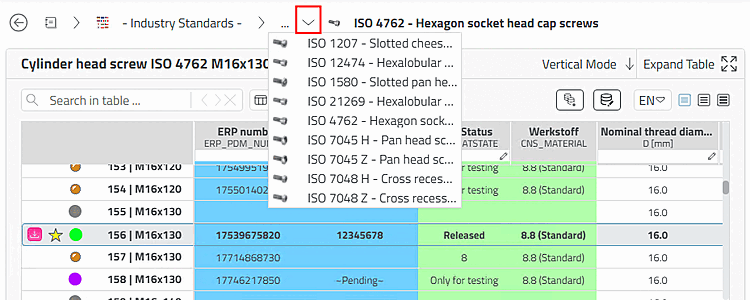
Navigation path: If you move deeper in the directory structure, the selected directory is added to the navigation path so that you can clearly see the path of the current selection. Use the arrows to show the respective subdirectories. If you move the mouse over a directory, it will be highlighted in color. Clicking on it takes you to the relevant level; clicking on a single path element also takes you to the relevant directory. Clicking on a directory name takes you directly to that level.
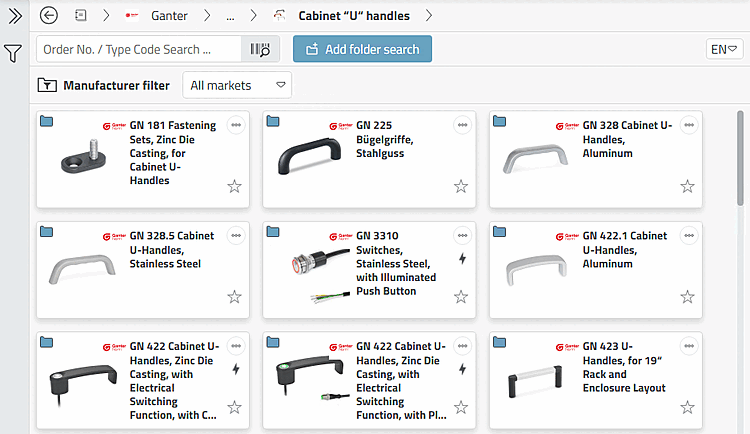
The following illustration shows a deeper subdirectory.
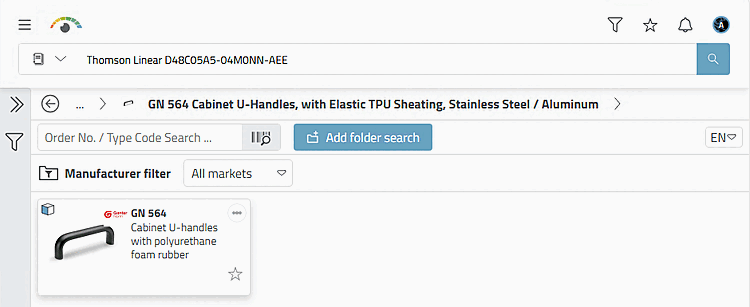
The following illustration shows the product level.
![[Note]](https://webapi.partcommunity.com/service/help/latest/pages/cn/partsolutions_user/doc/images/note.png)
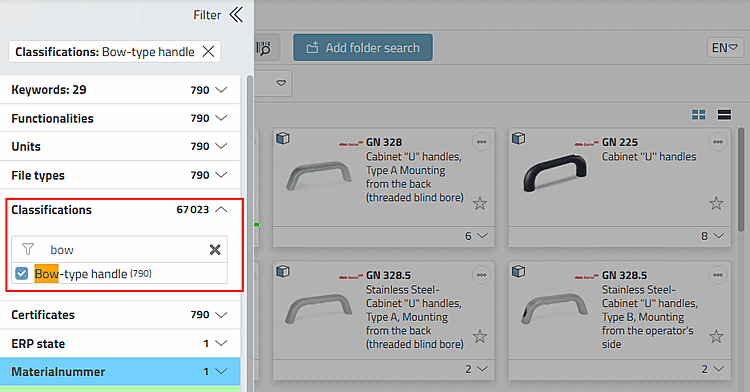
Note As an alternative to clicking through manually, use the Filter dialog area and filter for "Bow-type handles", for example. For details, see Section 5.4, “ Filter ”.
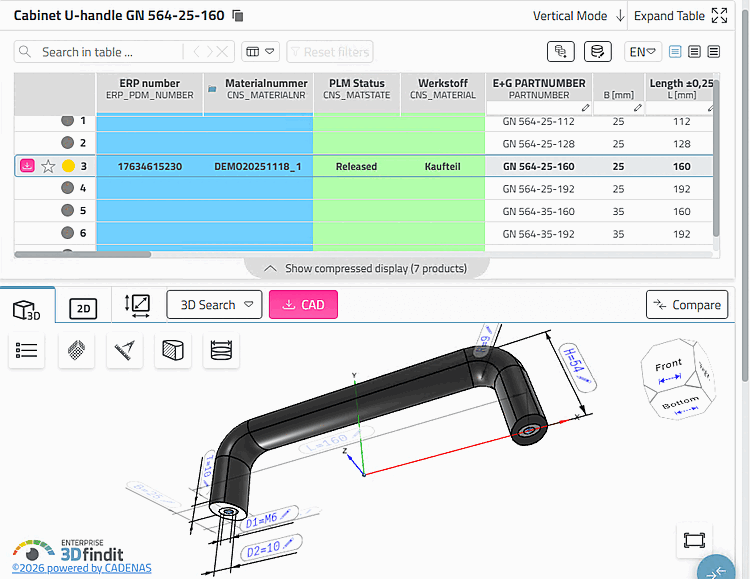
Open the desired component in the parts view.
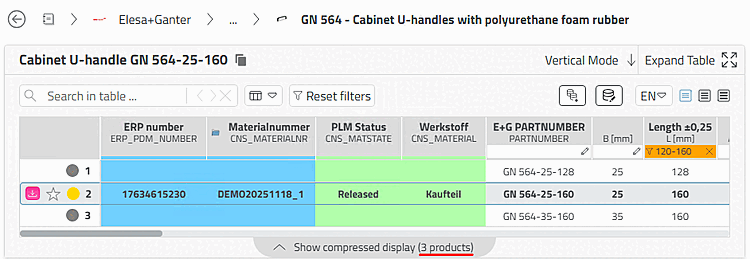
To filter the table (particularly useful for large tables), enter filter values in one or any number of column headers. This can be a single value or from-to values as in the following example. If there are filters, the button is displayed. Click on the button to remove all filters.
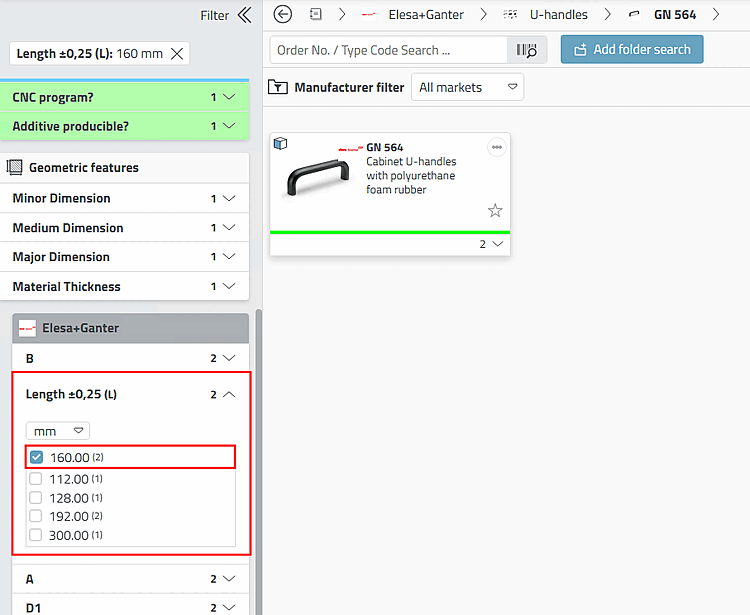
Note If you click through manually, the common variables are displayed at each level in the Filter dialog area.
Expand the list field and filter by "Length", for example. For details, see Section 5.4, “ Filter ”.