

Duplicate analysis is a key tool for data quality control - especially for large volumes of data and imported catalogs. It finds duplicate candidates, but does not automatically eliminate them; instead, it forms the basis for downstream cleansing processes.
In concrete terms, this means for the process:
The following example provides a brief overview of how it works.
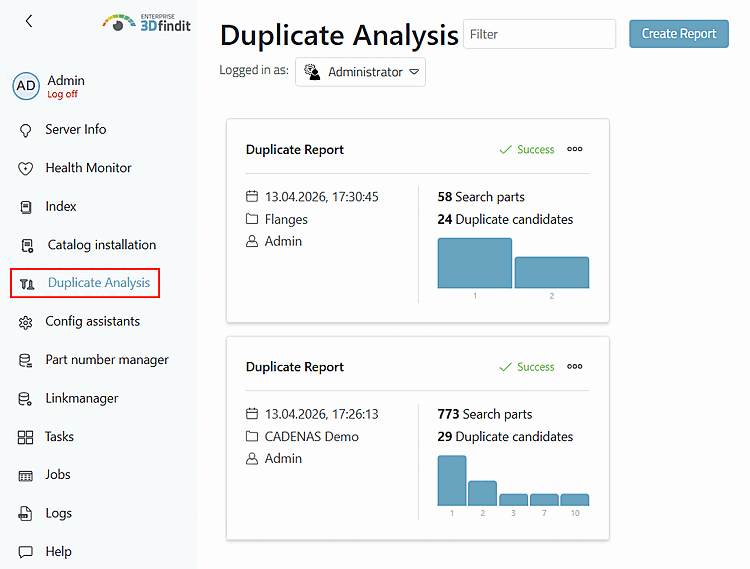
Open the dashboard and select the Duplicate Analysis menu item.
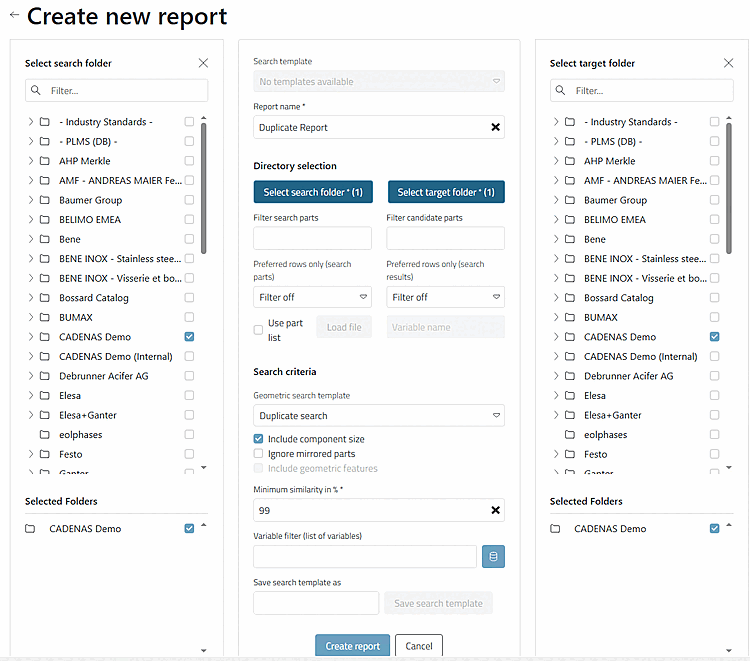
Fill in the individual points.
In particular, select the search directory and the target directory.
Determine the minimum similarity.
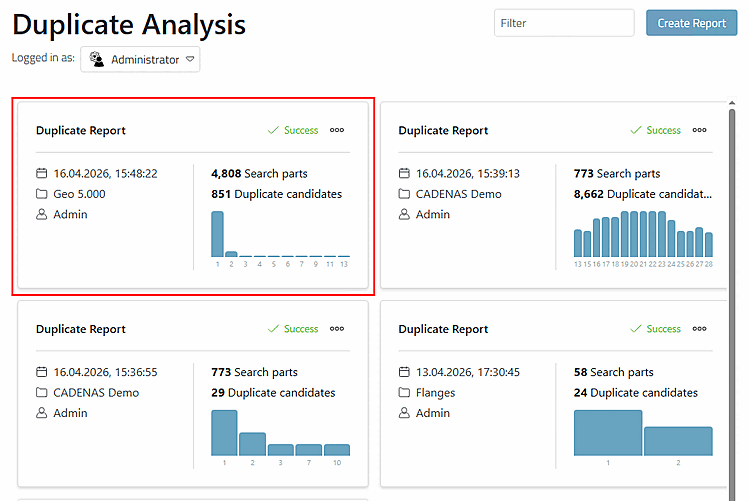
-> The map of the newly created report is displayed.
Open the report with one click.
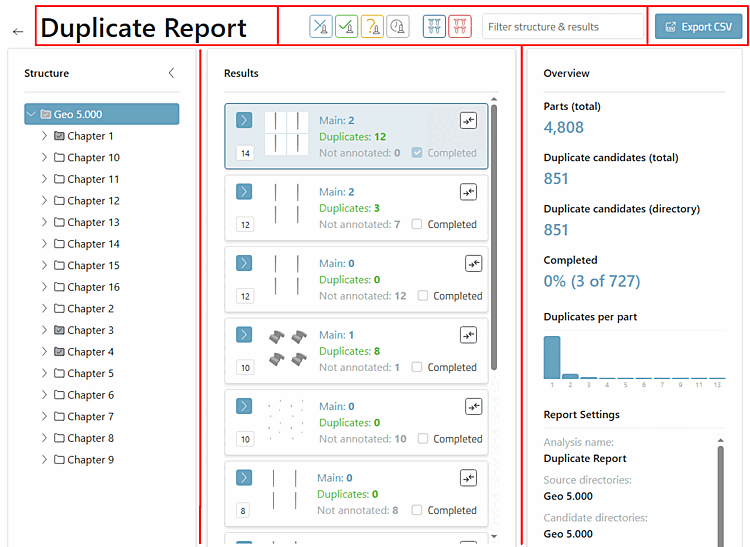
The report page is structured as follows:
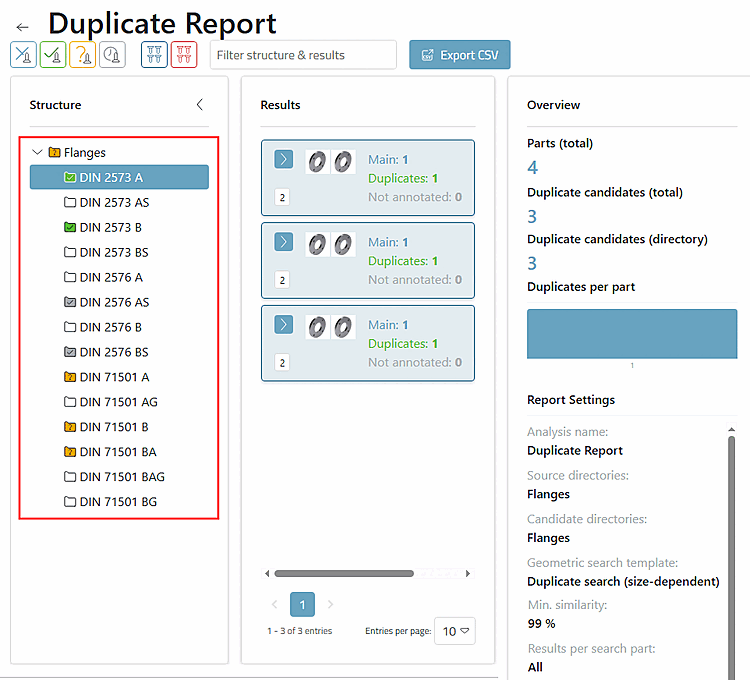
The header contains the name of the report, a filter area and an button.
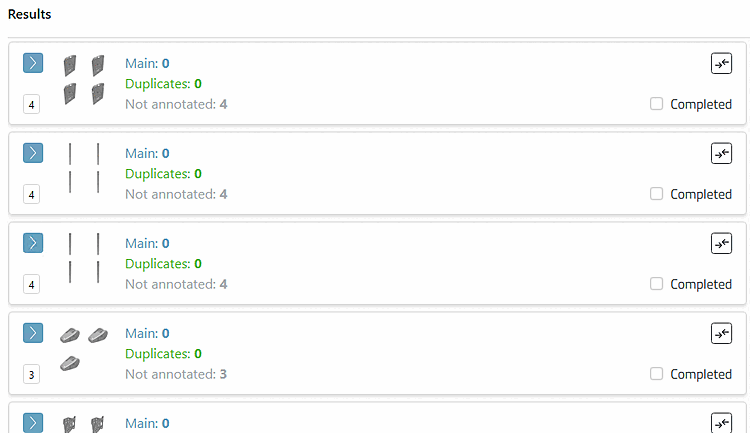
The main area is divided into structure tree [left], results [center] and an overview [right] (will be adapted according to the work on the individual clusters).
Click on a cluster to open it.
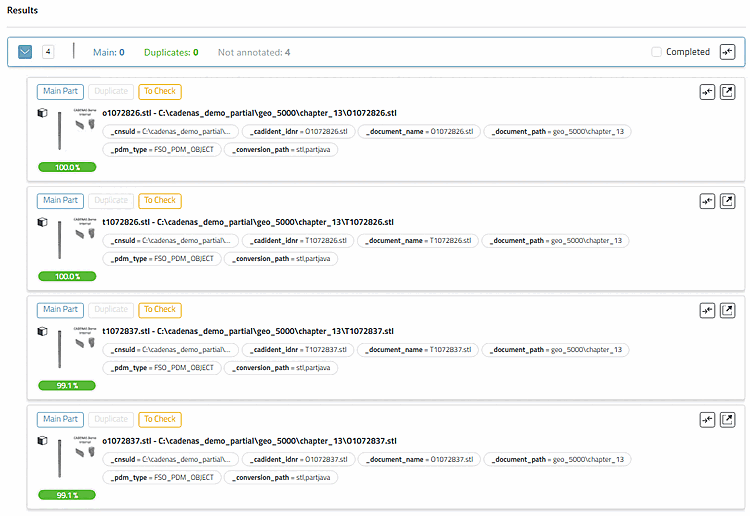
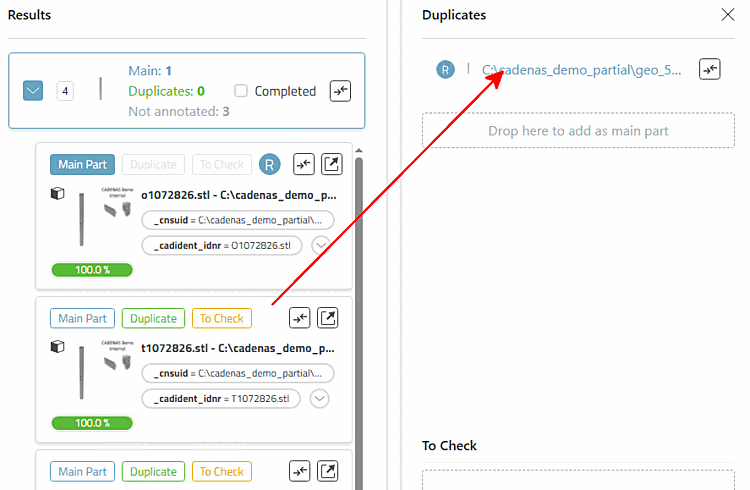
All parts of a cluster start as non-annotated candidates (Main = 0 and Duplicates = 0). There is no main part yet.
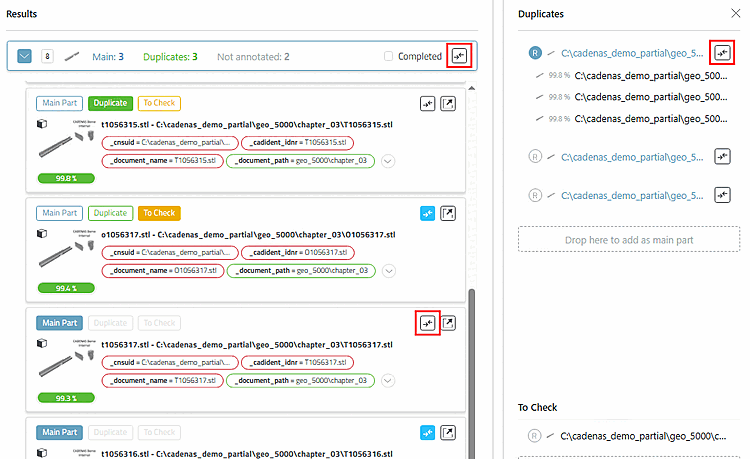
Open a cluster by clicking on it. The are deactivated as long as no main part exists.
Determine a main part (duplicate candidate → main part)
A candidate can be annotated as a duplicate by
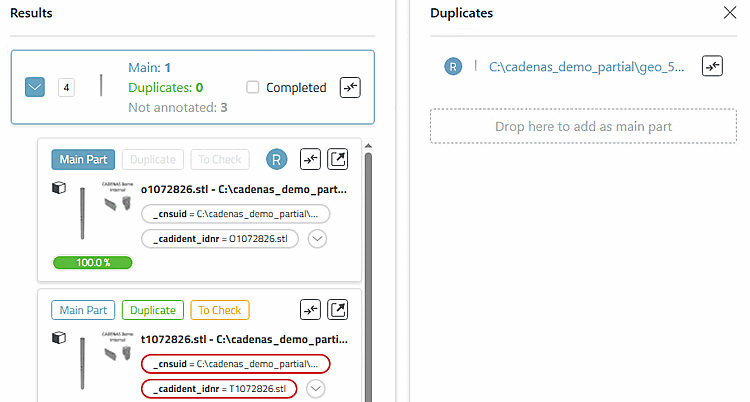
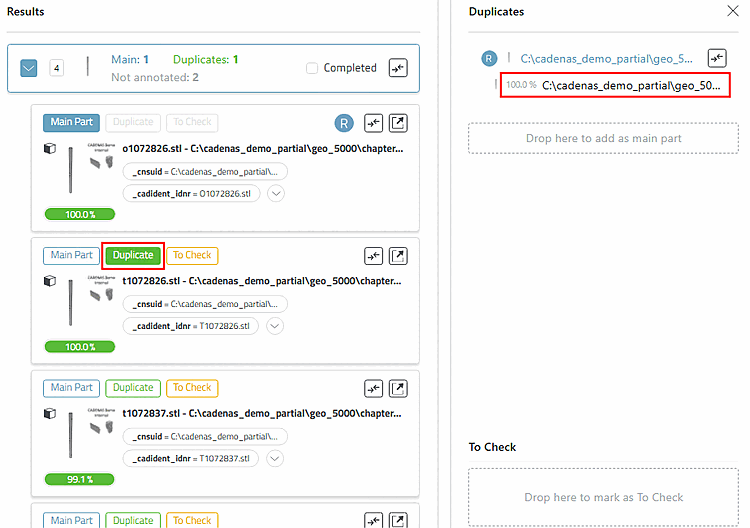
Click on the Duplicate button [Duplicate]
-> The button is filled with the green base color.
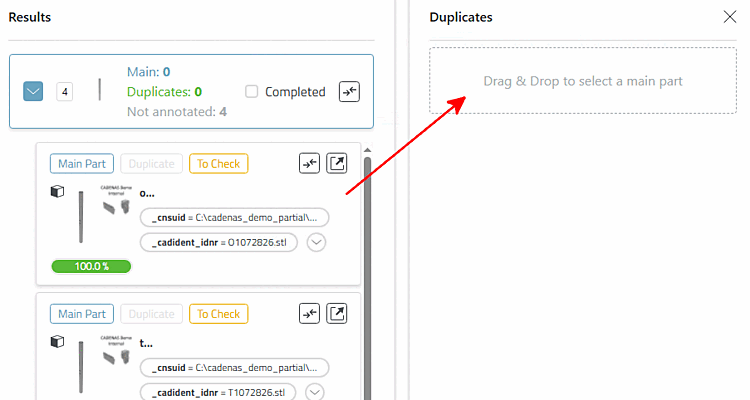
or by dragging and dropping the candidate onto an existing main part.
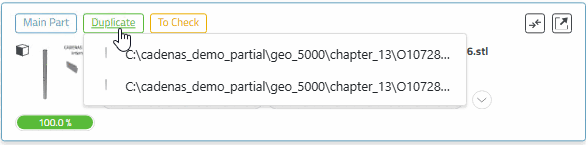
If several main parts exist, a selection list opens to select the target main part.
In any case, the button is now fully filled in green and the duplicate is displayed on the right in the Duplicates area under the Main Part.
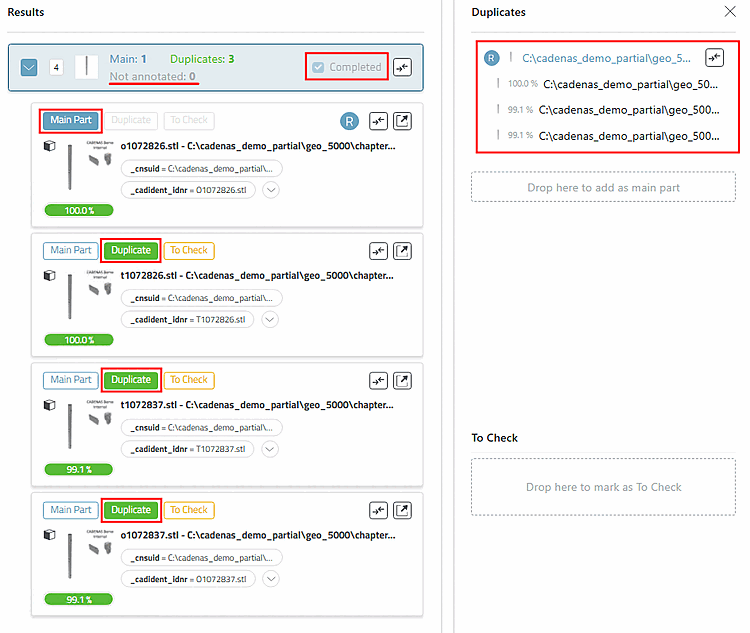
Now proceed in the same way with all other duplicate candidates:
The aim is for a cluster to be set as completed, i.e. onlycontaining main parts and assigned duplicates.
You can monitor progress at any time in the structure tree on the left.
The colors in the tree help to quickly find open clusters and to reopen problematic clusters:
Gray = At least one cluster has been completed here, but more still need to be processed.
Yellow = There is a ToCheck part here, which must be completed in any case.
But yellow beats green, i.e. if all clusters are completed (green), but there is a "To be checked" part in one of these clusters (yellow), then the folder is marked yellow.
Via Comparison Button
 can load parts into the comparison at any time
.
can load parts into the comparison at any time
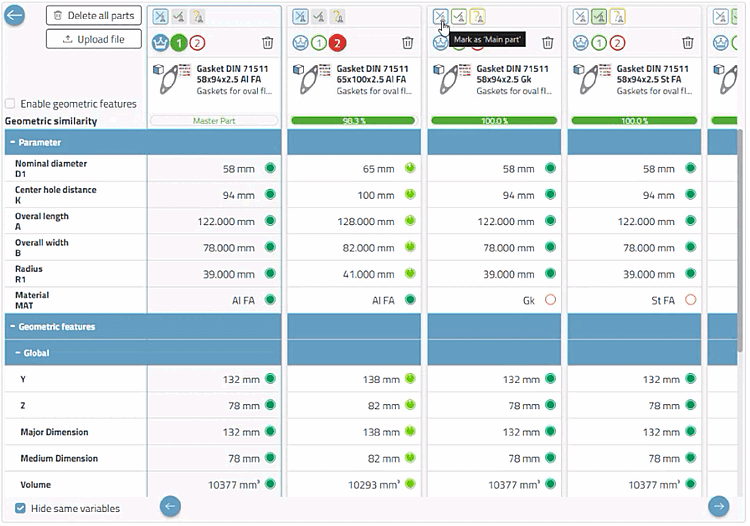
.Operations in the comparison and in the duplicate analysis run synchronously.
The compare button of the cluster itself (at the very top) and the one on the right-hand side (master part) replace all parts that are in the part comparison up to that point.
The comparison buttons in the parts list (duplicate candidates of the cluster) add the respective part individually without deleting the previous ones.
The basic principles for comparing duplicate parts are the same as for the standard; a few features have been added here:
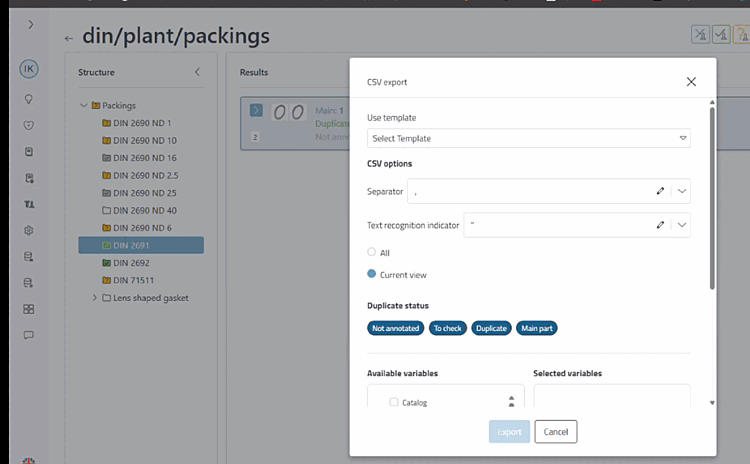
By clicking on the button, you can then perform an export for all clusters ( All option) or only for intermediate statuses ( Current view option).




Details can be found under Section 2.2, “ Duplicate analysis ” in ENTERPRISE 3Dfindit (Professional) - Administration.