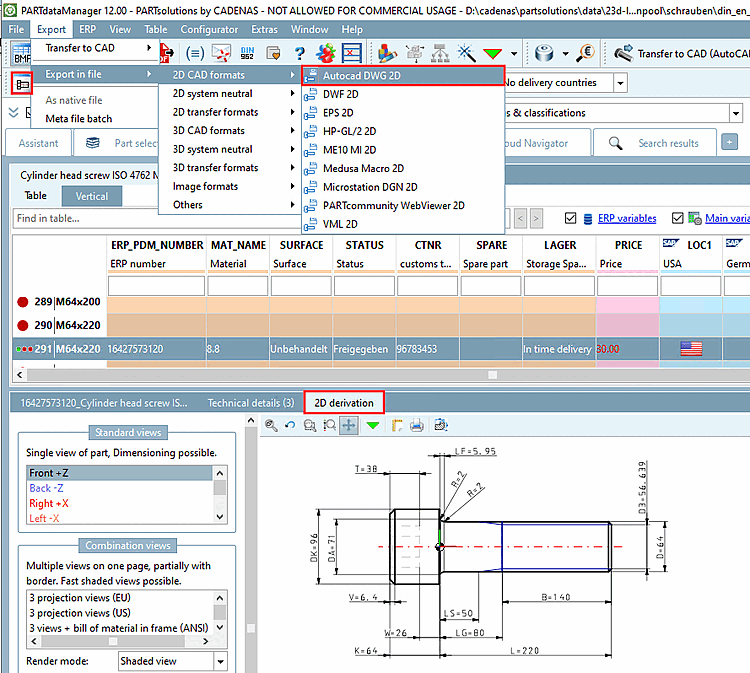
Load the desired part in PARTdataManager.
Create the
desired derivation.
Select the Autocad DWG 2D option in the Export menu under Export to file [Export in file] -> 2D CAD formats.
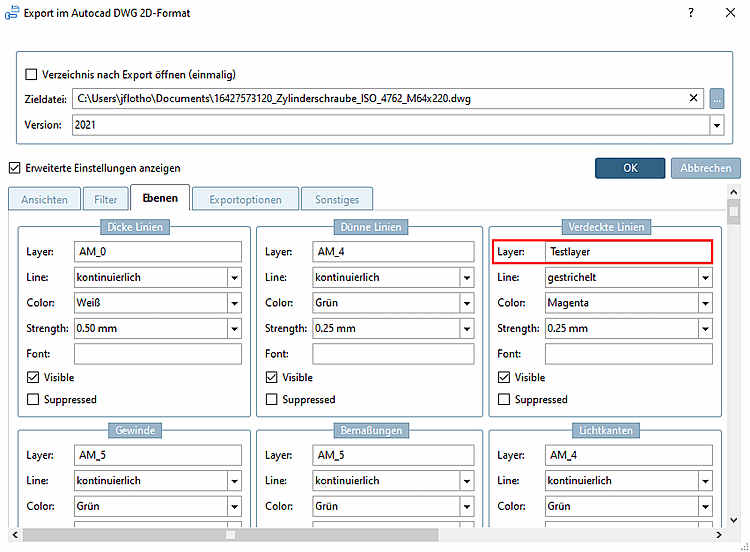
→ The settings dialog of the same name opens.
In this example, the layer name under Hidden lines [Hidden Lines] is set to "Test layer".
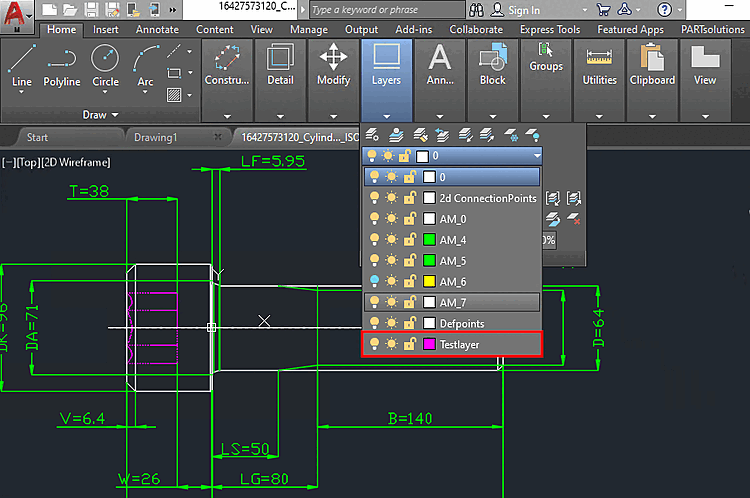
Transfer the
part to AutoCAD.
In AutoCAD,
open the layer options.
→ The settings have been adopted.