
 |
Addresses of the company's different Branch offices are displayed in output media.
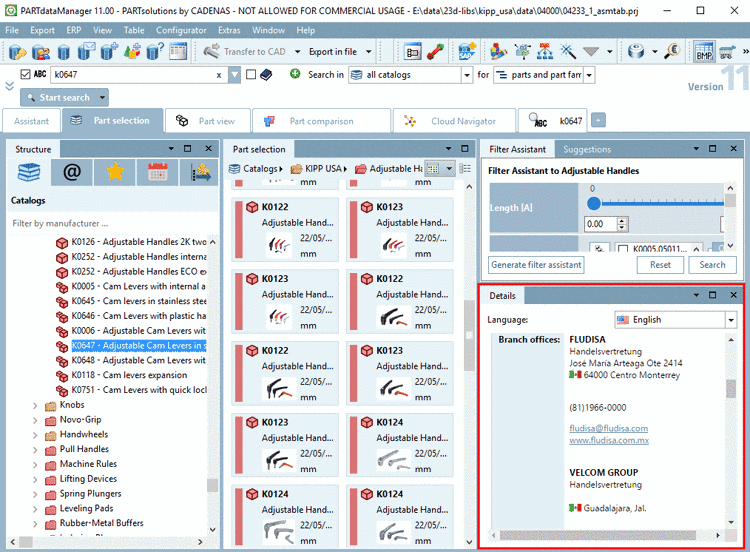
As of V11 SP12 the possibility to control the display sequence has been added, so that already for the first loading of the page the desired address becomes visible and also the other addresses are sorted when opening the list fields.
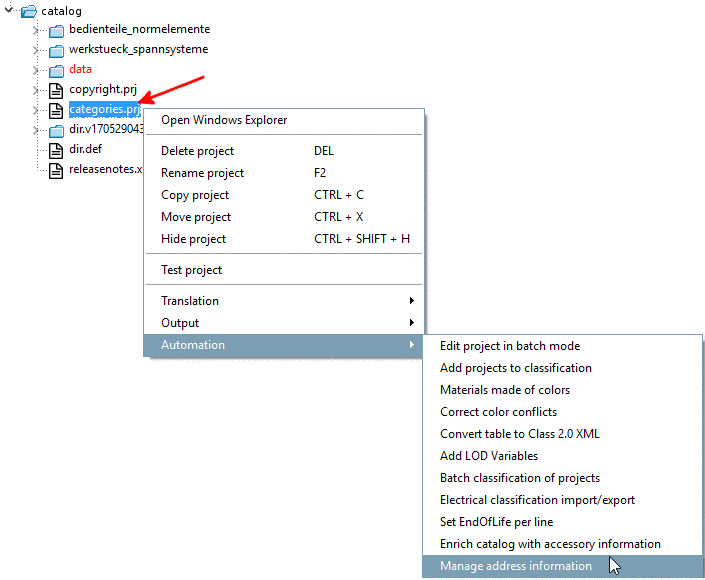
In PARTproject, in your catalog, select the file
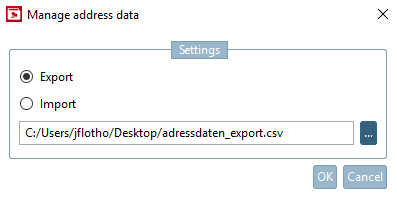
categories.prj.Click on the command Manage address data.
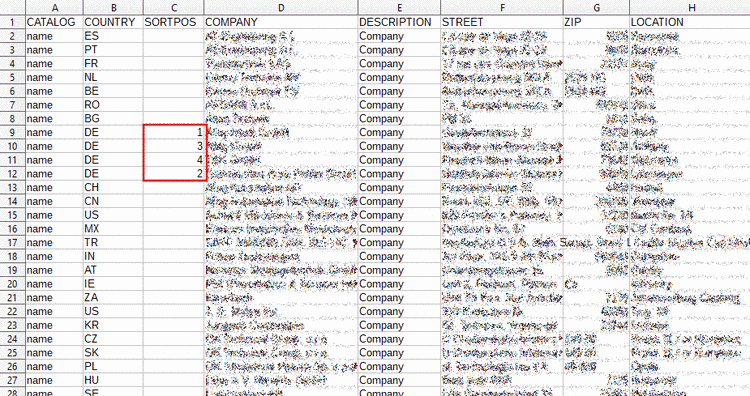
Export address data into a CSV file.
In the column SORTPOS, determine the display sequence by entering natural numbers. Set addresses are accordingly sorted, the others displayed in alphabetical sequence as usual.
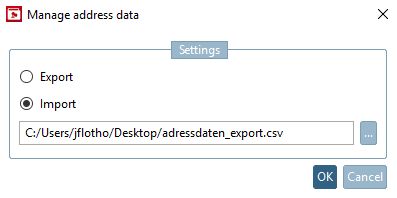
Details on this can be found under Section 5.8.2.1.15.26, “ Manage address data ” in eCATALOGsolutions Manual.