3.3.7.9. NX: Adjust
placement dialog via macro 3.3.7.9.1. Procedure
when using NX without PDM |  |
| Prev | Next |
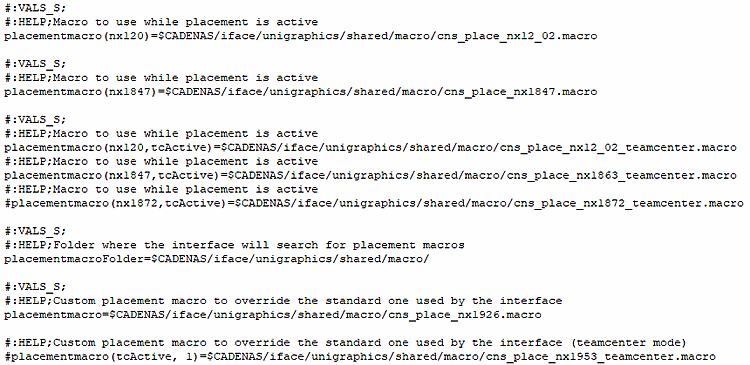
Make sure that the correct macro template is active in ifugnx.cfg and carry out a placement with a test part. Ideally, all settings of the template are already as you actually need them. In this case, there is no need to make any adjustments.
Otherwise perform the steps of the following instruction.
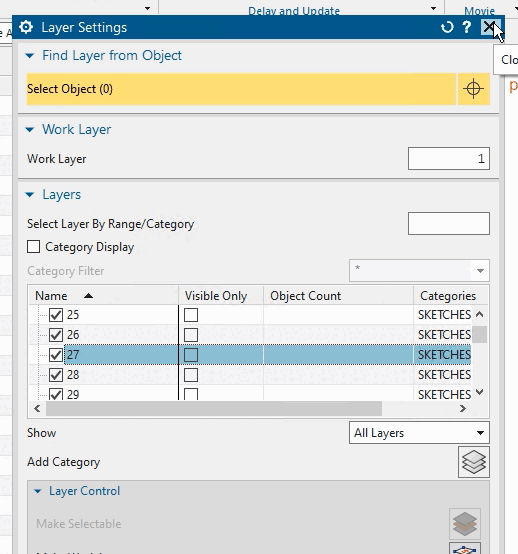
Make sure that "Solid layer (default 27)" is activated.
Carry out a test placement and you should not make any errors when recording the macro.
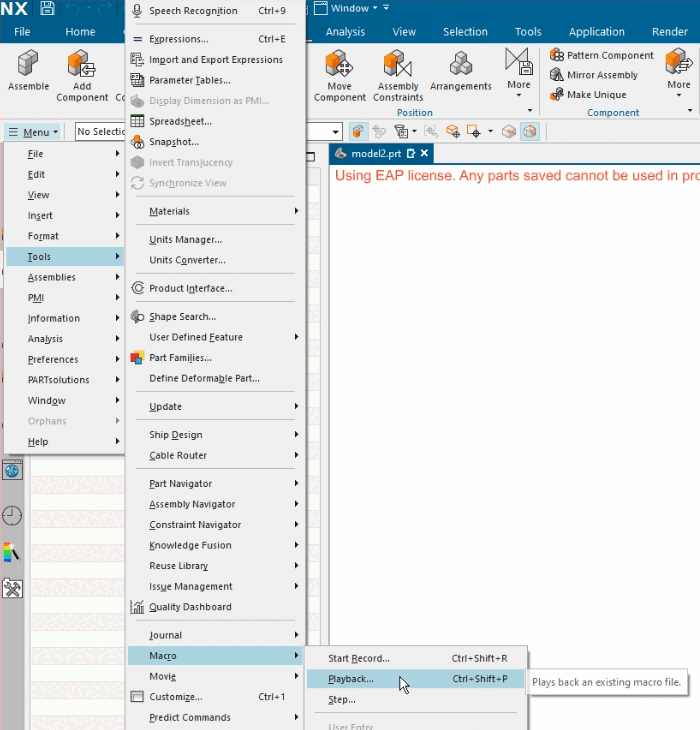
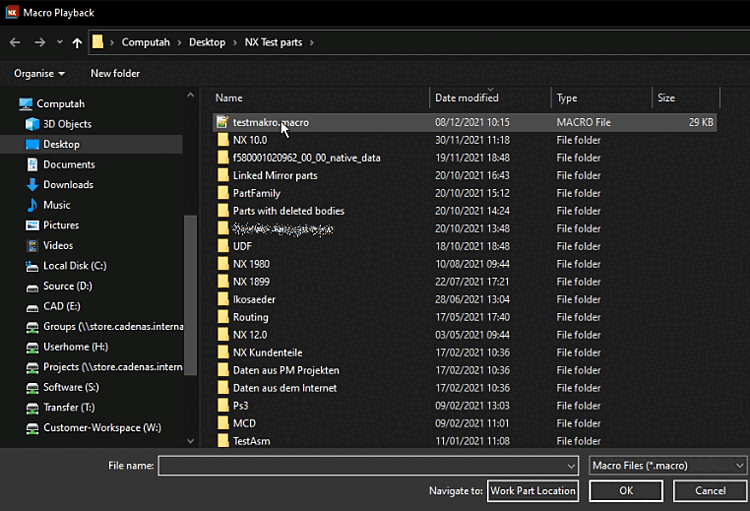
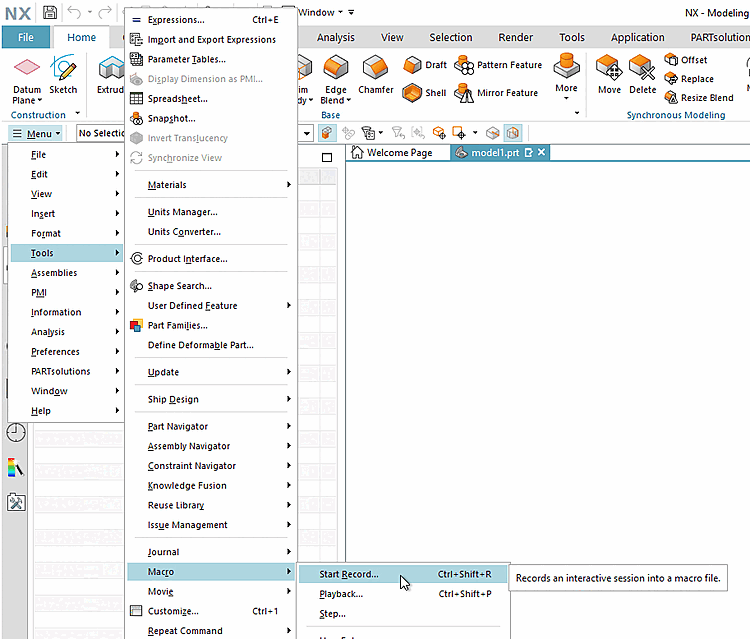
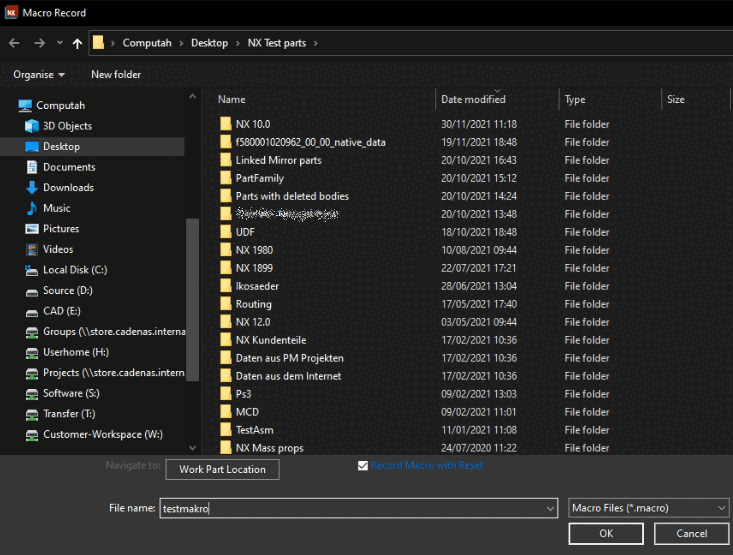
Specify the storage location and file name for the macro and confirm with . It is best to save the macro immediately in the directory provided for this purpose at
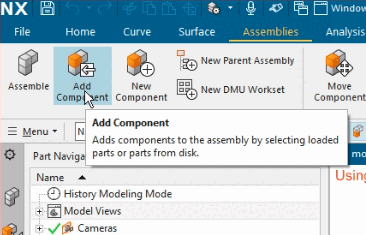
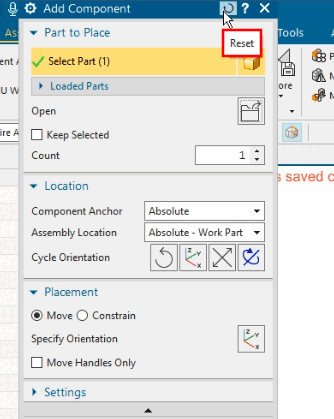
...\iface\unigraphics\shared\macro\cns_place_....macro.-> Recording is started immediately.
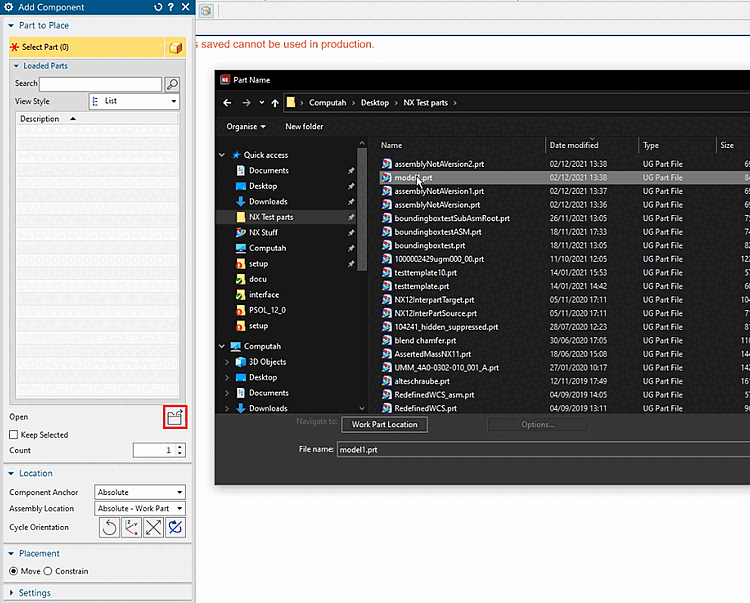
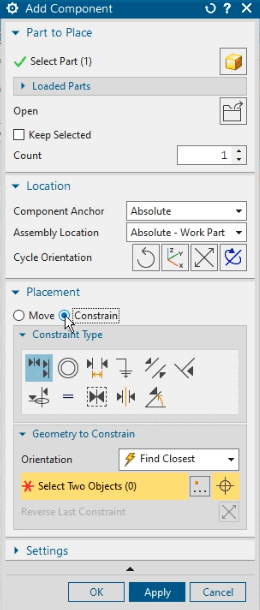
-> The Part Name dialog box opens.
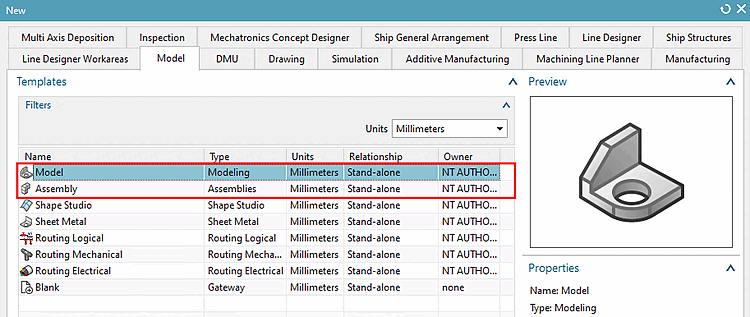
Select any part (not assembly).
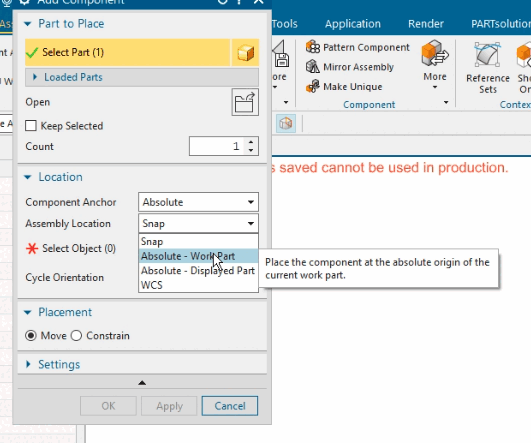
Open the list field under Assembly Location and select Absolute - Work Part.
Optional: Change the setting under Placement from "Move " to "Constrain ".
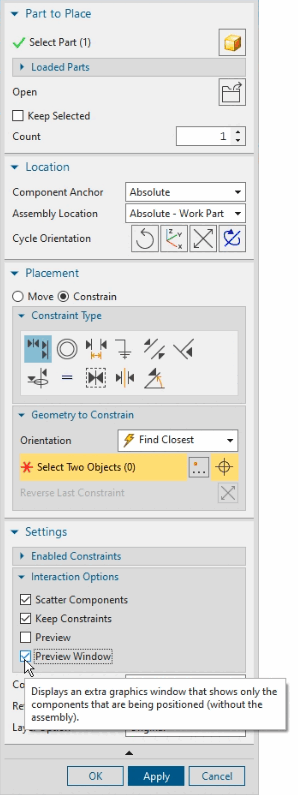
Optional: Deactivate the Preview option under Settings -> Interaction Options and activate Preview Window
Only continue if everything has gone according to plan up to this point.
For the macro recording a concrete sample part had been used. Places containing references to this part have to be replaced by common place holders now.
If you like replace your username by "administrator", for example. (Doesn't matter for functionality.)
Search the place with FILE_BOX and MULTI_SELECT (at the end of macro)
FILE_BOX -2,@@@D:\cadenas\partsolutions\data\pool\ugnx\16212479780_3211281_
 Supplier dependence.prt@@@
D:\cadenas\partsolutions\data\pool\ugnx\*.prt@@@ 0 ! Part Name
MULTI_SELECT: D:\cadenas\partsolutions\data\pool\ugnx\16212479780_3211281_
Supplier dependence.prt
Supplier dependence.prt@@@
D:\cadenas\partsolutions\data\pool\ugnx\*.prt@@@ 0 ! Part Name
MULTI_SELECT: D:\cadenas\partsolutions\data\pool\ugnx\16212479780_3211281_
Supplier dependence.prtand replace these two lines by the following:
FILE_BOX -2,@@@<<CNS_FILENAME>>@@@<<CNS_DIRNAME>>*.PRT@@@ 0 ! Part Name
   MULTI_SELECT: <<CNS_FILENAME>>
Shortly below the just edited line you can find the file name of the part used for the macro recording.
ASK_ITEM 71172097 (1 STRN 0) = "16212479780_3211281_SUPPLIER DEPENDENCE"  !
 Component Name
Delete the file name, meaning the entry between the quotation marks and leave the quotation marks themselves.
ASK_ITEM 71172097 (1 STRN 0) = "" ! Component Name
Optionally, you can also delete the following lines at the end of the file.
WINDOW RESIZE 1.000000 10.822917 7.906250 -1.000000 -0.730510 1.000000 0.730510
WINDOW RESIZE 1.000000 10.822917 7.906250 -1.000000 -0.730510 1.000000 0.730510
WINDOW RESIZE 1.000000 10.822917 7.906250 -1.000000 -0.730510 1.000000 0.730510
WINDOW RESIZE 1.000000 10.822917 7.906250 -1.000000 -0.730510 1.000000 0.730510
WINDOW RESIZE 1.000000 10.822917 7.906250 -1.000000 -0.730510 1.000000 0.730510
Set placement macro in
ifugnx.cfgTest the macro from PARTdataManager once with a single part and once with an assembly, possibly again with an inch part.
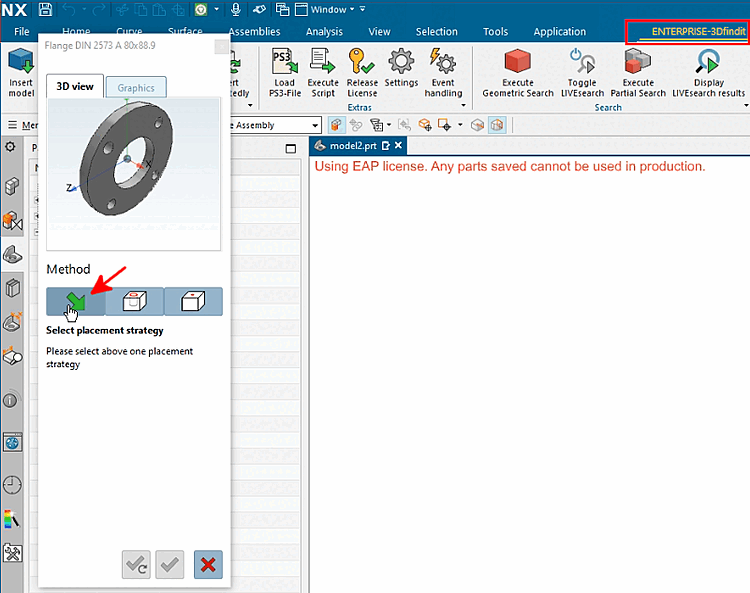
After the part transfer, click on the green arrow (native placement dialog).
-> The NX placement dialog should now show exactly the settings you made when recording the macro.
Optional check: Take a look at the macro file
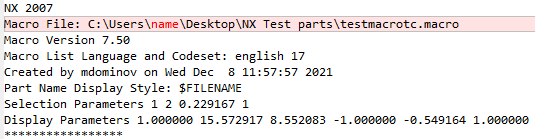
cns_place.macroin the user directory.This should show exactly the current matching replacements after each export.

![[Note]](https://webapi.partcommunity.com/service/help/latest/pages/cn/partwarehouse/doc/images/note.png)