|
Up to now in order to disable a sketch (e.g. temporarily for testing purposes), you had to set an invalid condition such as "0=1", for example or to make an already existing condition invalid. Now with V11 SP9 there is a new function Deactivate to simplify this, which furthermore can be used in order to disable several sketches all at once.
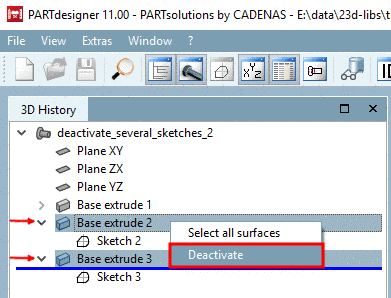
When using Deactivate there are two possibilities:
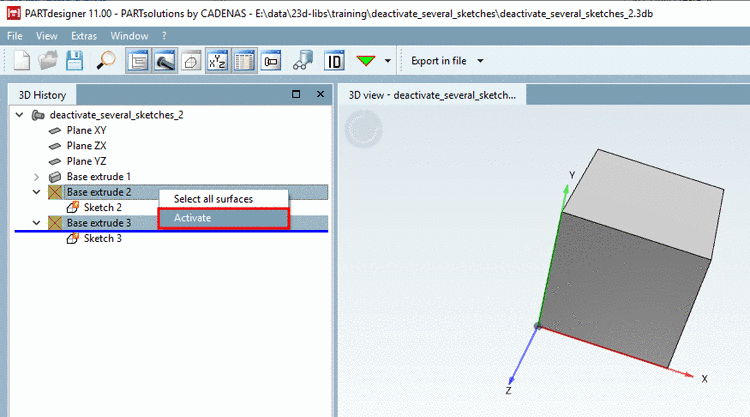
In order to activate proceed the other way around.
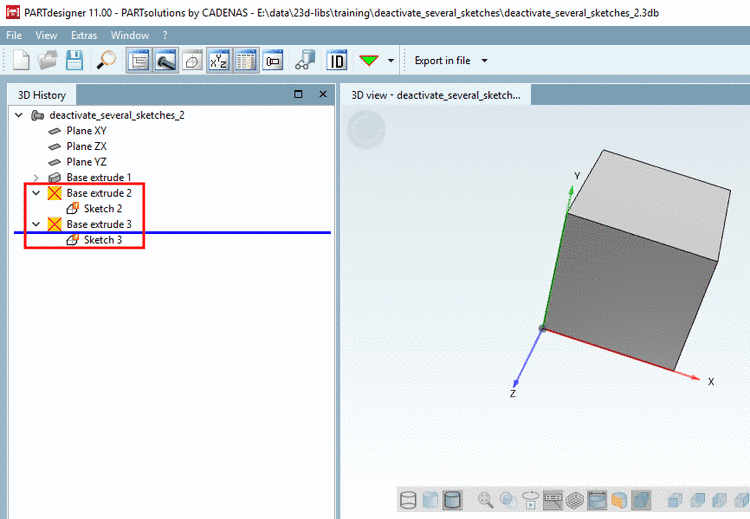
Hidden "Base
extrudes" are marked with a respective icon  .
.
Sketches with
condition are marked with the "if" Icon by default.
![[Note]](https://webapi.partcommunity.com/service/help/latest/pages/cn/partwarehouse/doc/images/note.png) | Note |
|---|---|
The new
feature is fully compatible with older versions, just the icon
| |
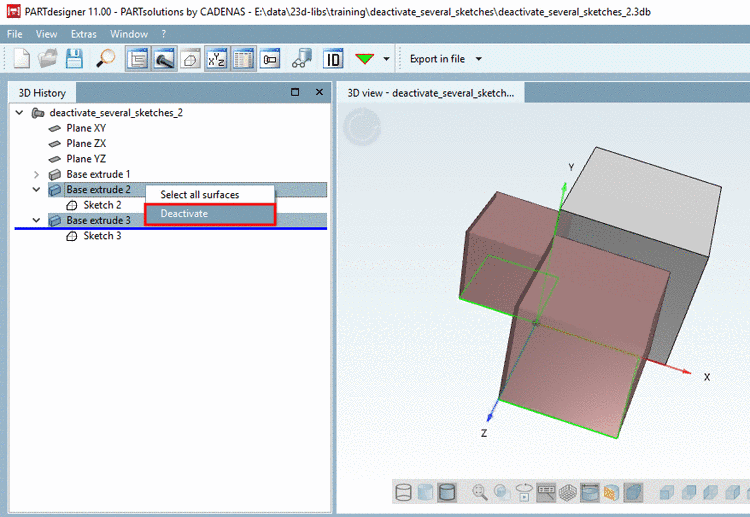
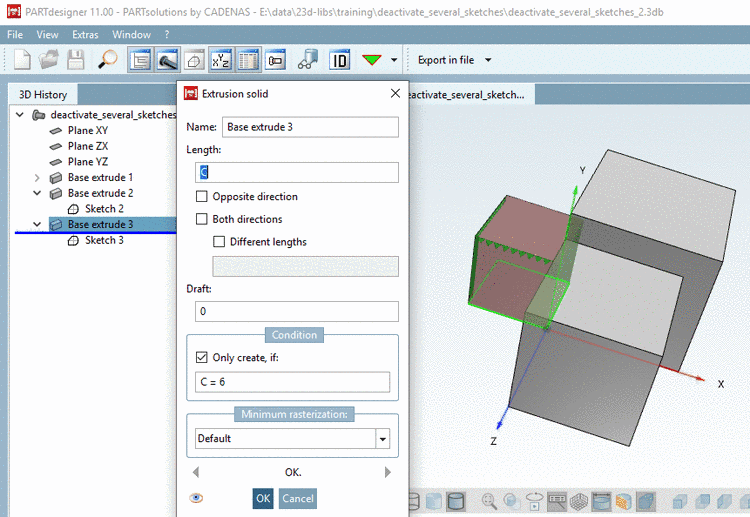
Initial situation: For sketch 3 a condition exists, for sketch 2 not. Both shall be hidden.
Mark the desired Base extrudes and click on context menu command Deactivate.
-> Hidden "Base extrudes" are marked with a respective icon
.-> By default, the sketches are marked with the "if" icon
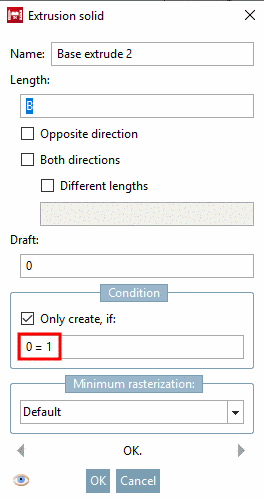
.Open Base extrude 2. The invalid condition "0=1" has been entered.
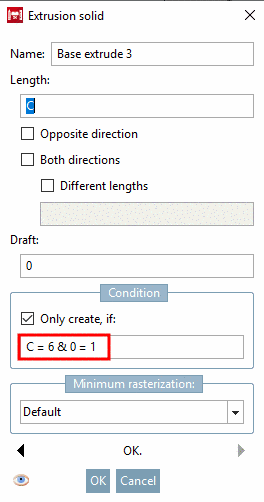
Open Base extrude 3. Here, the invalid condition "0=1" has been concatenated with the already existing "C=6" using "&".
In order to enable the sketches again, click on the context menu command Activate.