
 |
If catalogs have used colors for the part depiction, then you can use the Color Search, either as only search method or in combination with other methods, in order to enhance the quality of the search results.
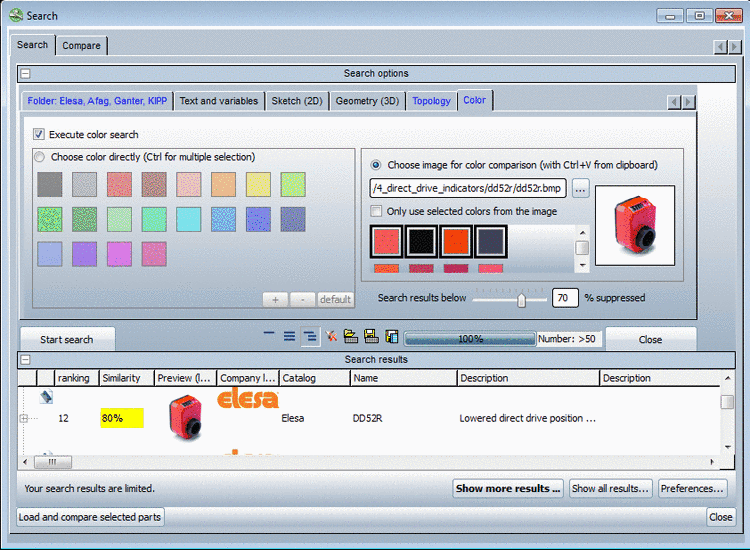
In the case of complicated dye distribution using an image file is advantageous.
Load the desired image file via .
Only use selected colors from the image (optionally)
The best 4 colors are automatically calculated and are selected by default.
If you select the Only use selected colors from the image checkbox, then you can manually act and change the selected colors.
Use the slider in order to define the desired level of color matching. Parts which do not meet the condition are not regarded.
![[Tip]](https://webapi.partcommunity.com/service/help/latest/pages/cn/partwarehouse/doc/images/tip.png)
![[Note]](https://webapi.partcommunity.com/service/help/latest/pages/cn/partwarehouse/doc/images/note.png) | Note |
|---|---|
Presently the Color Search only works with standard and supplier catalogs (not with native parts/catalogs). | |