5.24.3.4.1. Create certificates on the customer side
5.24.3.4.1.2. Manual certificate application (with template)
|  |
| Prev | Next |
In the following the process is described in detail:
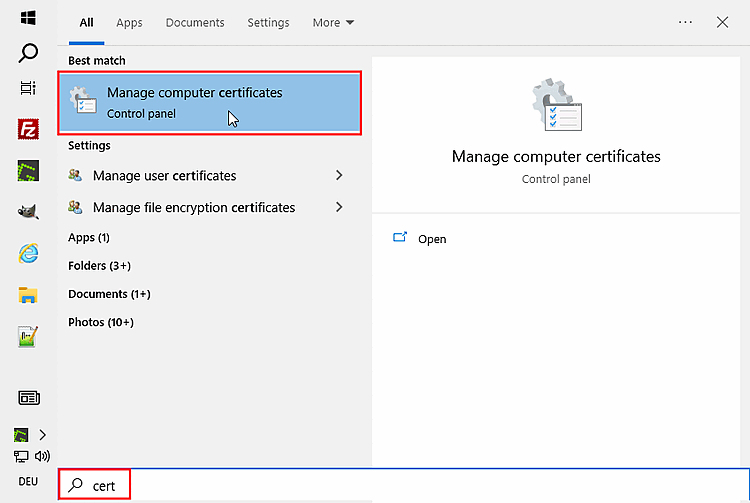
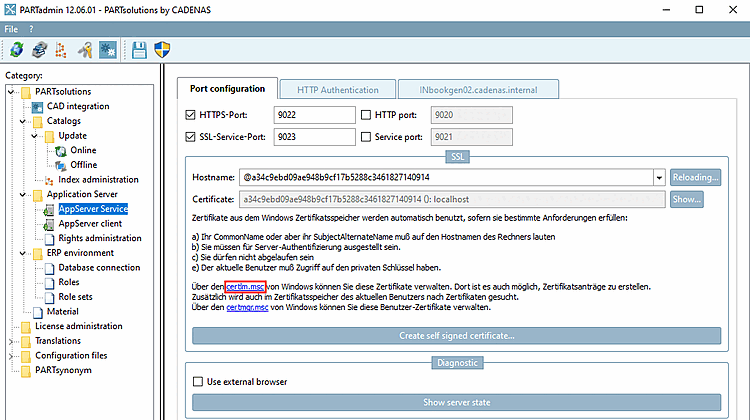
Call up "certlm " on the server:
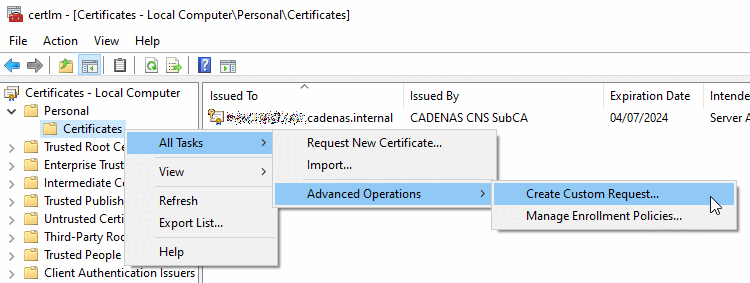
In certlm [Certificates - Local Computer] under My Certificates -> Certificates under All Tasks -> Advanced Tasks, click Create Custom Request....
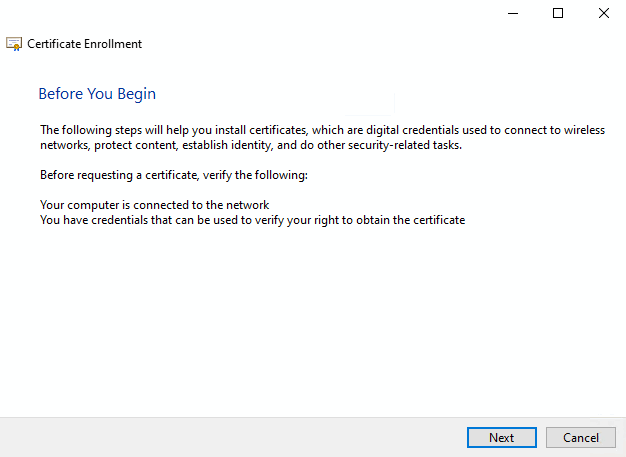
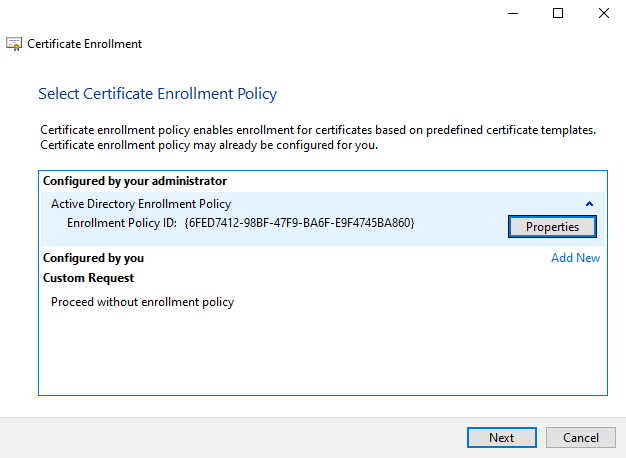
-> The Certificate registration -> Preparation dialog opens.
Select the Configured by administrator option (if available) and click .
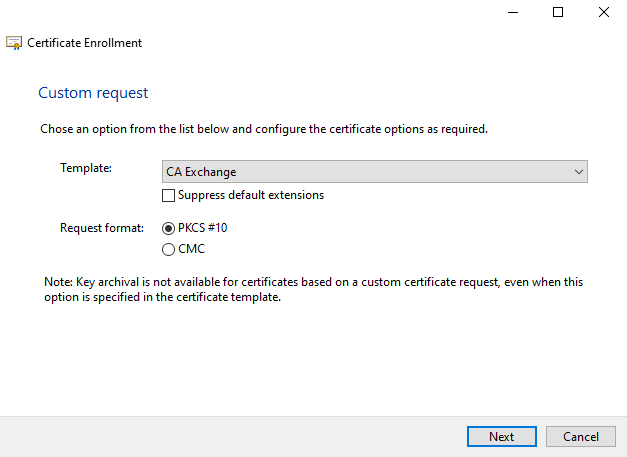
-> The Certificate registration -> User-defined request dialog opens.
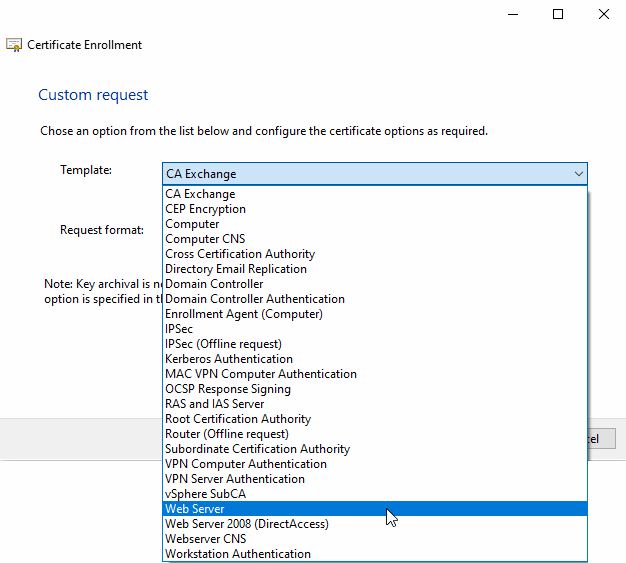
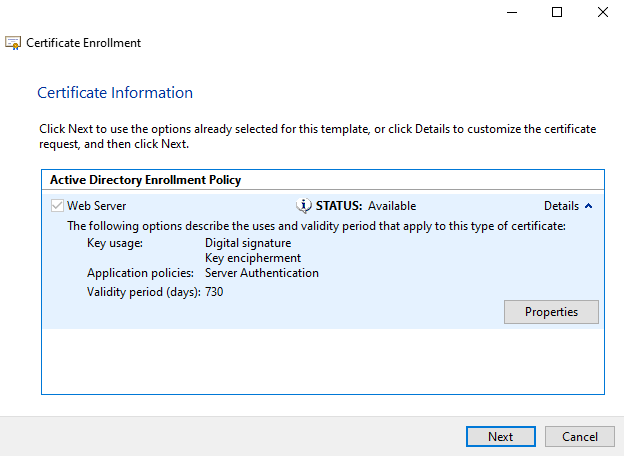
Select the web server template or the one specified by the administration.
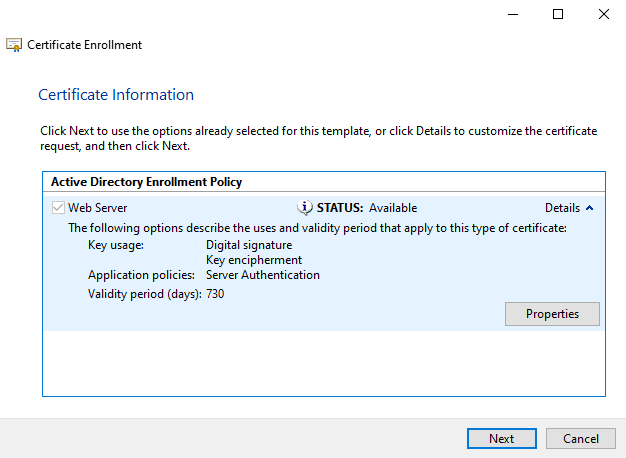
-> The Certificate registration -> Certificate information dialog opens.
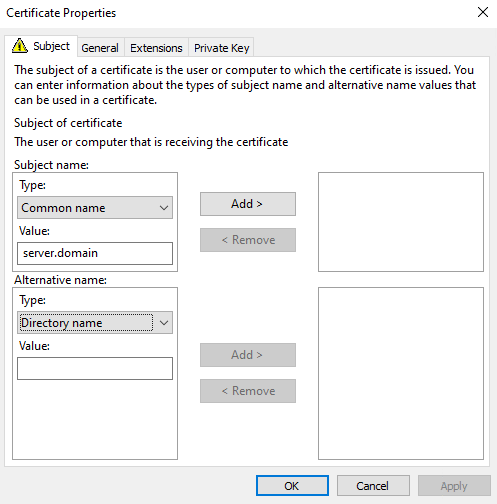
On the Applicant tab page, under Applicant name -> Type, select the General name option and enter the following under Value:
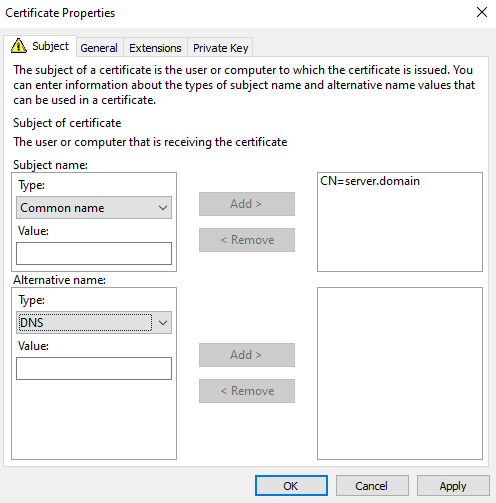
server.domain
-> Now the value is displayed on the right side.
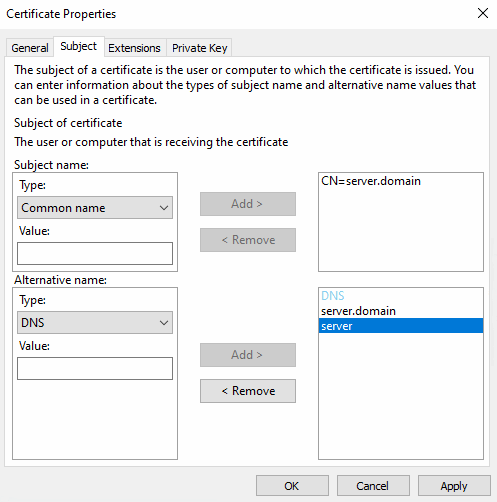
Under Alternative name with type "DNS ", add all variants of the server host name and click in each case.
-> The values are displayed on the right side.
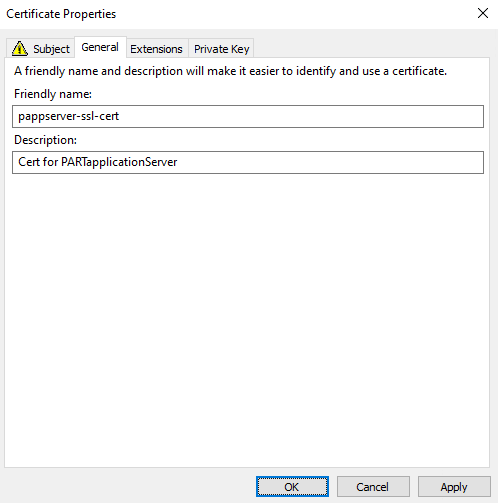
Switch to the General tab page and add the description of the certificate.
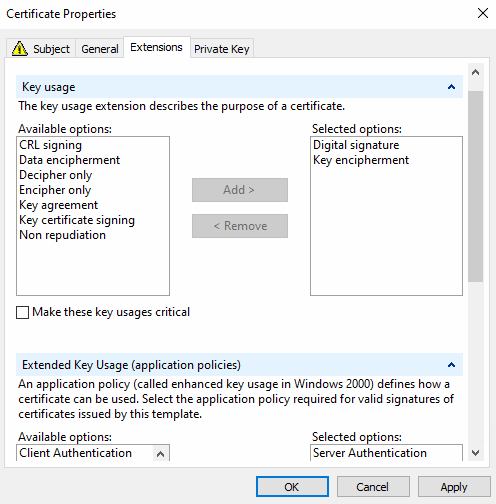
Switch to the Extensions tab page and verify that these key usages are selected:
Switch to the Private key tab page.
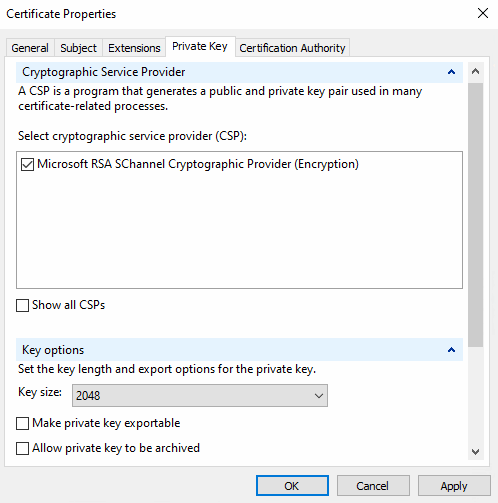
Verify the properties under Cryptographic service provider.
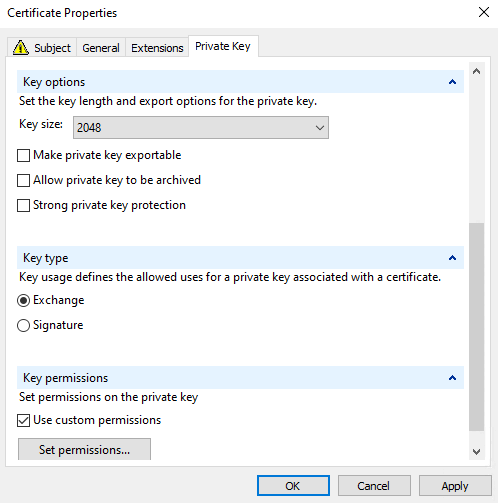
The key size should be 2048 or larger.
Key type: The exchange option should be selected.
Activate the Use custom permissions option and then click on the Select the authorizations so that the user under which the AppServer is running has access to the private key.
-> The Certificate information dialog is now displayed again.
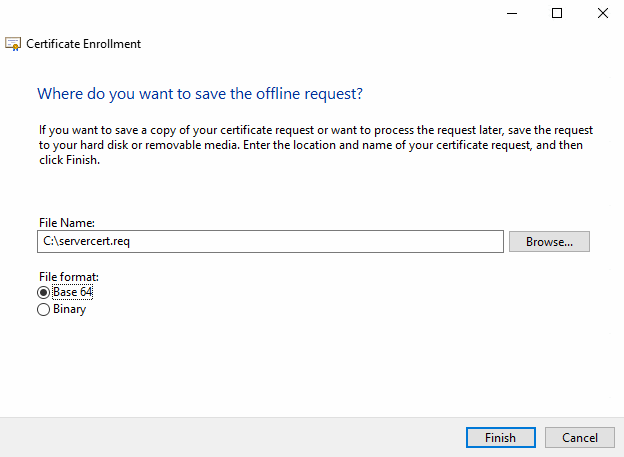
-> The dialog Where do you want to save the offline request? is displayed.
Specify the file name of the certificate request to be generated and click .
Now send the file
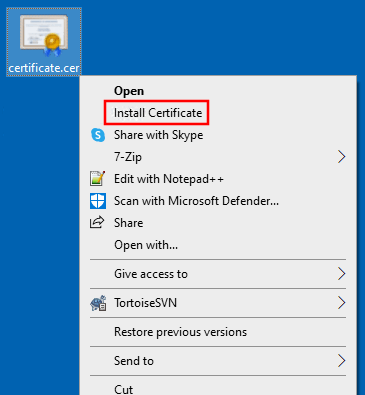
servercert.reqto the administration so that they can sign the request with the company CA.Import the certificate back into the local store under My certificates > Certificates (as admin).
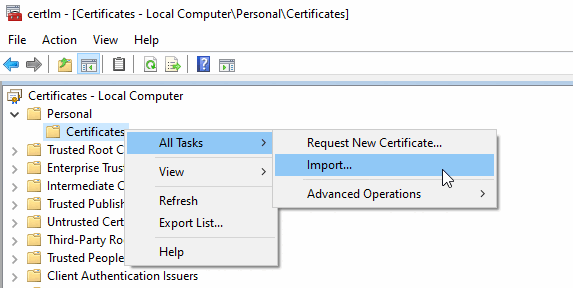
To do this, select the certificate, open the context menu and click on Install certificate or in certlm under My certificates > Certificates on the context menu command All tasks > Import.
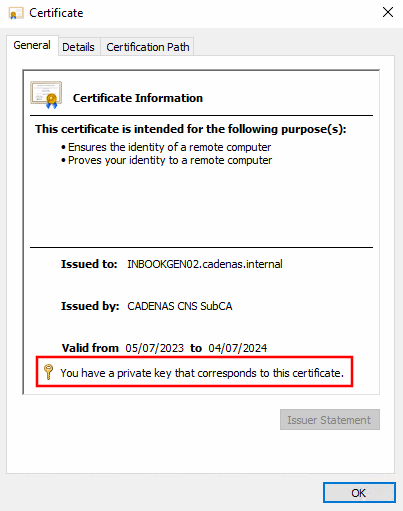
After importing the certificate, the Certificate Information dialog should display "You have a private key for this certificate".