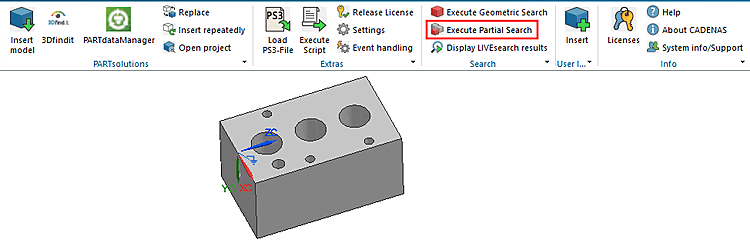
2.6.10.  Partial search

Functional description

The Partial search is a geometrical search. However, not parts are used as reference, but individual features such as plane, cylinder, etc. And then parts containing these features are found. The geometrical arrangement of features is also taken into account. Parts to compare can be Standards, supplier or company parts as well.

Requirements

  • It is highly recommended to import and update data of your own part catalogs with available license PSADDONS*ADVANCEDTOPO. Basically it will also work without this license, but the quality will be much better with it.

  • By default, there is no index generated for the partial search. It has to be activated for each catalog.[21]

Partial 3d similarity search – Find patterns and arrangements

In the following you can find a description on how to perform a Partial Search for parts in your CAD system.

Normally in the CAD system, the feature selection can be made directly in the opened part. If this function is available, you can find the command Execute Partial Search in the PARTsolutions menu. Otherwise this functionality is available directly in PARTdataManager (see below).

  1. Click on the command Execute Partial Search.

  2. Select the desired features to search for.

    -> The dialog box Choose Application is opened.

    Choose Application: Example "PARTdataManager"

    Choose Application: Example "PARTdataManager"

  3. Either select 3Dfind.it Enterprise or PARTdataManager and then click on Choose. (Here in this example PARTdataManager has been selected.)

    -> The focus is switched to the chosen application.

    -> The search is immediately executed.

    -> The active part in CAD is loaded and activated under search function Execute Partial Search. The corresponding preview image is displayed. (Both may last a moment.)

    -> The search results are listed.

    Listing of search results

    Listing of search results

  4. If you want to change the search settings, in PARTdataManager, click on the link Partial search.

    In this example, enable the option Search for negative part. Default for Accuracy is Medium, if necessary change to Accurate or Rough.

    Finally confirm by clicking Commit or Commit and Search.

  5. In the first case, then in PARTdataManager, click on Start search.

    -> Now fitting negative parts are found.

Examples on Partial Search can be found under Section 3.1.6.4.10.6, “ Partial search: Examples of use”.


[21] Before using the Partial search, make sure that under $CADENAS_SETUP/geomsearch.cfg, in the key PartialSearchCatalogs, the catalog path, which shall be used for the Partial search, is inserted and after this the geometrical index is created or updated again for the respective catalog as a whole.

Example:

PartialSearchCatalogs=cat/_partial_search

Several catalog have to be inserted separated by comma.