

For larger projects (> 50000 parts), it is better to generate preview images and indexes retrospectively with PARTproject or PARTadmin.
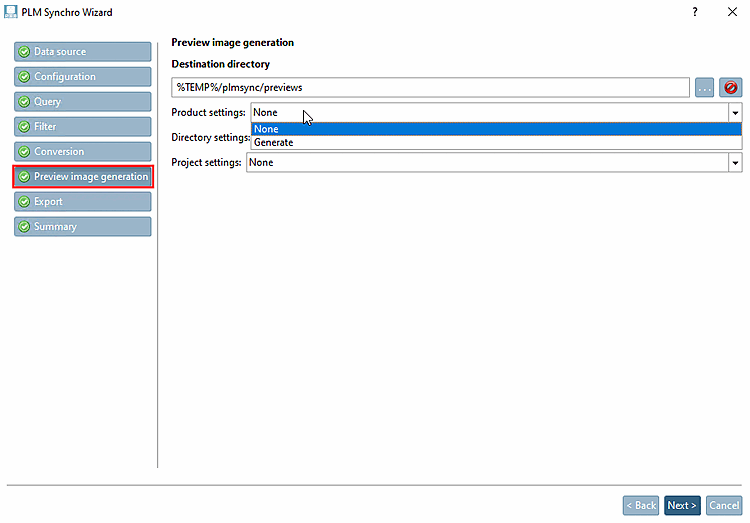
Disable preview image generation
If the PLM Synchro Wizard dialog box is no longer open, call it up again under Processes.
Select the desired process and click on the context menu command Edit PLM Synchro process.
-> The Wizard is opened.
In the Preview image generation menu, set the desired options to None.
Generate the preview images afterwards in PARTproject via the context menu command Output -> Image data/Generate preview images [Generate image data/preview images].
PARTproject -> Context menu command "Output [Output] " -> "Generate image data/preview images [Generate image data/preview images] "
Select the PARTsolutions Exporter node in the pipeline.
Select the User-defined [Custom] option under Indexing in the node editor [Node Editor].[12]
Under Indexing settings [Indexing Settings], click on
-> The settings dialog opens where you can select all items except for Skip View Index.
Generate the desired indexes in PARTadmin under Index management [Index administration] and the corresponding context menu command on the created catalog.
If the "Any" search is to be used (finding topological linear dimensions via full-text search [Full-text search] ), please note that one of the two keys
TopologyCatalogsorTopologyCatalogsRegexmust be activated in the configuration filepartsol.cfg.For details, see Section 1.4.3.6.6.15, “ Update full text search index (and geo search index ) for finding topological values via full text search ” in ENTERPRISE 3Dfindit (Professional) - Administration.
Use the report node to write out errors. See Section 1.7.3, “ Report node ”.
Use XML Reader [XML reader] and XML Writer [XML writer] to write out failed parts and feed them back into the process. See Section 1.7.2, “ XML Writer - XML Reader ”.
Detect attribute names. See Section 1.6.1, “How to get attribute name”.
PARTsolutions Exporter -> Commit settings. See Section 1.7.1.1.5, “ Commit Settings ”.

![PARTproject -> Context menu command "Output [Output] " -> "Generate image data/preview images [Generate image data/preview images] "](https://webapi.partcommunity.com/service/help/latest/pages/cn/installation_ecatalogsolutions/doc/resources/img/img_364a7a7f6e394ec7a8c7221c83fb4c23.png)

![PARTadmin -> Index management [Index administration] -> Context menu commands on created catalog](https://webapi.partcommunity.com/service/help/latest/pages/cn/installation_ecatalogsolutions/doc/resources/img/img_c13c452f253c47f4ae380c652ffdd616.png)