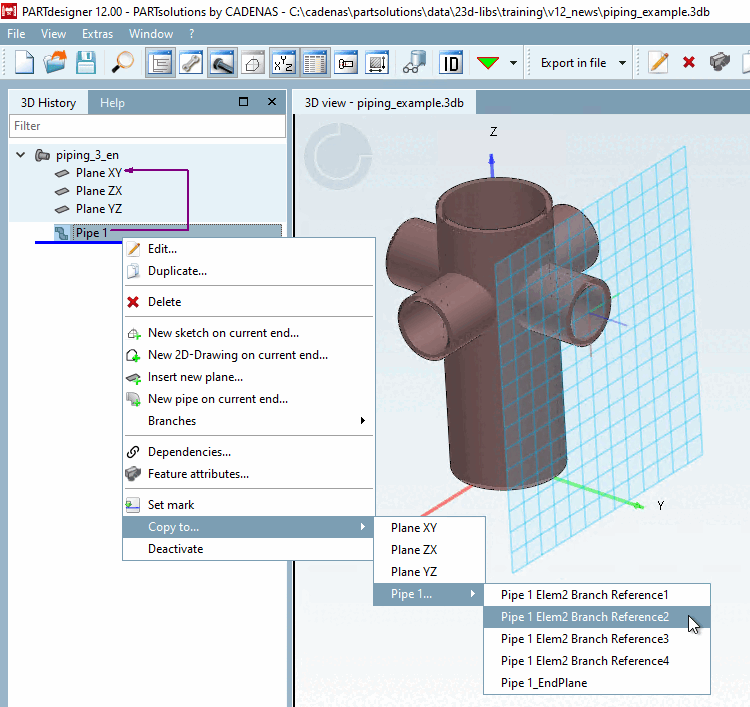
Some actions can be carried out on the 3D history [3D History] element pipe using the context menu command.

Edit [Edit...]...: The pipe in question is opened in the 3D View [3D view] dialog box, where it is completely restored and can be edited further. All references such as "Pipe End" and all branches are retained.
Duplicate [Duplicate...]...: A copy of the selected element is created. The old name is retained with the new version number so that it is again unique.
New sketch at end of [New sketch on current end...] run...: A normal sketch is created at the end of the pipe run. The sketch is related to the pipe run (internally to its end plane). Editing the pipe run will retain the relationship, although the pipe run will be recreated by editing.
New 2D drawing at the end of [New 2D-Drawing on current end...] the pipe run...: A drawing is created at the end of the pipe run. This is related to the pipe run (internally to its end plane). Editing the pipe run will retain the relationship, although the pipe run will be recreated by editing.
Insert new tar [Insert new plane...] paulin...: A plan is created in relation to the end of the pipe run. The normal dialog window for creating a plan is opened. Editing the pipe run will retain the relationship, although the pipe run will be recreated by editing.
New course at end of course. [New pipe on current end...]..: A new pipe run is created at the end of the pipe run. The new pipe run references the end of the existing pipe run (internally to its end plane) and the normal pipe run creation dialog is opened. Editing the pipe run will preserve the relationship, although the pipe run will be recreated by editing.
Branches: The context menu command Branches allows you to add new operations to a selected branch element and is only displayed in the pipe context menu if the pipe route contains at least one branch element.
The submenu shows all possible branches. When selecting a branch the preview highlights the corresponding branch with an arrow (see Fig. „Edit branch“).
Dependencies. [Dependencies...]..: The Dependencies dialog box opens. This shows the connections of the currently selected history point to other construction steps in a hierarchical list.
Feature attributes. [Feature attributes...]..: The Area attributes [Face attributes] docking window opens.
Set marker [Set mark]: Sets a marker at which you can then insert further construction steps.
Copy to. [Copy to...]..: The command allows you to copy the selected pipe run to a selected plane (base plane or end planes of the part itself).
The selection is displayed as a preview in the 3D view.
Copying a pipe will create a so-called deep copy, which means any of its elements is newly created. This leads to a state where the original pipe and its copy are not connected in any way (except possible relation caused by selecting a pipe related plane). Editing the original or the copied pipe will not affect the other one.
Note any error messages in the Notifications docking window and the pipe icon with the green exclamation mark
 in the tree: If, for example, the diameters of the end and start elements do not match, the message "The objects are not contiguous" is displayed. As soon as you make the correction, the icon disappears.
Deactivate: The selected element is deactivated. (For more information, see Section 7.6.3.2, “ Deactivate / activate feature/design step ”)).
![[Note]](https://webapi.partcommunity.com/service/help/latest/pages/cn/installation_ecatalogsolutions/doc/images/note.png)