For admins / key users, the function
 /
/  To the link database
add is [Add to link database] probably always needed. The button may also be
can be linked to a parts request from standard users.
Details can be found at Section 5.23.8.1, “Add ERP number to link database
”.
To the link database
add is [Add to link database] probably always needed. The button may also be
can be linked to a parts request from standard users.
Details can be found at Section 5.23.8.1, “Add ERP number to link database
”.
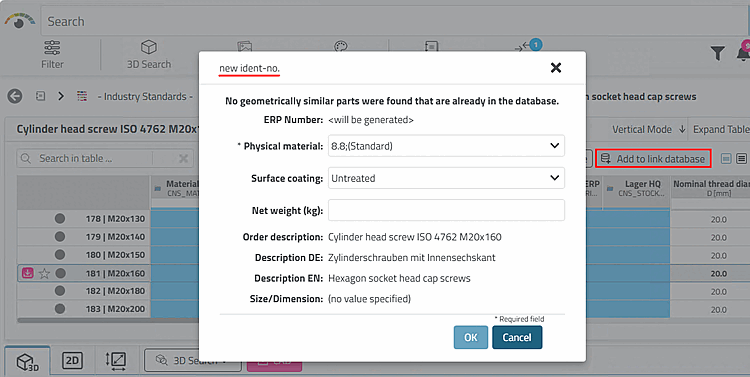
Click on the command to open the New ident number [new ident-no.] dialog.
The input fields can be defined as required. Information on this can be found in the Section 5.12, “ Design "New ident number " dialog box - erpcustom.cfg -> Block [USERDIALOG] ”.
The The button is made visible in
erpcustom.cfgunder[WEB_ACTIONS].[WEB_ACTIONS] 1=ADD2DB_ACTION
Add data record to the link database (variant) [Add dataset to link database (variant)]
The erp_psol_mm_vars script must be activated in order to have the Add data record to link database (variant) [Add dataset to link database (variant)] function availablein principle (regardless of the view display).
In PARTadmin -> Category Configuration Files [Configuration files] ->
$CADENAS/SETUP/erpcustom.cfg-> Block[LOAD], on the relevant Key the Enable [Activate] context menu command and save. (If the key does not exist, create it with a sequential number.) In order for the button to become visible, 3Dfindit must be restarted become.The The button is made visible in
erpcustom.cfgunder[WEB_ACTIONS].[WEB_ACTIONS] 4=ADDVARIANT_ACTION
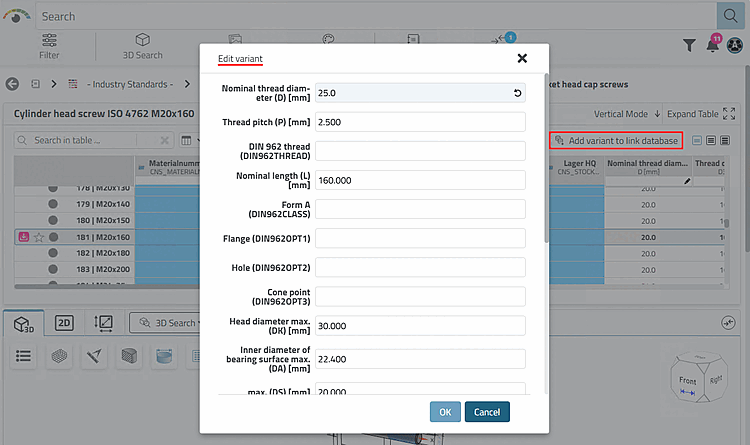
Click on the command to open the Edit variant dialog.
Details can be found at Section 5.23.7.2, “ Add variant to link database ”.
 /
/  Edit/delete record in link
database
Edit/delete record in link
database
The function is used to change LinkDB values such as material. This applies regardless of whether it is a standard line or a variant. Values in the characteristic attribute table cannot be changed with this function.
The script $CADENAS_SETUP/scripts/erp/erp_dbedit.vbb must be activated in order to have the Edit/delete data set [Edit/delete dataset] function availablein principle (regardless of the view display).
Run in PARTadmin -> Category ->
$CADENAS/SETUP/erpcustom.cfg-> configuration files [Configuration files] Block[LOAD], on the relevant Key the Enable [Activate] context menu command and save. (If the key does not exist, place it with sequential number an.)The The button is made visible in
erpcustom.cfgunder[WEB_ACTIONS]. In order to ensure that the button becomes visible, 3Dfindit must be restarted or restarted. a new login.[WEB_ACTIONS] 5=EDITRECORD_ACTION
After clicking on the button, the dialog box Edit/delete data record [Edit/delete dataset] appears.
You can now edit the values of individual ERP variables.
Details can be found at Section 5.23.7.3, “ Edit/delete data record ”.
Request ERP number: From 3Dfindit, the release for parts that are blocked for export can be requested from the responsible office by e-mail.
Hier gibt es verschiedene Konzepte:
In order that the button is displayed in 3Dfindit , must be in
erpcustom.cfg, block WEB_ACTIONS, the key with the value CREATE_REQUEST_ACTION must be enabled.[WEB_ACTIONS] 6=CREATE_REQUEST_ACTION
With method, the application process and the subsequent administration in the dashboard via the part number manager. The user is informed of the current Status in 3Dfindit using
 Activities dialog
informed.
Activities dialog
informed.
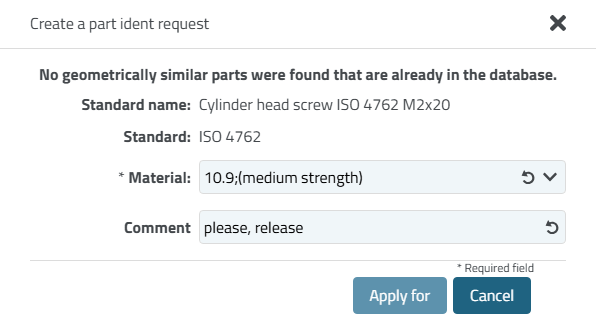
Click on the button to open the Request ident number [Create a part ident request] dialog.
The This dialogue is designed in
erpcustom.cfgvia a own block[REQUESTDIALOG]. The syntax is identical to the one in the [USERDIALOG] block.You can find details on this under Request ERP number via Part number manager (via the "Request an ERP number" button).
The via dashboard > part number manager-controlled process can also be accessed via the Button to link database Add [Add to link database]
/ be triggered. In this case,
also the Create a part ident request dialog
open.
However, the design here is done via block [USERDIALOG].
Details can be found under Applying for an ERP number via Part number manager (via the button "Add to link" database").
 /
/  ERP number
request [Request ERP number]: OUTDATED method
ERP number
request [Request ERP number]: OUTDATED method
In order that the button is displayed in 3Dfindit , must be in
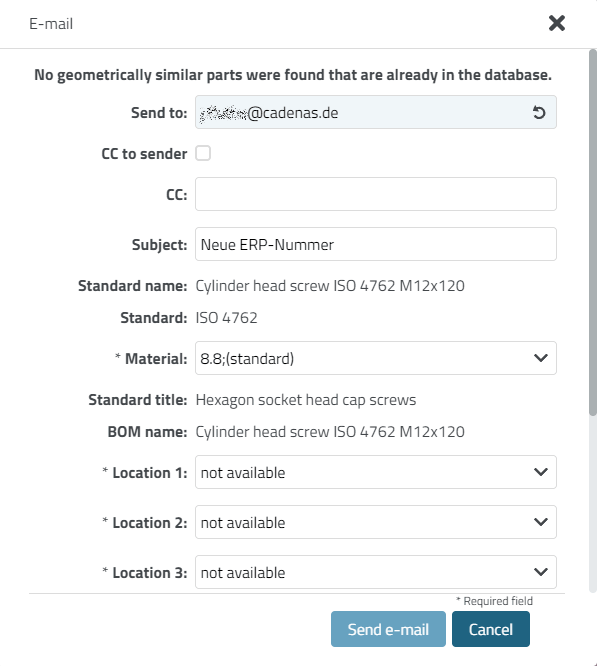
erpcustom.cfg, block WEB_ACTIONS, the key with the value SENDMAIL_ACTION enabled be.[WEB_ACTIONS] 2=SENDMAIL_ACTION
Click on the button to open the E-mail dialog box.
Information on designing the dialog can be found under Section 5.12, “ Design "New ident number " dialog box - erpcustom.cfg -> Block [USERDIALOG] ”.
![PARTadmin -> erpcustom.cfg -> [LOAD] -> erp_psol_mm_vars.vbb](https://webapi.partcommunity.com/service/help/latest/pages/cn/partsolutions_admin/doc/resources/img/img_c7990bddd0444d3f9b82c5d64215bde4.png)
![PARTadmin -> erpcustom.cfg -> [LOAD] -> erp_dbedit.vbberp_dbedit.vbb](https://webapi.partcommunity.com/service/help/latest/pages/cn/partsolutions_admin/doc/resources/img/img_c12e775bf5f34d689d1beb4a3b0f1f87.png)
![Edit/delete data record [Edit/delete dataset]](https://webapi.partcommunity.com/service/help/latest/pages/cn/partsolutions_admin/doc/resources/img/img_5b5d8d90401d4f21a849f5094335fdf1.png)