
Chapter 5. Strategic Parts Management
5.13.
Design "Request Ident Number" dialog box - erpcustom.cfg -> Block [REQUESTDIALOG] |  |
| Prev | Next |
In 3Dfindit
opens by clicking on the Request an ERP number button the Create a part ident dialog box
request.
the Create a part ident dialog box
request.
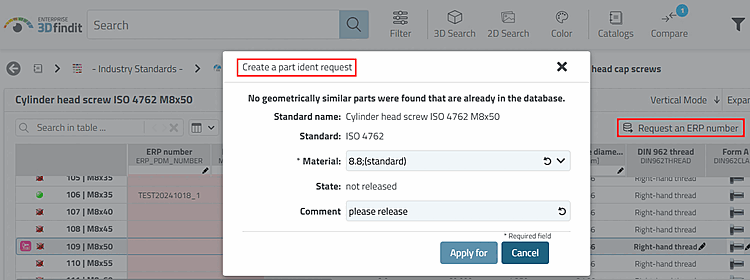
The Settings only applies to 3Dfindit when using the Request to ERP number
with call via [WEB_ACTIONS] >
CREATE_REQUEST_ACTION.
So that the button is displayed,
[WEB_ACTIONS]erpcustom.cfgthe key with the value CREATE_REQUEST_ACTION be active.[WEB_ACTIONS] 6=CREATE_REQUEST_ACTION
The dialog can be the same for all users or user-specific.
[REQUESTDIALOG(User1)]
keys....
[REQUESTDIALOG(User2)]
keys...
etc.
As the name suggests, the dialog is only active in requests. Processing actions on the part of the administration, Standards office, key users run via block
[USERDIALOG].The syntax corresponds exactly to the syntax in the
[USERDIALOG]block. See Section 5.12, “ Design "New ident number " dialog box - erpcustom.cfg -> Block [USERDIALOG] ”.