
 |
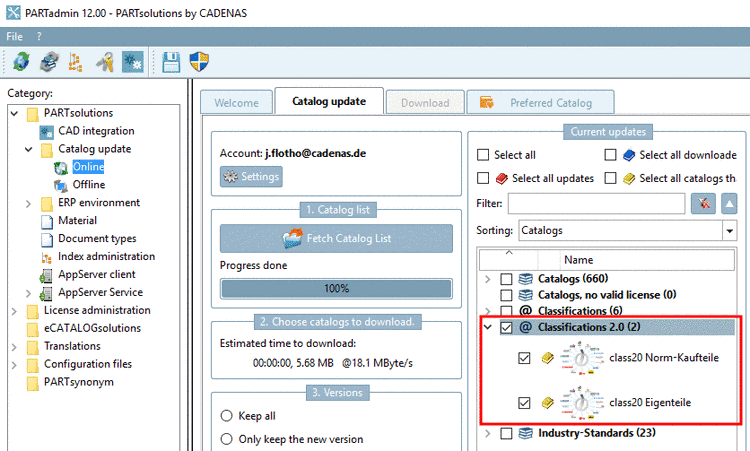
Install the classifications class20 Norm-Kaufteile and class20 Eigenteile.
The Classification 2.0 search does not require time-consuming classifying, but is based on parametrical reference models.
The variables can simply be adjusted in the settings dialog. The variable name in the searched parts doesn't matter. Specific topological characteristics such as holes don't have to be in the search part itself, but are added to the search in the sense of a combination search.
On this also compare 3DFindit -> Section 4.5.7, “ Grid Search ”.
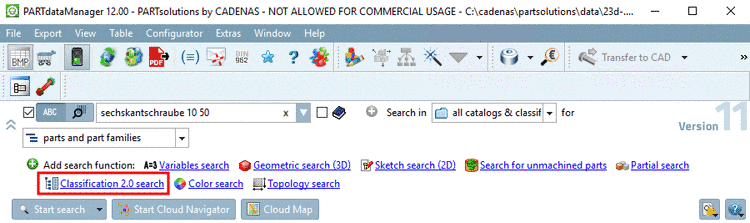
Call Classification 2.0 search.
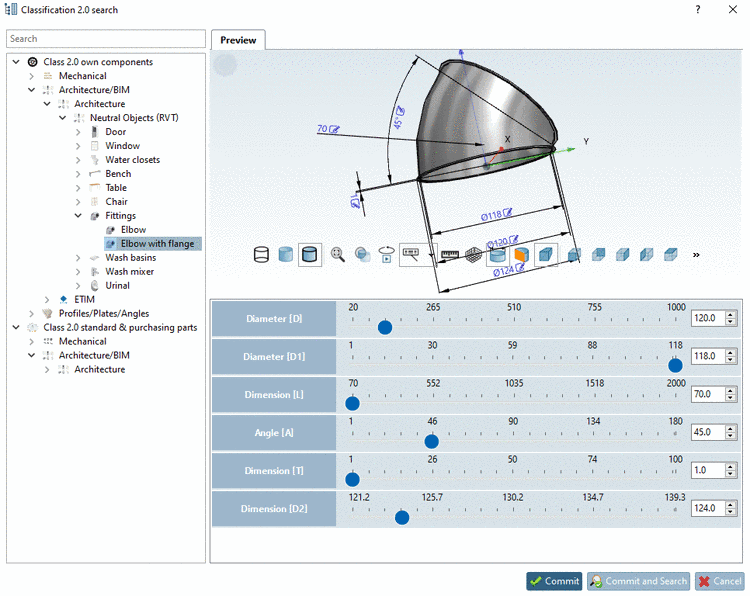
In the index tree, select a fitting Class 2.0 own part (in this example "Rohrbogen mit Flansch").
Adjust the variables of the parametrically created model with the help of sliders or input fields.
Here in this example the following values have been set: Inner diameter 118, outer diameter 120 and flange outer diameter 124.
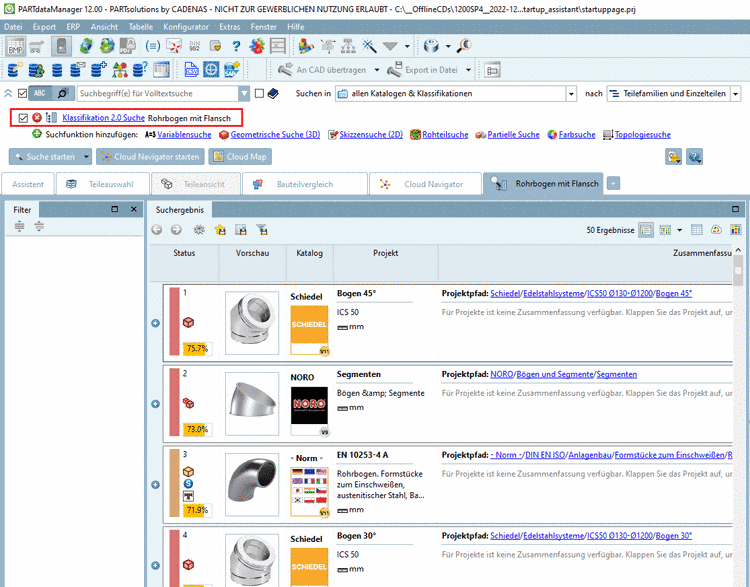
Adjust the settings under Search in (e.g. all catalogs classifications or Current catalog xy). Under Search for, normally the setting parts is advantageous.
-> The results are listed on an own tabbed page by default.
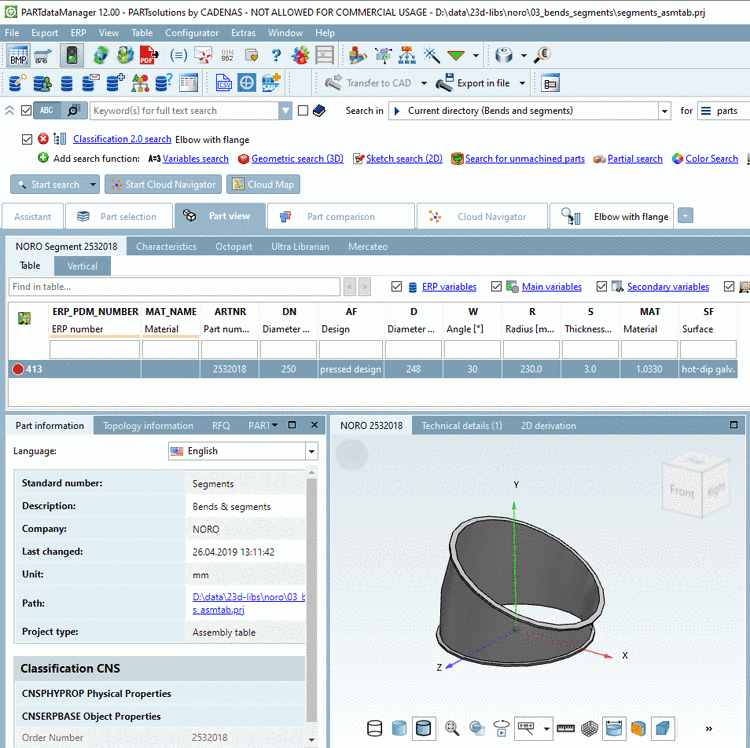
Open the desired part (here in this example, the part from the NORO catalog).
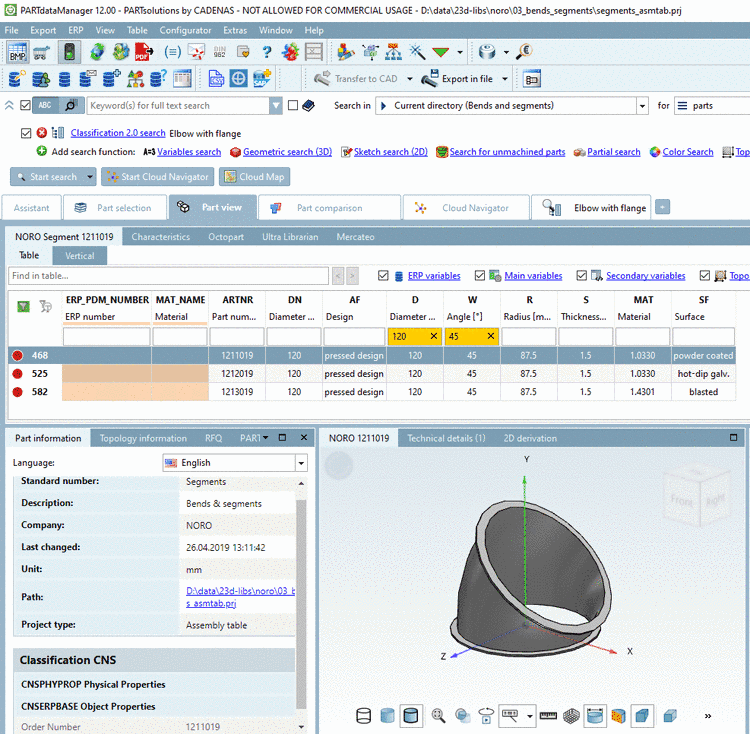
Click on the icon
 Search filter on/off.
-> All table lines are displayed and the icon is shown grayed out now
 .
.Filter the table in the column header for diameter and angle (in this example 120 and 45).
-> The desired part is displayed.
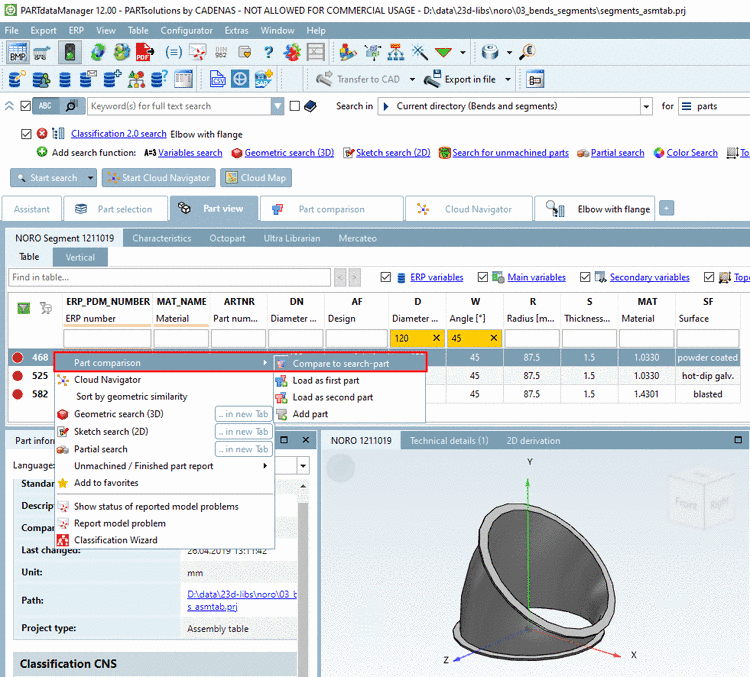
In order to perform a part comparison with the search part (or other parts in question) select the desired line and call the context menu command Compare to search-part.
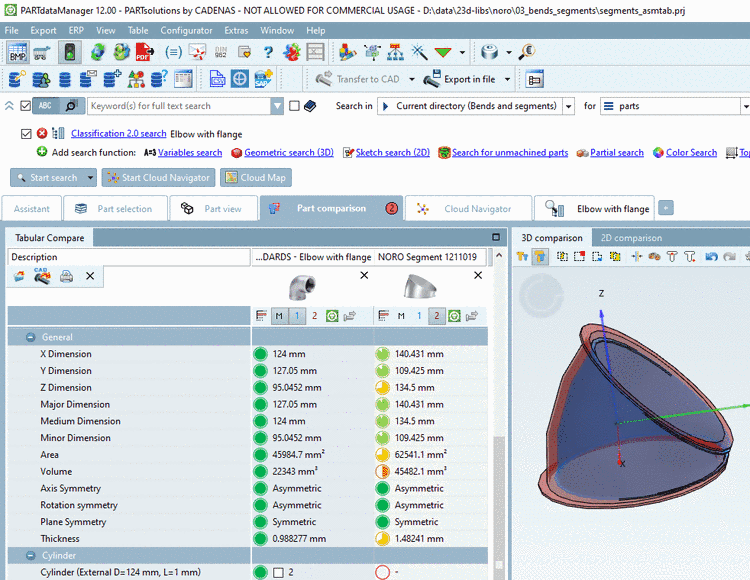
Search part and found part are loaded into the Part comparison.
Click on the button
 Automatically calculate aligned rotation and position in order to overlay the
parts.
Automatically calculate aligned rotation and position in order to overlay the
parts.Details on the part comparison can be found under Section 3.1.6.10, “ Part comparison ”.
![[Note]](https://webapi.partcommunity.com/service/help/latest/pages/cn/partsolutions_user/doc/images/note.png)
Under $CADENAS_DATA, a search catalog
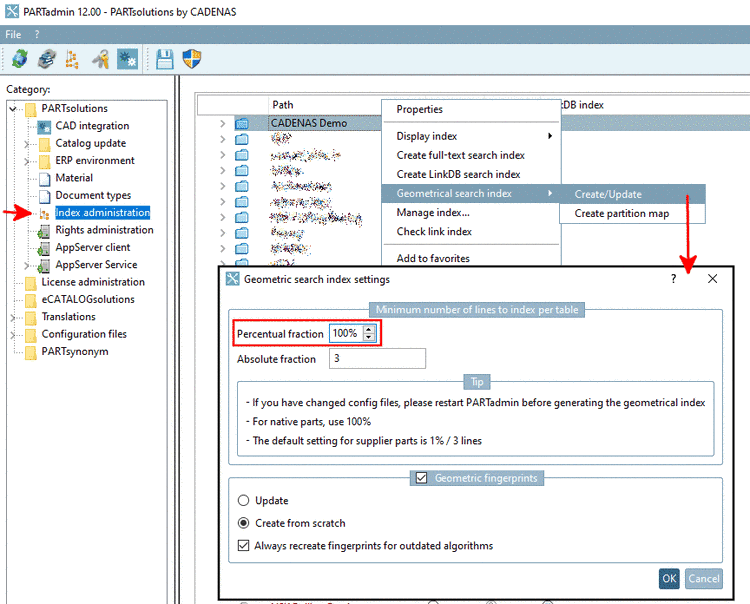
is provided for the Classification 2.0 search. In PARTadmin, under Index administration -> Catalogs it is displayed. For
index updates, the usual context menu commands are available.
The setting options for variables and topological characteristics are controlled by search templates, which can be customized for each search model. Dynamic adjustment is possible, e.g. the later splitting of classes without editing all of the assignments, but only of the search class.