

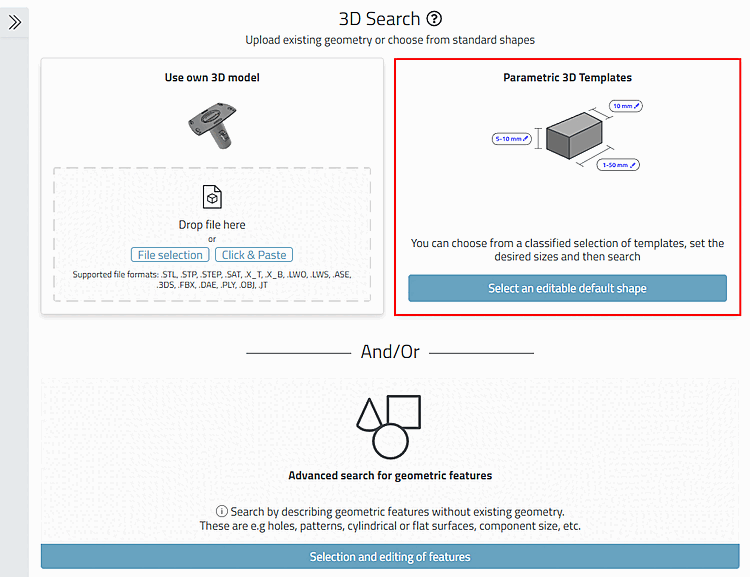
Find models using a parametric template.[30]
![[Note]](https://webapi.partcommunity.com/service/help/latest/pages/cn/partsolutions_user/doc/images/note.png) | Note |
|---|---|
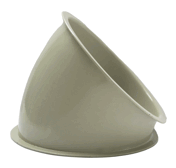
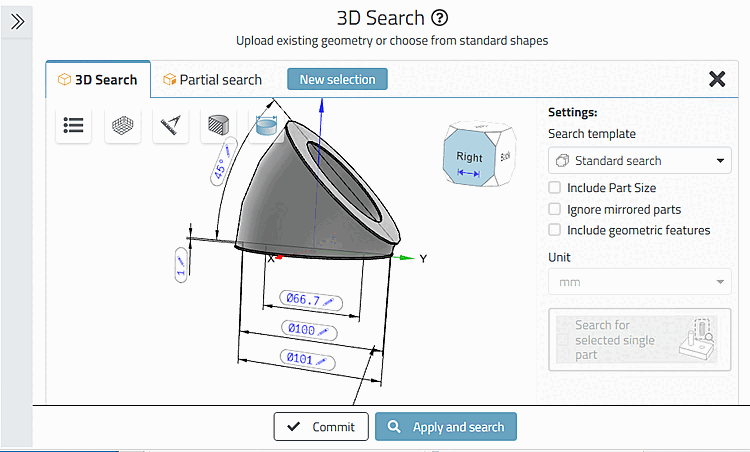
The following is an example of a search for the pipe bend shown. You can also watch the video at the same time: https://www-de.3Dfindit.com/de/corporate/enterprise/finden-mit-der-3-d-rastersuche-beispiel-rohrbogen https://www-de.3Dfindit.com/de/corporate/enterprise/finden-mit-der-3-d-rastersuche-beispiel-rohrbogen This will give you a quick overview. You can find special information in the document here. | |
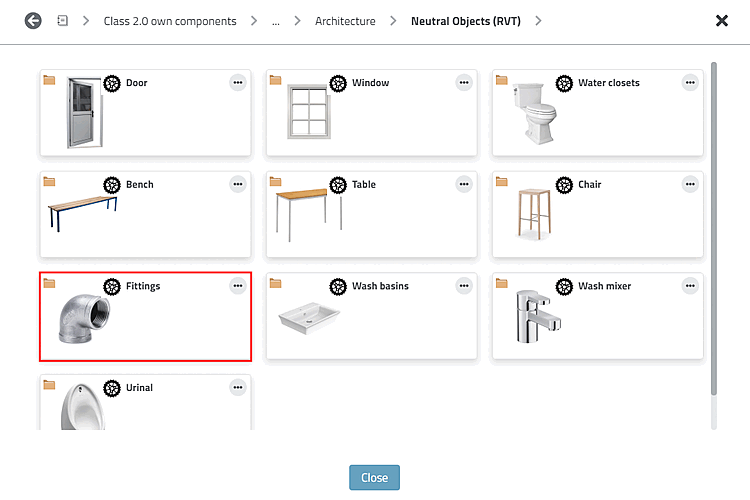
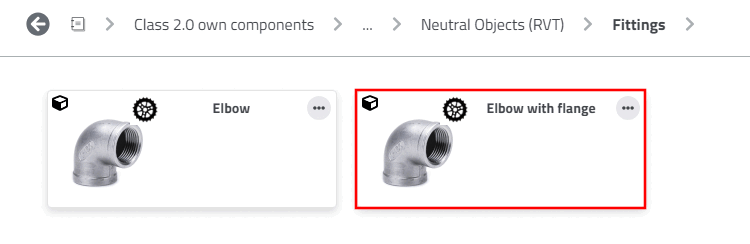
Browse to a suitable Class 2.0 proprietary part (here in the example "Pipe bend with flange").
Open the part by double-clicking.
-> The settings dialog is opened.
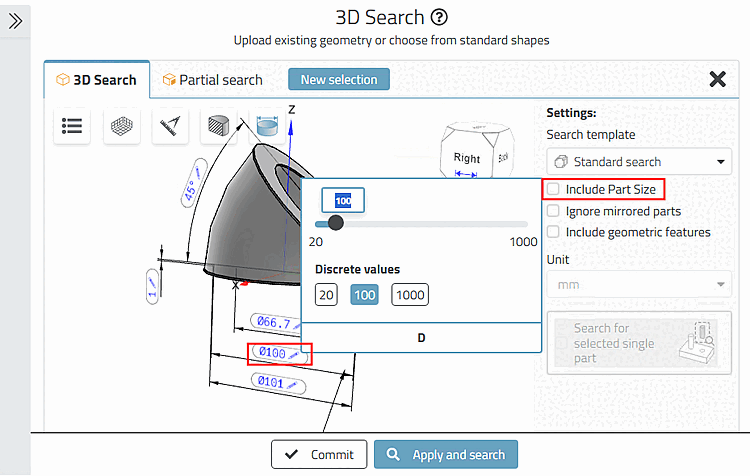
Set adjustable variable values
 directly in the 3D preview, until the displayed
model complies with your requirements.
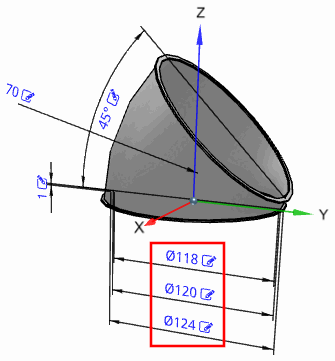
directly in the 3D preview, until the displayed
model complies with your requirements.In this example we set 118, 120 and 124.
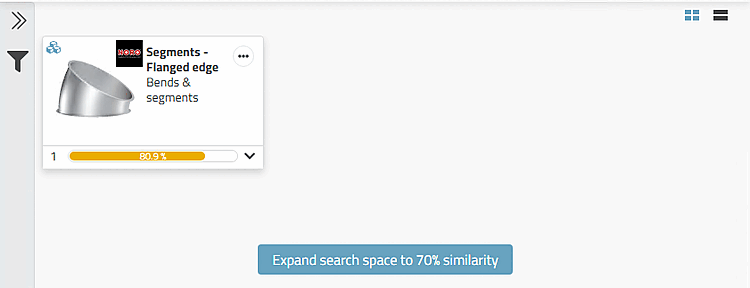
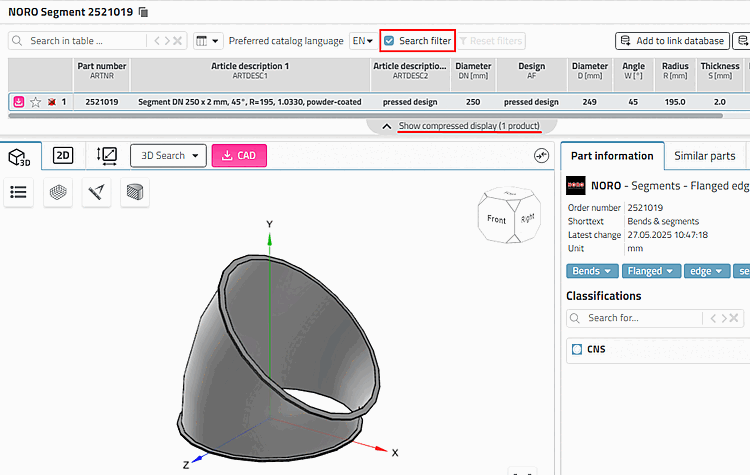
-> The search results are displayed. (May be you need to reduce the required similarity.)
-> The part is displayed with different size (as a fitting size is not indexed at least).
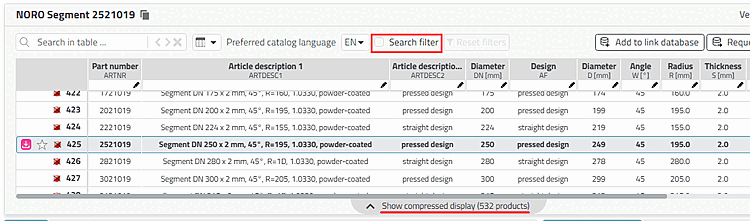
Deactivate the Search filter option to display the complete table and check whether the appropriate size is included.
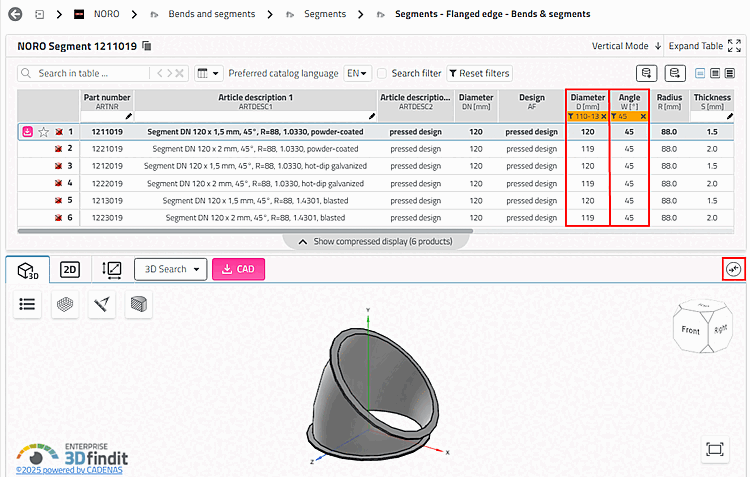
Filter the table by diameter and angle. Enter "Diameter 110-130" and "Angle 45". (You can remove all table filters again by clicking on the button).
Line 1 contains the desired result.
Select row 1 and click on the Icon
 part for comparison
. [Add part to compare]
part for comparison
. [Add part to compare]
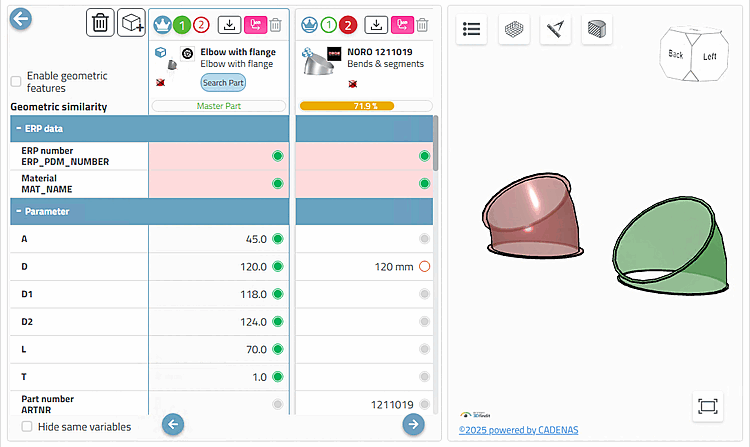
-> The part is loaded into the part comparison.
-> This is visible from the number in the Comparison [Compare] button or the number increases by one counter.
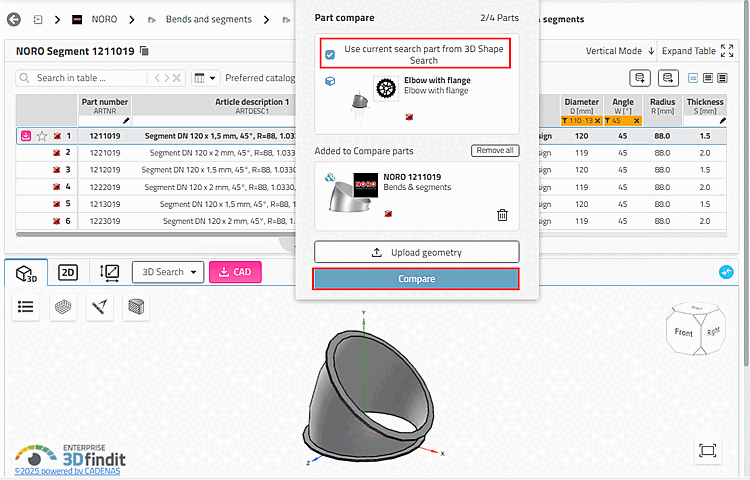
-> The Parts comparison [Part compare] dialog opens.
-> Activate the Use current search part from the 3D shape search [Use current search part from 3D Shape Search] option.
-> Search part and results part are opened in comparison.
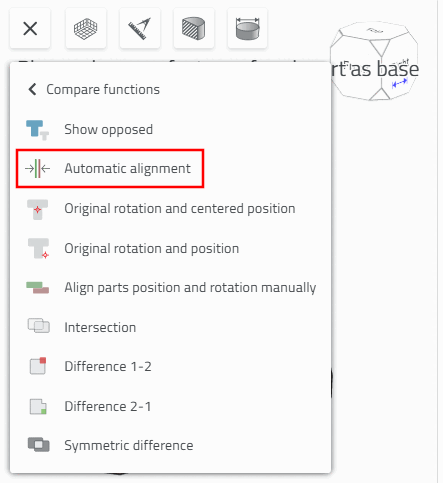
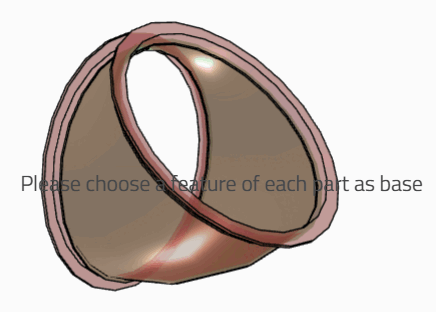
Click on the Automatic alignment button under Additional functions [Additional features] > Comparison functions [Compare functions].
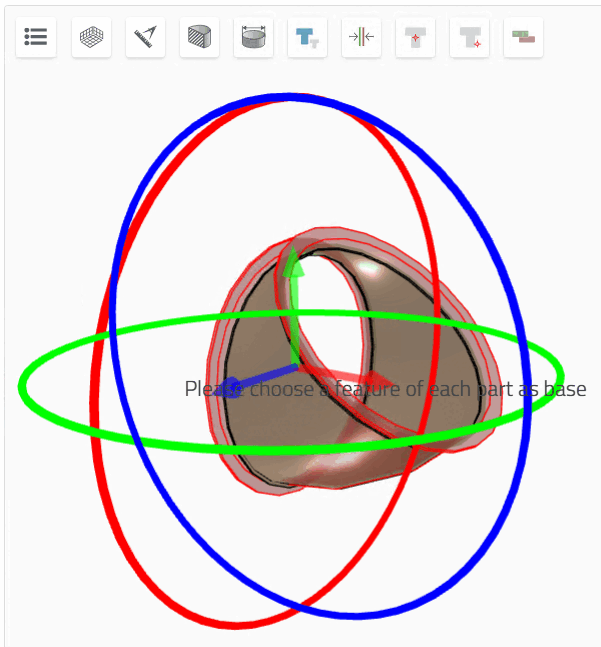
If required, select the part in one of the superimposed states. Move and/or swivel the part using axes and rotation circles.
In the same way you can compare any result parts with each other.
![PARTadmin -> Index management [Index administration] -> Geo search index [Geometrical search index] -> Create/update [Create/Update] -> Percentage share [Percental fraction]](https://webapi.partcommunity.com/service/help/latest/pages/cn/partsolutions_user/doc/resources/img/img_a78c679206dd464aaba148a1731f05b4.png)
[30] Classifications 2 .0 must be installed. See Section 1.8.1, “Support of search methods” in ENTERPRISE 3Dfindit (Professional) - Administration.