|
A Variables search can directly be performed based on a search result (in addition to an initial variable search).
In the following the possibilities are explained through a little example.
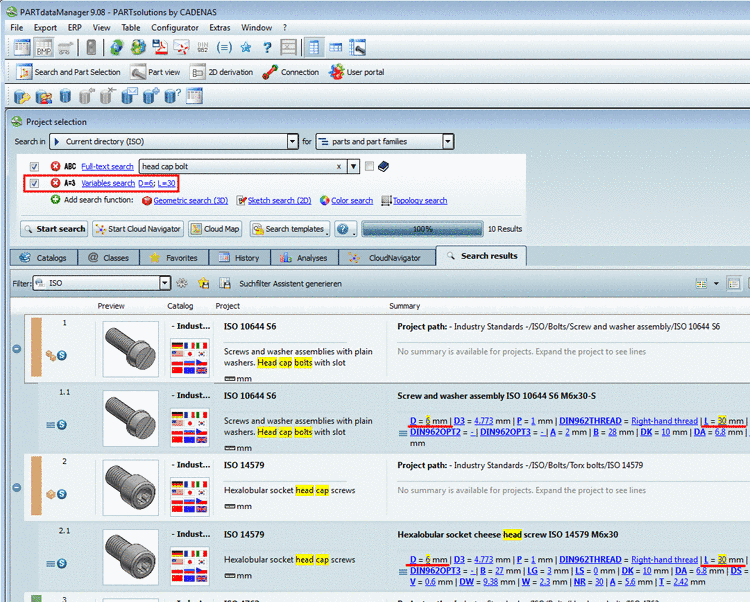
Conduct a Full-text search with the search term "Head cap bolt".
At the variable "D", click on the variable value.
-> Now, based on the already existing settings an additional variable search with the clicked variable value is performed.
Repeat the procedure at the same project or any other (e.g. by clicking on the value 30 at the variable "L".
-> Now you still see only characteristics according to the past search selections.
-> All presently searched terms and variable values are highlighted in yellow.
Now do not click on a variable value, but on a variable.
-> The dialog box Variables search opens.
Alternatively you could have opened the dialog box in the dialog area of search methods by clicking on Variables search just as well.
For "P" possibly change the mathematical operator from equals (=) to Range (from-to) and enter the desired values.
You can also change already made settings here.
Furthermore you have the opportunity to search for ERP variables in the dialog box here (e.g. for a certain prefix).
You will see all made settings above under Variables search.