

The following describes how to replace individual parts (standard parts, purchased parts or your own parts) with any alternative.
(In the following example only a bolt's length is changed.)
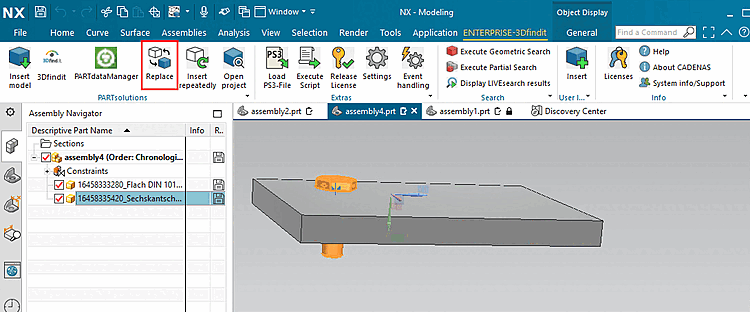
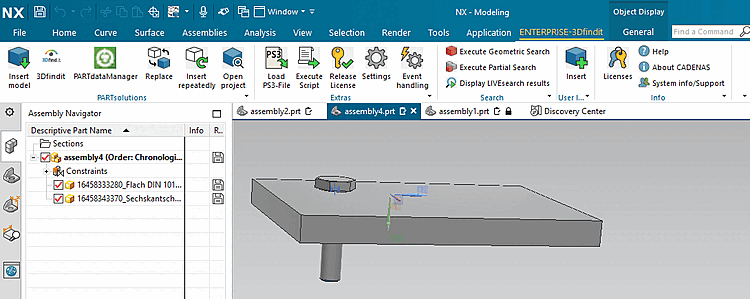
Select the object to be replaced (or several objects) and click on Replace.
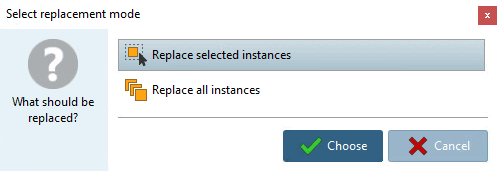
-> The Select replacement mode query dialog appears.
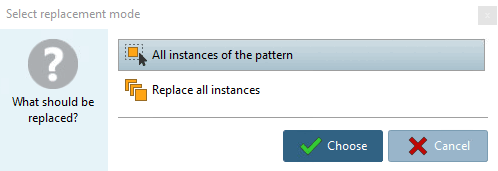
If the component to be replaced is part of a pattern, the selection options are slightly different.
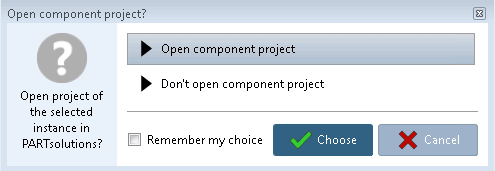
-> The Open component project? dialog opens.
If you do not want the dialog to be displayed in future, activate Remember my selection [Remember my choice].[16]
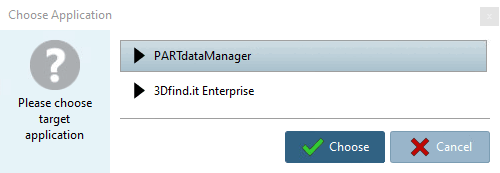
-> The Select application [Choose Application] dialog opens.
Click on the corresponding button.
-> The view returns to the CAD system and the part (or several) is immediately replaced without any further inquiries.
![[Note]](https://webapi.partcommunity.com/service/help/latest/pages/cn/partsolutions_user/doc/images/note.png)
!["Transfer to CAD... [Transfer to CAD...]" button in PARTdataManager](https://webapi.partcommunity.com/service/help/latest/pages/cn/partsolutions_user/doc/resources/img/img_6face2a8d0c94223b458ceb6682377fc.png)
[16] As soon as you make the activation, a corresponding entry is made under $CADENAS_USER/if<cadname>.cfg.
[Interface] Replace_QueryOpenProject={0,1} Replace_OpenProject={0,1}