

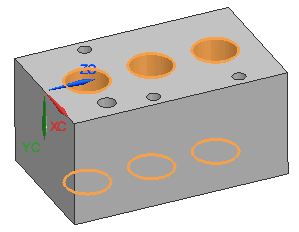
The partial search [Partial search] is a geometric search, but here you do not select components as a reference for the search, but individual features such as planes, cylinders, etc. and use them to find all components that contain these features. The geometric arrangement of the features is also used for the search. The comparison parts to be searched can be standard and purchased parts as well as in-house parts.[22]
In the following you can find a description on how to perform a Partial Search for parts in your CAD system.
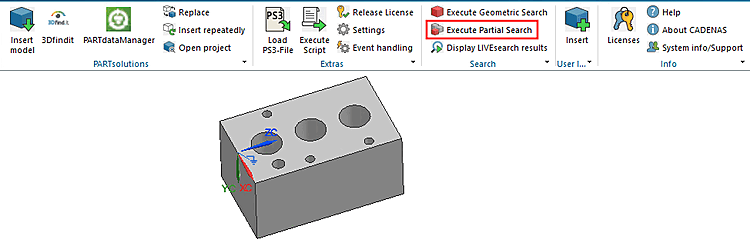
As a rule, features can be selected directly in the open component in the CAD system. You will find the command Perform partial search [Execute Partial Search] in the 3Dfindit menu in the CAD system. The functionality is also available directly in 3Dfindit or in the PARTdataManager (see below).

![Select application [Choose Application]: Example "3Dfindit"](https://webapi.partcommunity.com/service/help/latest/pages/cn/partsolutions_user/doc/resources/img/img_9a96a199b1ae4e5da8f6416931014d73.png)
The following two sections explain the procedure once for PARTdataManager and once for 3Dfindit.
[22] For administrative default settings, see Section 1.4.3.6.6.16, “ Geo search index for partial search ” in ENTERPRISE 3Dfindit (Professional) - Administration.