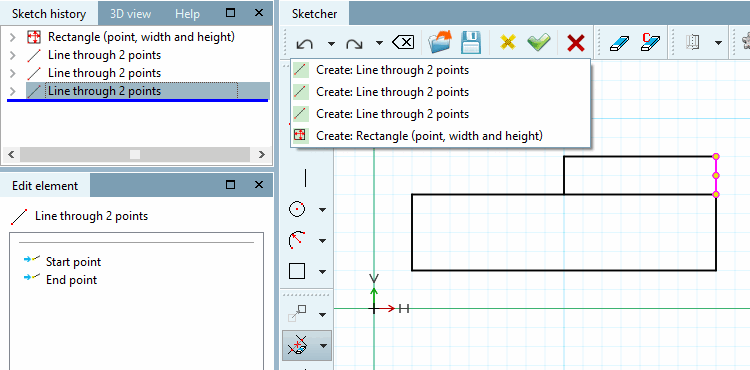
In both buttons there is a list field integrated, which shows the possible steps. When clicking on a list item you will automatically jump to the corresponding state and so possibly save dozens of single steps. (The last step is on top.)
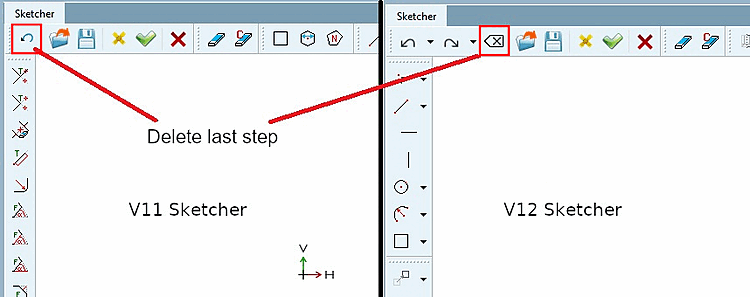
Information for existing customers: In the course of the changeover from V11 to V12, the button for undoing a single step has changed and an undo/redo [Restore] function has been added.
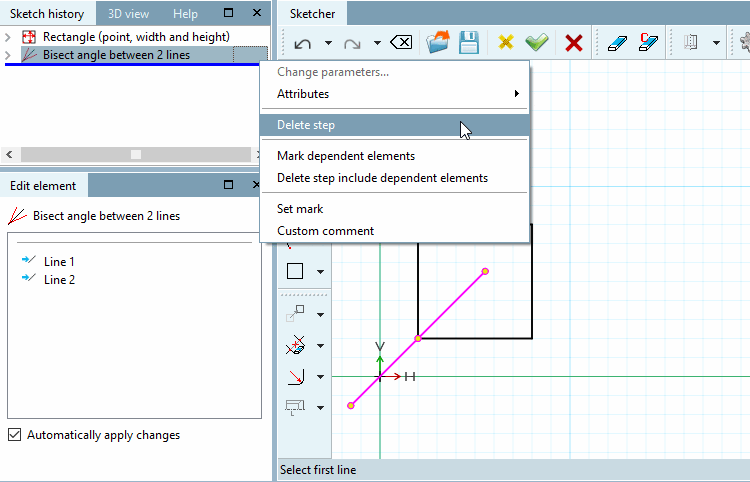
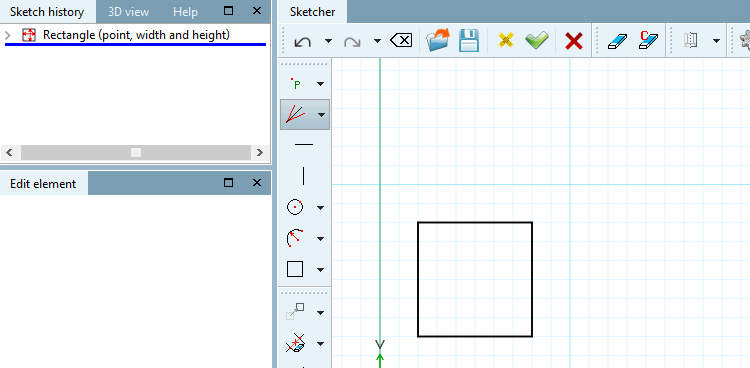
Removes the last created construction step from the sketch history [Sketch history] or from the drawing in the Sketcher.
![[Note]](https://webapi.partcommunity.com/service/help/latest/pages/cn/partsolutions_user/doc/images/note.png)
Note Even if
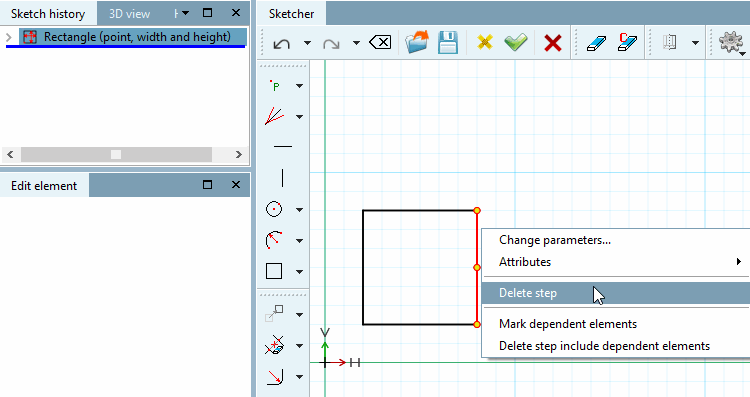
 Delete step is executed over a specific element, all elements associated with it that belong to the same feature (design step in the sketch history [Sketch history] ) are deleted.
If you really only want to delete one line, you must
 Delete [Delete element] element or
  Delete element conditionally [Delete element with condition]. See Section 7.9.3.3, “Delete
”.
Delete element conditionally [Delete element with condition]. See Section 7.9.3.3, “Delete
”.Note Sometimes
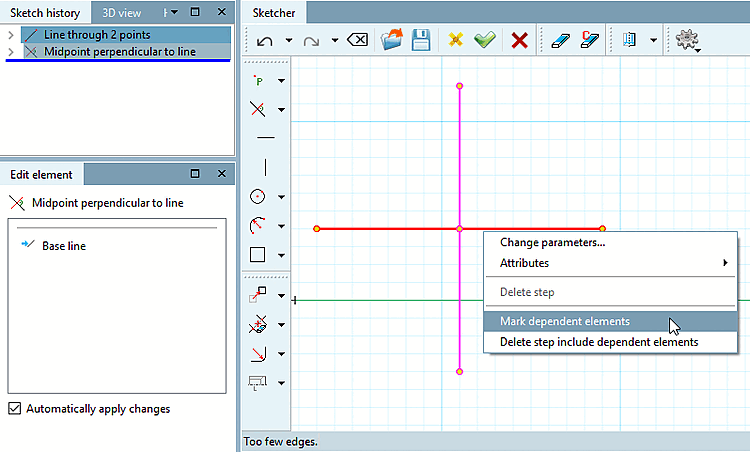
Delete step is deactivated (grayed out).This is then the case, if depending elements would also be deleted by the action. On this see Fig. „Perpendicular bisector created on the base of the horizontal.“.
You can display the dependent drawing elements selected. Select the base element with the mouse and click Select dependent elements [Mark dependent elements].
-> Dependent elements connected by construction then are shown in pink.
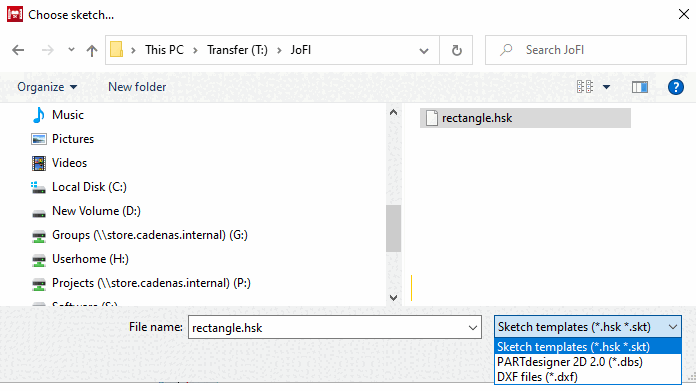
With this command you can insert a sketch in the currently opened one or replace the current one. These sketches may have been created either...
Select the desired file in the Select sketch [Choose sketch...] dialog box.... [Choose sketch...]
Depending on the file type the respective window is opened (see Section 7.9.3.2.1, “ " dialog box (*.dbs, *.skt or *.hsk files) ”) or Section 7.9.3.2.2, “ DXF import " dialog box (*.dxf file) ”.
On this see Section 7.9.3.2.2, “ DXF import " dialog box (*.dxf file) ”.
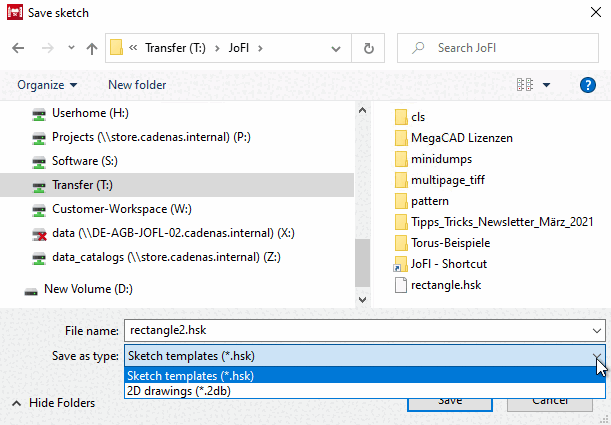
 Save sketch: Click on the button to open the dialog box of the same name.
You can save sketch templates (*.hsk) and 2D drawings (*.2db) and load them again later with
 Import Sketch [Import sketch] (see above).
The changes made since the sketch was opened are saved and the sketcher is closed.
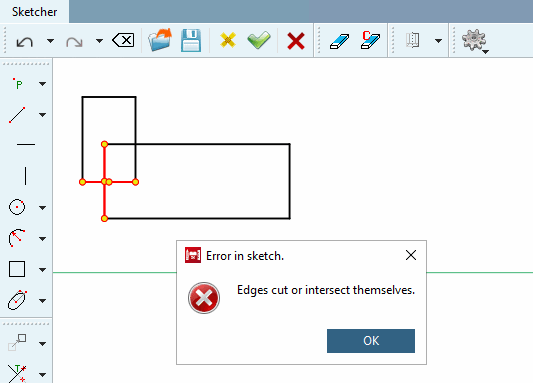
If there is an error in the sketch, the following warning is displayed. You can leave the sketcher anyway. Then the sketch is marked as auxiliary sketch and cannot be assembled.
Edges intersect or touch each other. [Edges cut or intersect themselves.] [...] The sketch is then marked as an auxiliary sketch and cannot be installed [The sketch will be marked as construction sketch and can't be used.]
If before a 3D model had been created, saving is not possible. In any case, correct the error.
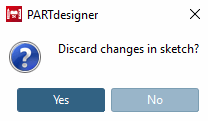
The changes made since the sketch was opened are not saved.




![Edges intersect or touch each other. [Edges cut or intersect themselves.] [...] The sketch is then marked as an auxiliary sketch and cannot be installed [The sketch will be marked as construction sketch and can't be used.]](https://webapi.partcommunity.com/service/help/latest/pages/cn/partsolutions_user/doc/resources/img/img_ca4b5109e6af4026baff15dbb63274f4.png)