

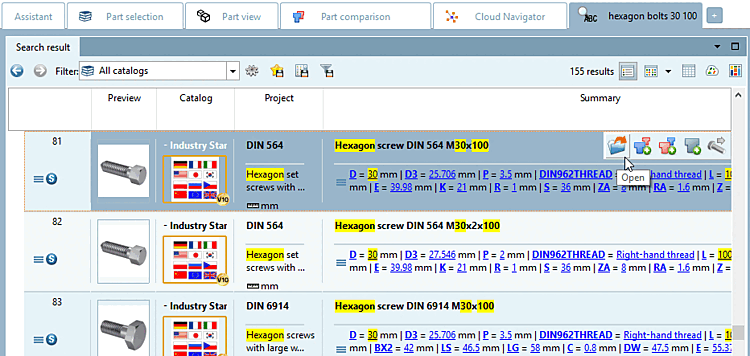
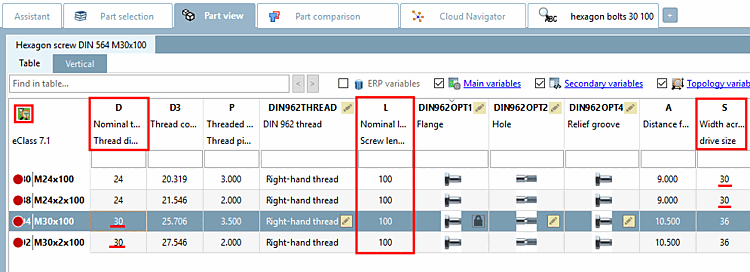
The following example shows a complete search with setting search options, result list and starting the part view. We are looking for a hexagon bolt with nominal diameter of 30 and length of 100.
Enter the following into the input field:
sechskantschraube 30 100
Set the desired setting under Search in [41] and select the setting "Search for
 individual parts [parts] ".[42]
-> The search results are listed on the Search results tab page.
Double-click on the desired characteristic line or click on the icon after mouseover
 Open.
Open.-> The view switches to the part view [Part view] with table view (default).[43]
At the top left of the search result filter on/off [Search filter on/off] icon
 you can see that the characteristics have been filtered. If you want to see all characteristics, click on the icon.
![Search with the "Full text search [Full-text search] "](https://webapi.partcommunity.com/service/help/latest/pages/cn/partsolutions_user/doc/resources/img/img_5736aa584ce344dc9997ce8f28794f73.png)
![[Tip]](https://webapi.partcommunity.com/service/help/latest/pages/cn/partsolutions_user/doc/images/tip.png)

![[Note]](https://webapi.partcommunity.com/service/help/latest/pages/cn/partsolutions_user/doc/images/note.png)
[41] Details on the various options can be found at Section 2.1.6.1.1, “ Search in...: Where? ”.
[42] "Search for individual parts" is recommended if you are looking for specific characteristics. For details, see Section 2.1.6.3, “ Search for Parts | Part families and Parts ”.
[43] You can find information on the vertical [Vertical] part view [Part view] at Section 2.1.7.2, “Determine characteristic in "Vertical" view ”.