
 |
In PARTadmin, configuration files (file extension ".cfg") are displayed and edited under category Configuration files.
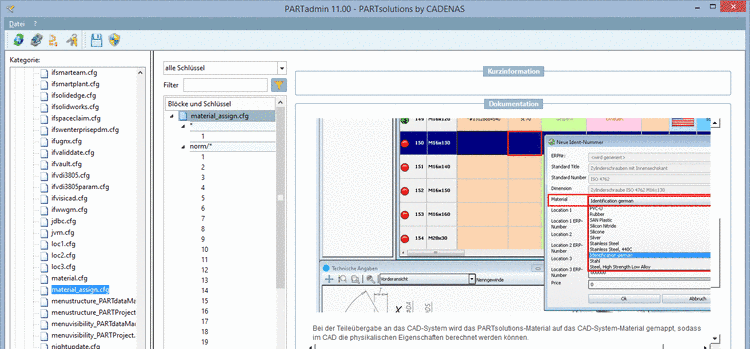
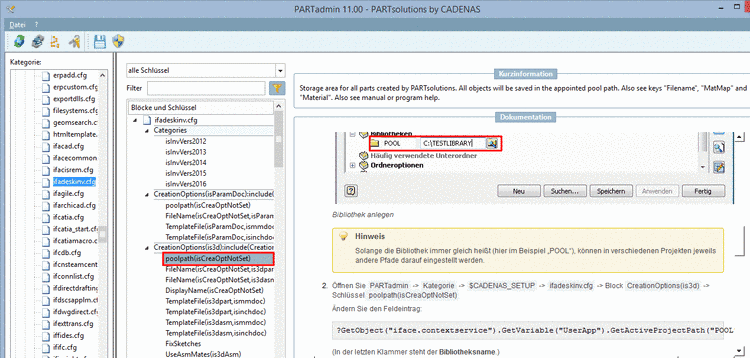
When selecting files, blocks or keys the adequate section from program help is displayed in the dialog area Documentation, in addition to Short description, if it's about more complex issues. For example, for settings of CAD interfaces, ERP settings or Tweak settings this is very helpful.
Switching between different applications is not necessary. By images, the concrete use case can be seen quickly.
Filter: Filtering helps to retain overview and more quickly to find.
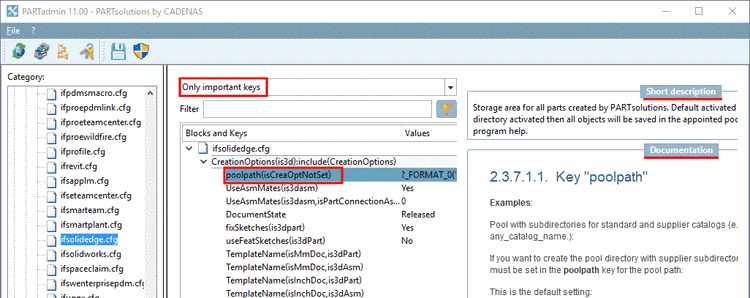
In order to ensure basic functionality, the "important" keys have to be adjusted in any case.
Using this filter you will only see changed keys.
Changes of the default configuration are saved in a second setup directory ($SITESETUP).[28] In this way you can see at a glance whether changes have been performed at all and if, how many and which exactly.
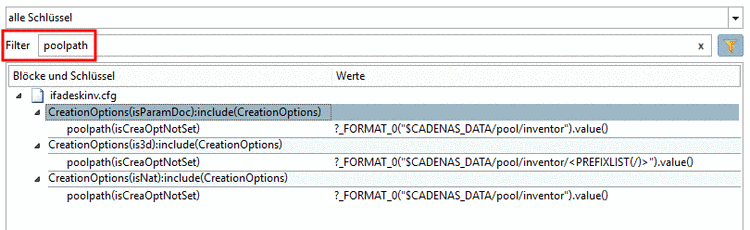
You can filter the display with a search term. Enter the term in the input field Filter.
The names of configuration files, blocks, keys and key values are searched. The search term may occur at any place (beginning, end, in the middle).
Start filtering with a click on the icon
 or press "Enter". With a click on the 'x' you
can clear the input field.
or press "Enter". With a click on the 'x' you
can clear the input field.
![[Tip]](https://webapi.partcommunity.com/service/help/latest/pages/cn/partwarehouse/doc/images/tip.png)
The user interface under Category -> Configuration files (V2) is subdivided as follows:
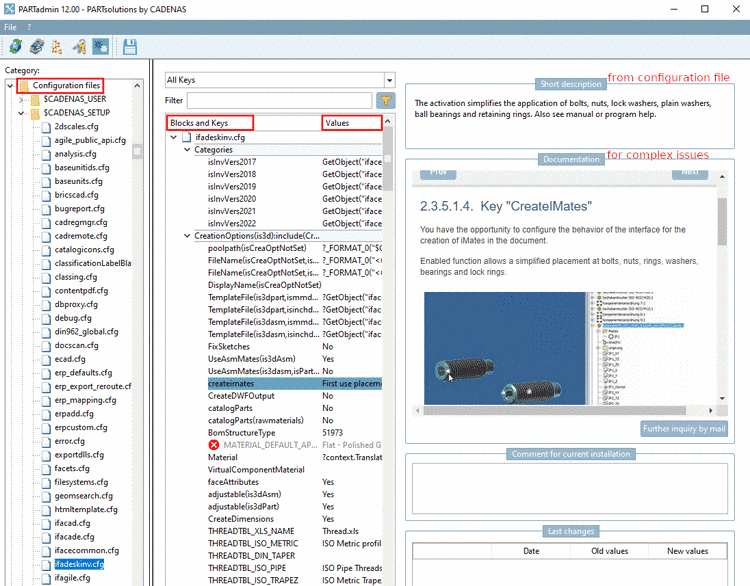
The configuration files are subdivided in different directories
 by their storage path, which is represented by an
environment variable:
by their storage path, which is represented by an
environment variable:Once you open a directory you can see the corresponding configuration files
 .
.Once a configuration file
is selected in the tree, the corresponding
blocks,
keys
and values are displayed in the middle dialog
area.On the right side you can see the following dialog areas:
In the dialog area Short description you can find a short help text for the selected file, block, key or key value.
In the dialog area Documentation, for more complex context, the respective section of the documentation is displayed. Otherwise this area remains empty.
Comment for current installation
The dialog area Comment for current installation is for comments on changes (e.g. reason of change)
Entries are saved in the SITESETUP directory under
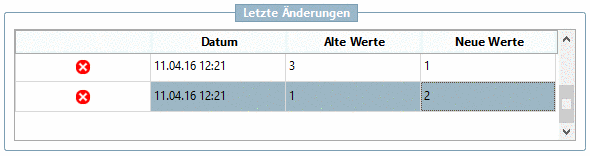
$CADENAS_SITESETUP/configEditorUserIo.xml[29].In the dialog area Last changes the last value changes of the selected key are listed with their date.
With a click on
 an entry can be removed. When double-clicking
on a value in the column Old values or
New values this value is set
again.
an entry can be removed. When double-clicking
on a value in the column Old values or
New values this value is set
again.Entries are saved in the SITESETUP directory under
$CADENAS_SITESETUP/configEditorUserIo.xml.[30]
![[Note]](https://webapi.partcommunity.com/service/help/latest/pages/cn/partwarehouse/doc/images/note.png)
[28] Using this filter requires the activation of $SITESETUP. On this see Section 1.7.6, “ $CADENAS_SITESETUP” in PARTsolutions - Administration Manual.
[29] Changes in files of the User directory are not relevant.
[30] Changes in files of the User directory are not relevant.