
 |
Parts can be marked with icons and tooltips for the Part selection in various ways and alternatives can possibly be offered.
The concept for Replaced parts, Parts with "End of Life" date and Parts to avoid has been revised.
Overview on the differentiation of the functions
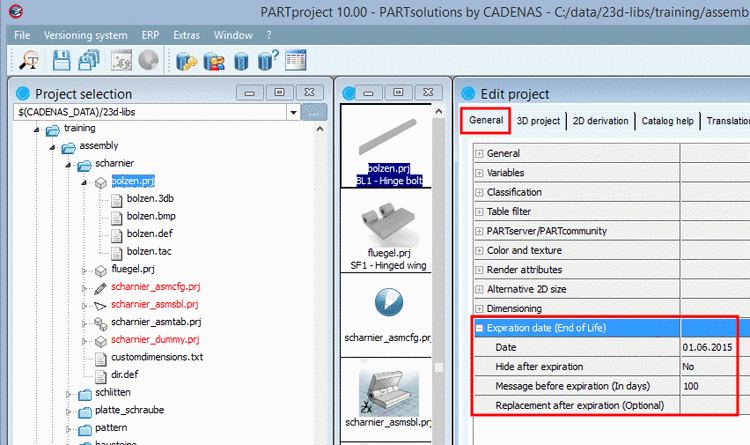
Expiration date (End of Life) is inserted in the catalog by modelling and shows expiring or expired and replaced parts.
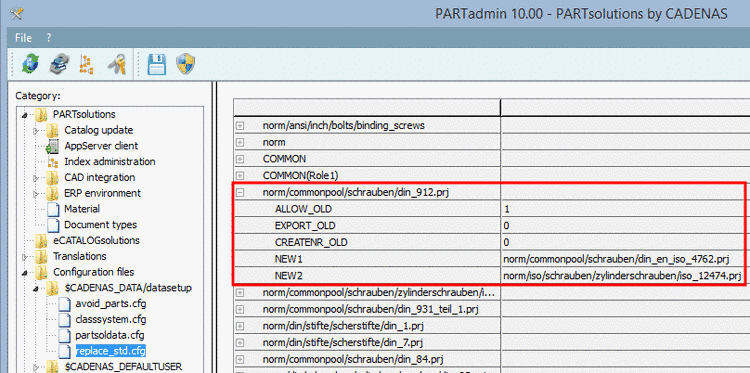
Replace parts is set by the Admin or the standardization department in the configuration file
$CADENAS_DATA/datasetup/replace_std.cfgand also shows expiring or expired and replaced parts.In this way, company internal, additional replacements can be defined outside of catalog projects.
With V10 Replace parts and Expiration date (End of Life) receive the same functionality in the user interface. (For users it makes no difference why a part is expired.)
In PARTdataManager, in the characteristic attribute table, in the respective lines an icon is displayed. You can enable or disable the function via toolbar icon
 .
.Default is enabled so that all project lines are displayed.
If you disable the function, lines with icon are hidden.
![[Note]](https://webapi.partcommunity.com/service/help/latest/pages/cn/partwarehouse/doc/images/note.png)
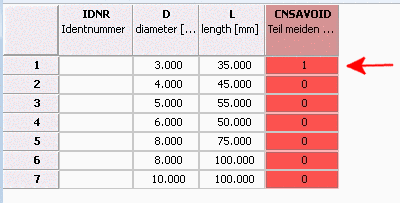
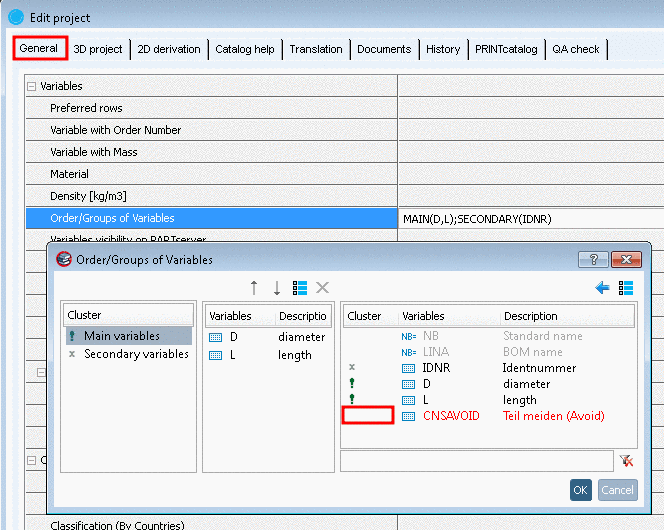
Note With V10 the function is controlled by a special column CNSAVOID in the characteristic attribute table. (Not visible in PARTdataManager. On this see below.)
Control via configuration file
$CADENAS_DATA/datasetup/avoid_parts.cfgis not used anymore!
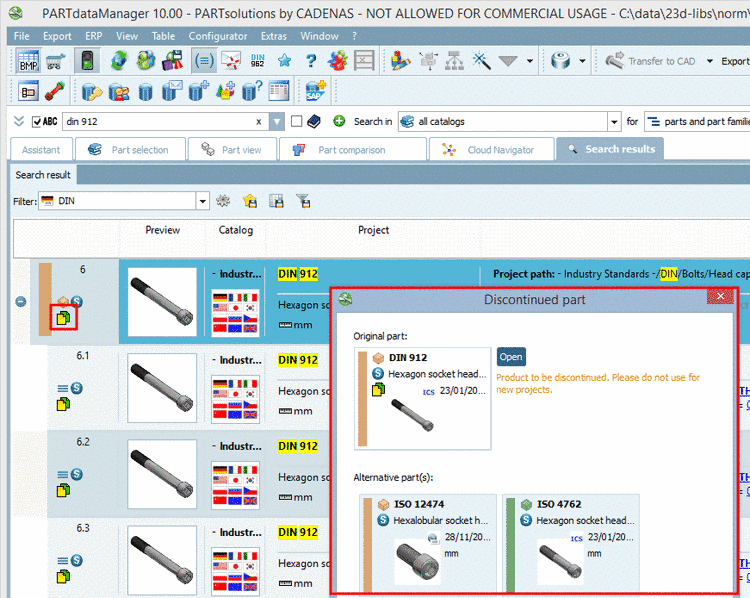
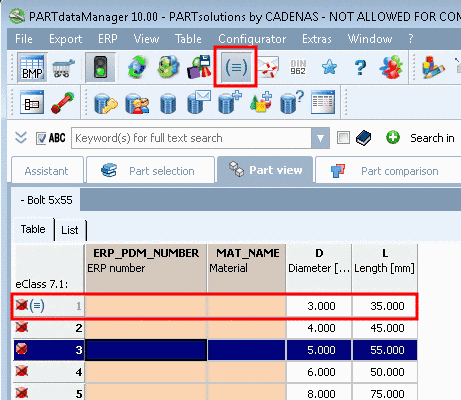
Common icons, dialog boxes and tooltips for Replace parts and Expiration date (End of Life)
With V10 replaced and expired parts get the same functions in the user interface.[35]
The past dialog for Replace parts has been revised. Now you can easily recognize where to open the original part and where alternative parts. The buttons are directly beside the parts rather than at the end of the dialog.
Already in the index tree and in the list of search results you can get information when moving the mouse over the icon.
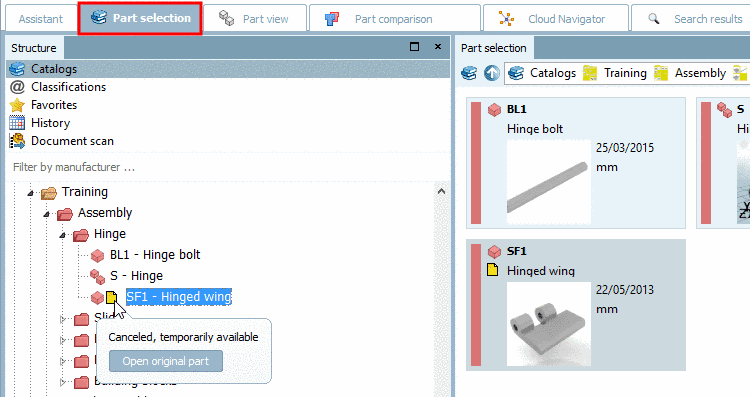
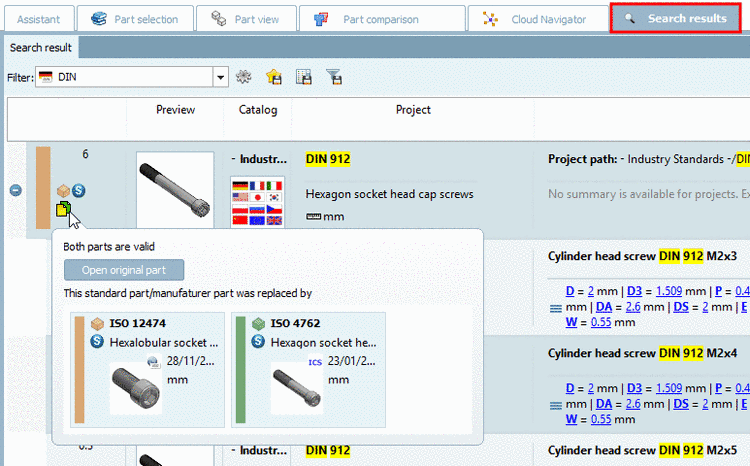
Icons for Replace parts and Expiration date (End of Life)
| Old standard locked and replaced by at least one other part family | |
| Old standard is replaced by at least one other part family, but temporarily still available |


Settings for Replace parts and Expiration date (End of Life)
The two following figures show exactly where to perform the settings.
PARTadmin -> Category "Configuration files" -> $CADENAS_DATA/datasetup -> replace_std.cfg
Details on this can be found under Section 1.7.3.3, “ replace_std.cfg ” in PARTsolutions - Administration Manual.
PARTproject -> Dialog area Edit project -> Tabbed page General -> Expiration date (End of Life)
Details on this can be found under Section 5.9.2.12, “Menu item Expiration date (End of Life) ” in eCATALOGsolutions Manual.
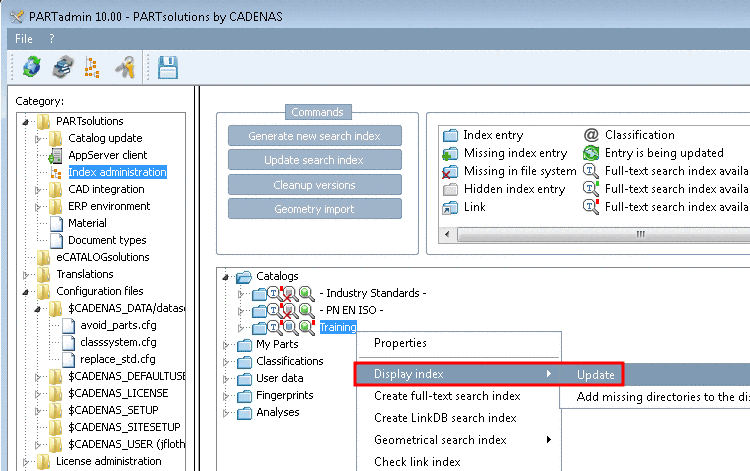
Settings for Parts to avoid are made in the catalog.
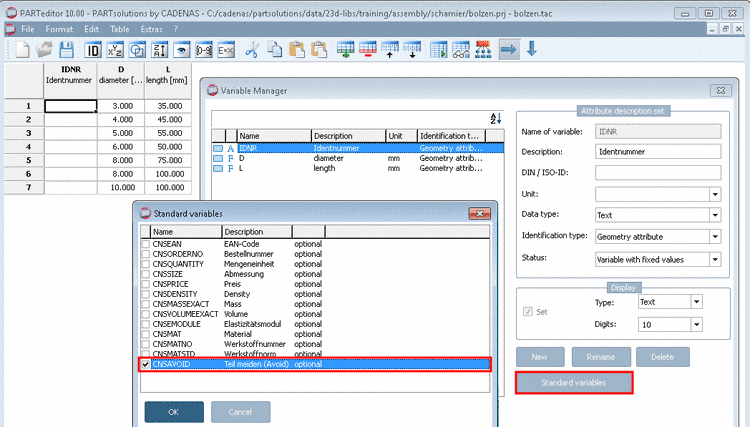
[35] Settings for Replace parts concern the administration or standardization department of the company, which means are done inside the company. An expiration date is set by the catalog manufacturer. For the user in PARTdataManager it makes no difference.