3.5.4.2.1. Revit Family Template

To be able to use components (such as valves / fittings) in planning systems (e.g.: Revit) accordingly it is required to set specific properties in the Revit classification.

For this first the adequate Revit Family Template has to be set:

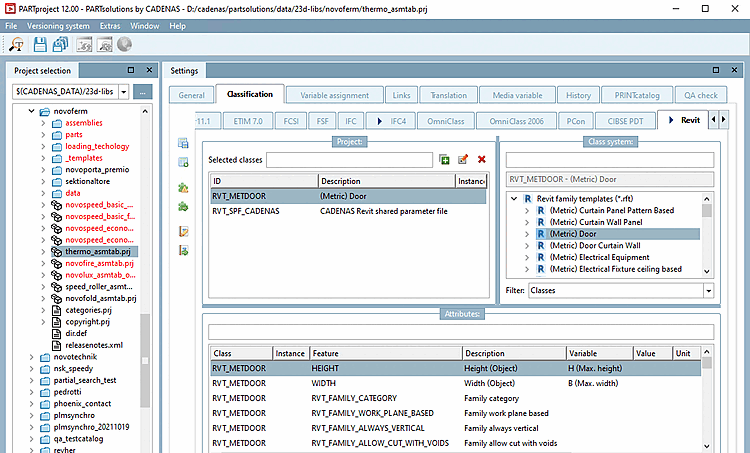
  1. Start PARTproject and in the directory structure, go to the part where the adequate class shall be assigned.

  2. Open the tabbed page Classification and there, the tabbed page Revit.

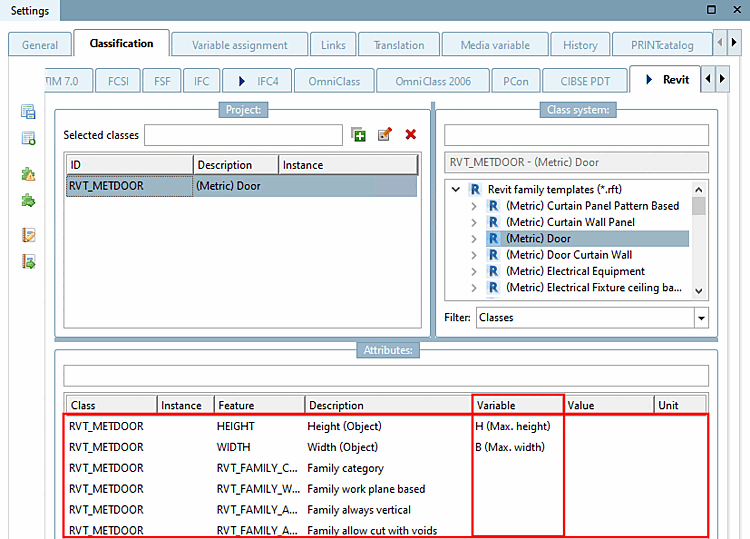
    Example: Assign "(Metric) Door"

    Example: Assign "(Metric) Door"

  3. Select the class. (In above figure (Metric) Door has been selected exemplarily.)

    [Note]Note

    If there is no selection, the system will use the class (Metric) Generic Model as default and place the object with the global orientation (X/Y/Z), like it has been created in eCATALOGsolutions (no rotation / placing).

    Listing of all currently available Revit family templates (*.rft):
    • (Metric) Curtain Panel Pattern Based

    • (Metric) Curtain Wall Panel

    • (Metric) Door

    • (Metric) Door Curtain Wall

    • (Metric) Electrical Equipment

    • (Metric) Electrical Fixture ceiling based

    • (Metric) Electrical installation

    • (Metric) Furniture

    • (Metric) Furniture System

    • (Metric) Generic Model

    • (Metric) Generic Model adaptive

    • (Metric) Generic Model ceiling based

    • (Metric) Generic Model face based

    • (Metric) Generic Model floor based

    • (Metric) Generic Model roof based

    • (Metric) Generic Model wall based

    • (Metric) Lighting fixture

    • (Metric) Lighting fixture ceiling based

    • (Metric) Lighting fixture wall based

    • (Metric) Mechanical Equipment

    • (Metric) Mechanical Equipment ceiling based

    • (Metric) Mechanical Equipment wall based

    • (Metric) Plumbing Fixture

    • (Metric) Plumbing Fixture wall based

    • (Metric) Specialty Equipment

    • (Metric) Structural Framing - Beams and Braces

    • (Metric) Structural Framing - Complex and Trusses

    • (Metric) Window

    • (Metric) Window Curtain Wall

    [Note]Note

    Assigning only ONE Family Template per eCATALOGsolutions project is allowed.

Each template of the Revit classification has its specific attributes.

Most templates in Revit or classes in PARTsolutions have the following 5 attributes in the Revit classification. Values for width and height, for example, can be added.

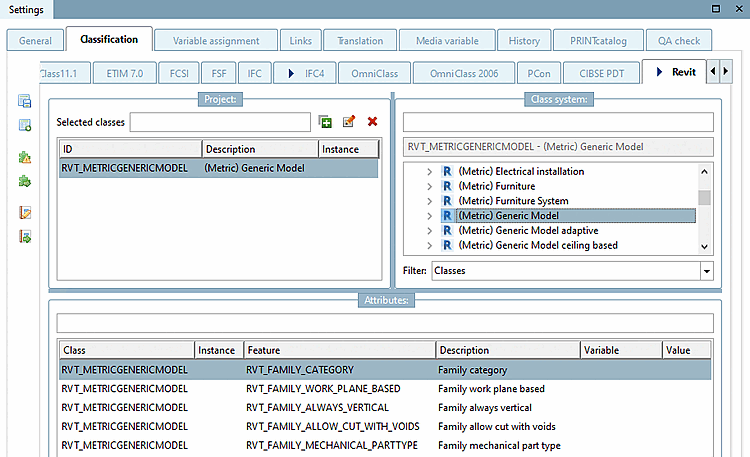
This figure shows the attributes of the Revit class "(Metric) Generic Model"

This figure shows the attributes of the Revit class "(Metric) Generic Model"

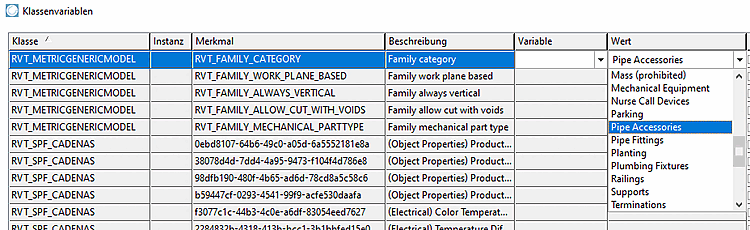
  • Family category: The family category defines which class/category a part will have in Revit.

    Values of Family category

    Values of Family category

    In the list field, select the desired value.

    • Air Terminals

    • Cable Tray Fittings

    • Casework

    • Columns

    • Communication Devices

    • Conduit Fittings

    • Data Devices

    • Doors

    • Duct Accessories

    • Duct Fittings

    • Electrical Equipment

    • Electrical Fixtures

    • Entourage

    • Fire Alarm Devices

    • Furniture

    • Furniture Systems

    • Generic Models

    • Lighting Devices

    • Lighting Fixtures

    • Mass (prohibited)

    • Mechanical Equipment

    • Nurse Call Devices

    • Parking

    • Pipe Accessories

    • Pipe Fittings

    • Planting

    • Plumbing Fixtures

    • Railings

    • Supports

    • Terminations

    • Security Devices

    • Site

    • Specialty Equipment

    • Sprinklers

    • Structural Columns

    • Structural Connections

    • Structural Foundations

    • Structural Framing

    • Structural Stiffeners

    • Telephone Devices

    • Windows

  • Family work plane based: ... defines, that the object can be placed by using the 3 default planes

    Recommendation is "1"

  • Family always vertical: ... defines if an object shall always be placed "vertically".

    Recommendation is "0"

  • Family allow cut with voids: 0/1 - normally empty

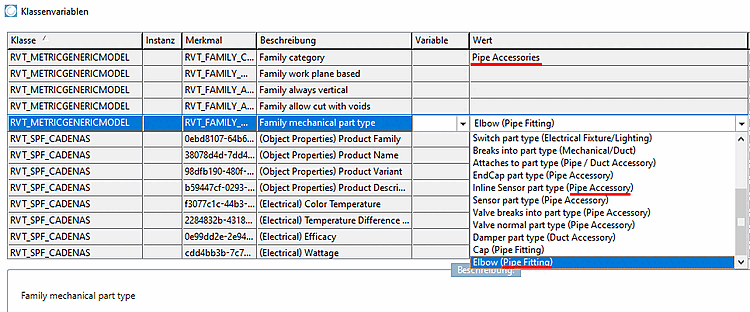
  • Family mechanical part type:

    This property sets the functionality of the component e.g. when being used in a piping specification. There are pre-defined values, which are set according to the correct "Family category" (the category is described in brackets).

    The value in brackets show for which categories the value is valid.

    The value in brackets show for which categories the value is valid.

    In the list field, set the desired value.

    • Panel board part type (Electrical)

    • Equipment switch part type (Electrical)

    • Other panel part type Electrical

    • Switch board part type (Electrical)

    • Transformer part type (Electrical)

    • JunctionBox part type (Lighting/Electrical Fixture/Fire Alarm/Communication)

    • Normal part type (Pipe, Communication, Fire Alarm, Lighting, Mechanical)

    • Switch part type (Electrical Fixture/Lighting)

    • Breaks into part type (Mechanical/Duct)

    • Attaches to part type (Pipe / Duct Accessory)

    • Inline Sensor part type (Pipe Accessory)

    • Sensor part type (Pipe Accessory)

    • Valve breaks into part type (Pipe Accessory)

    • Valve normal part type (Pipe Accessory)

    • Damper part type (Pipe Accessory)

    • Cap (Pipe Fitting)

    • Elbow (Pipe Fitting)

    For the MEP[10]-field, mainly the following two values are used:

    • Pipe Accessory

    • Pipe Fitting (e.g. T-pieces, elbows, etc.)

    Example: With valves that shall break a pipe in two sections and connect with the pipe, the recommendation is to use Valve breaks into part type (Pipe Accessory).

    A detailed reference (which part type creates which function) is available on the Autodesk help-site:

    https://knowledge.autodesk.com/support/revit-products/learn-explore/caas/CloudHelp/cloudhelp/2018/ENU/Revit-Customize/files/GUID-54F9DD0A-6F46-4B52-8F58-B8FA630F14EA-htm.html
Revit family templates (*.rft) with corresponding attributes :

  • (Metric) Generic Model

    • Family category

    • Family work plane based

    • Family always vertical

    • Family allow cut with voids

    • Family mechanical part type

  • (Metric) Lighting fixture

    • Family category

    • Family work plane based

    • Family always vertical

    • Family allow cut with voids

    • Photometric file

    • Family mechanical part type

    Details on this can be found under Section 3.5.4.2.1.1, “Revit: Load IES files in RFA (lighting fixtures)”.

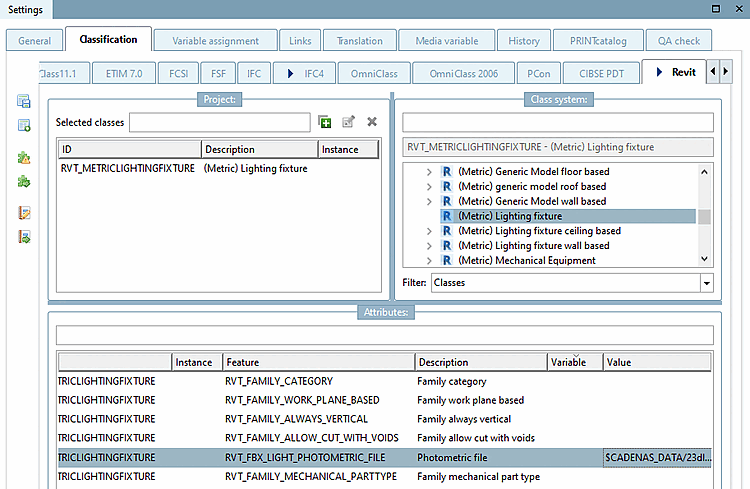
    The figure shows the attributes of the Revit class "(Metric) Lighting fixture"

    The figure shows the attributes of the Revit class "(Metric) Lighting fixture"

  • (Metric) Door

    • Height (Object)

    • Width (Object)

    For doors width and height attributes define the shell dimension.

    • Wall thickness – incl. plaster (as the door frame cannot react to the wall-thickness)

    • Wall opening width and height (must be wider and higher than the door leaf width/height because of mounting spaces) Common values for added spacing are: +35mm width and +17.5mm height. These values must be worked out and finalized with the manufacturer in the project workshop.

    • Door leaf width and height

    [Important]Important

    Apart from assignments of fixed values via list field selection, normally references to table variables of the characteristic attribute table should be set - if possible (see following figure, column Variable).

    As an alternative also setting of a fixed value is possible (see following figure, column Value).

    • Family category

    • Family work plane based

    • Family always vertical

    • Family allow cut with voids

    The figure shows the attributes of the Revit class "(Metric) Door"

    The figure shows the attributes of the Revit class "(Metric) Door"

  • (Metric) Window

    • Height (Object)

    • Width (Object)

    For windows width and height attributes define the shell dimension.

    • Family always vertical

    • Family allow cut with voids

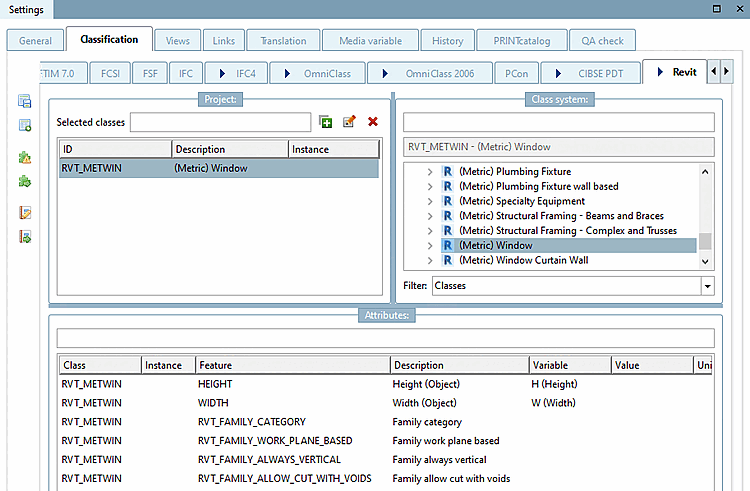
    The figure shows the attributes of the Revit class "(Metric) Window"

    The figure shows the attributes of the Revit class "(Metric) Window"


[10] MEP: Mechanical, Electrical, and Plumbing