

- 1.1.1.3.2.10.1. Variable management: Transposed rows / columns in table export
- 1.1.1.3.2.10.2. Variable management: Filter for projects based on their visibility
- 1.1.1.3.2.10.3. Variable management: Option to display link projects
- 1.1.1.3.2.10.4. Variable management: Option to display variables in vertical tables without selection menu
- 1.1.1.3.2.10.5. Variable management: Deleting variables
- 1.1.1.3.2.10.6. Variable management: Report for algorithm import
- 1.1.1.3.2.10.7. Variable management: Visual changes
- 1.1.1.3.2.10.8. Variable management: General changes
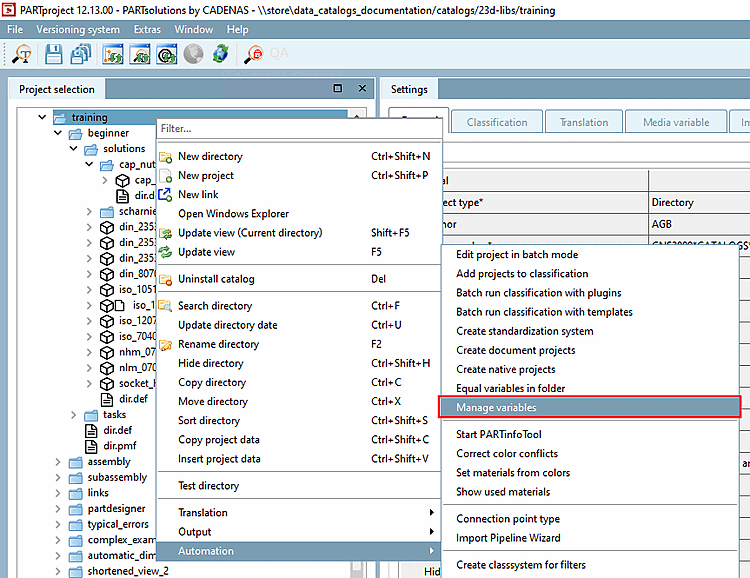
Via the tab Project selection > Context menu command Automation > Manage variables, the dialog window Manage variables [Variable Management] opens. There are some new features here, which are described below:
The option Transpose columns and rows has been added to the table export of the variable management [Variable Management] and PARTdesigner. This ensures that very large amounts of data remain as clear as possible.
Not transposed means one variable per column. Transposed means that columns and rows are swapped and there is one variable per row. This is supported for CSV and XLSX files.
![Table export from the variable management [Variable Management]](https://webapi.partcommunity.com/service/help/latest/pages/cn/partsolutions_user/doc/resources/img/img_82381135963946a5810aa1215668b720.png)
You can find more detailed information on exporting tables in the chapter Section 7.12.17, “ Save as CSV file ” in eCATALOG 3Dfindit.
There is now a project filter in the variable management. This allows you to display either Visible projects only [Only visible projects], Hidden projects only [Only hidden projects] or All projects.
![Project filter in the variable management [Variable Management]](https://webapi.partcommunity.com/service/help/latest/pages/cn/partsolutions_user/doc/resources/img/img_32fd6e25b96c4e01bd4554a684752760.png)
Further information on variable management can be found in the Section 5.8.2.1.20.8, “ Manage variables ” in eCATALOG 3Dfindit chapter.
If the option is activated, linked projects are also loaded. These linked projects can be located anywhere in the catalog, i.e. also outside the initial selection. This can result in projects being displayed in the file paths that do not even belong to the actual selection. The visibility of linked projects depends on the visibility of the link.
![Resolve links with project filter [Project filter] Example](https://webapi.partcommunity.com/service/help/latest/pages/cn/partsolutions_user/doc/resources/img/img_d0d56445a93e494982f8bf0d14c5a07c.png)
Find out more about the variable management functions in the Section 5.8.2.1.20.8, “ Manage variables ” in eCATALOG 3Dfindit chapter.
You can now easily set the visibility of the selection menu in a vertical table of all variables of a catalog or project via the variable management [Variable Management].
Right-click on a catalog or a project > Automation > Manage variables. There you can activate the checkbox in the column Without list selection in vertical table.
![[Note]](https://webapi.partcommunity.com/service/help/latest/pages/cn/partsolutions_user/doc/images/note.png) | Note |
|---|---|
As the name of the line is very long, most of it is hidden. You can see the entire name as a tooltip via mouseover. | |
![Variable management [Variable Management]](https://webapi.partcommunity.com/service/help/latest/pages/cn/partsolutions_user/doc/resources/img/img_52c140a9115641e6ba9700c6727c76b1.png)
Further information can be found in the chapter Section 5.9.2.3.1, “ Variables without list selection in vertical table ” in eCATALOG 3Dfindit.
With imported projects, it sometimes happens that variables in several projects are named incorrectly or impermissibly. For example, variables with "," or other special characters in the name.
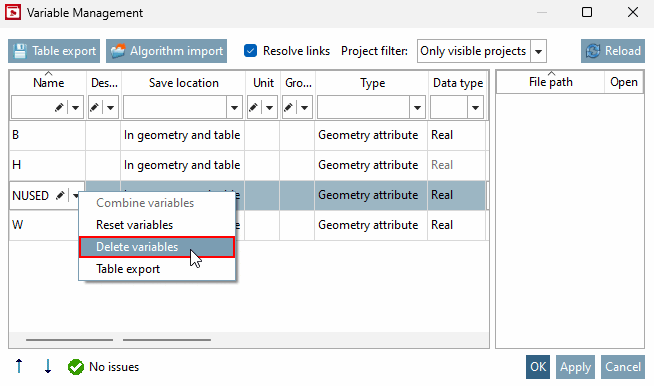
You can now delete variables from the variable management [Variable Management]. Right-click on the variable that you want to delete. After a confirmation prompt, it will be removed, provided there are no dependencies.
![[Caution]](https://webapi.partcommunity.com/service/help/latest/pages/cn/partsolutions_user/doc/images/caution.png) | Caution |
|---|---|
If one or more dependencies exist, a warning message appears first. The variable can still be removed, but all projects containing this variable may then be defective! | |
Find out more about the variable management [Variable Management] functions in this chapter: Section 5.8.2.1.20.8, “ Manage variables ” in eCATALOG 3Dfindit.
When importing algorithms [Algorithm import] in the variable management [Variable Management], you can now also output a report that writes all changes to a CSV file.
To do this, click on Import algorithm [Algorithm import] in the variable administration [Variable Management] and select a CSV file for the report. As soon as you click on , you will see in the history whether the import was successful. You will also receive a status message indicating whether there have been any changes or not. If nothing has been changed, the CSV created is empty.
![Import algorithm [Algorithm import]](https://webapi.partcommunity.com/service/help/latest/pages/cn/partsolutions_user/doc/resources/img/img_72e77e59df16498ba6db35e67b223770.png)
Find out more about the variable management [Variable Management] functions in the Section 5.8.2.1.20.8, “ Manage variables ” in eCATALOG 3Dfindit chapter.
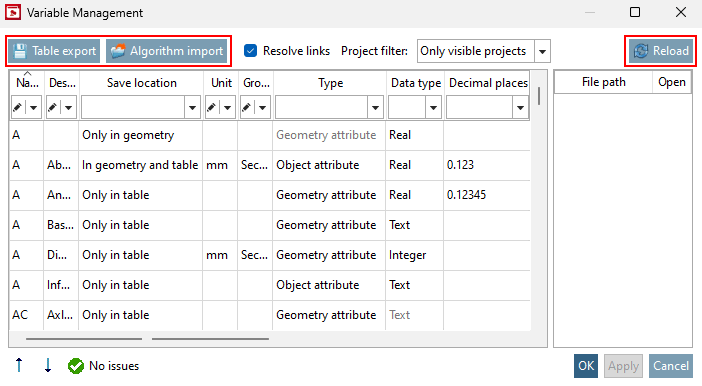
The individual buttons have now been adjusted so that they are more visible.
Further information on this can be found in the Section 5.8.2.1.20.8, “ Manage variables ” in eCATALOG 3Dfindit chapter.
In addition to the major changes to variable management [Variable Management], there are also the following minor changes:
Long column names are not displayed in full if there is not enough space within the column. If this is the case, a tooltip with the entire column name is displayed on mouseover.
For this reason, all column names now have a corresponding tooltip.
The behavior of the headers has been adjusted. The columns retain an automatic width unless you adjust the width manually.
The Combine variables dialog box is now just as wide as the Variable management [Variable Management] table.
Find out more about the variable management [Variable Management] functions in the Section 5.8.2.1.20.8, “ Manage variables ” in eCATALOG 3Dfindit chapter.